An image resizer changes the pixel dimensions of a photo so it fits a specific box, whether that box is a website template, a printed page, or an upload form that rejects anything over 200 KB. The DocPivot Image Resizer handles all three in one pass, inside your own browser tab rather than on a server. Set a size by pixels, by percentage, or by social media preset, and the finished file is written straight back to your device.
What DocPivot Image Resizer Does
The tool decodes each image to a canvas, resamples it to the size you asked for, and re-encodes it in the format you choose. It accepts JPEG, PNG, WebP, GIF, BMP, AVIF, SVG, and JFIF, and takes up to 30 files per batch. Every file gets its own engine instance, so one corrupted photo cannot take down the other twenty-nine. HEIC is not on that input list, so iPhone exports go through HEIC to JPG first.
DocPivot splits the size control into three because people ask for sizes in three different ways. Some know the exact pixel dimensions. Some want the picture at half its current size. Some know only that they need a LinkedIn banner and not what number that translates to.
Setting an exact size
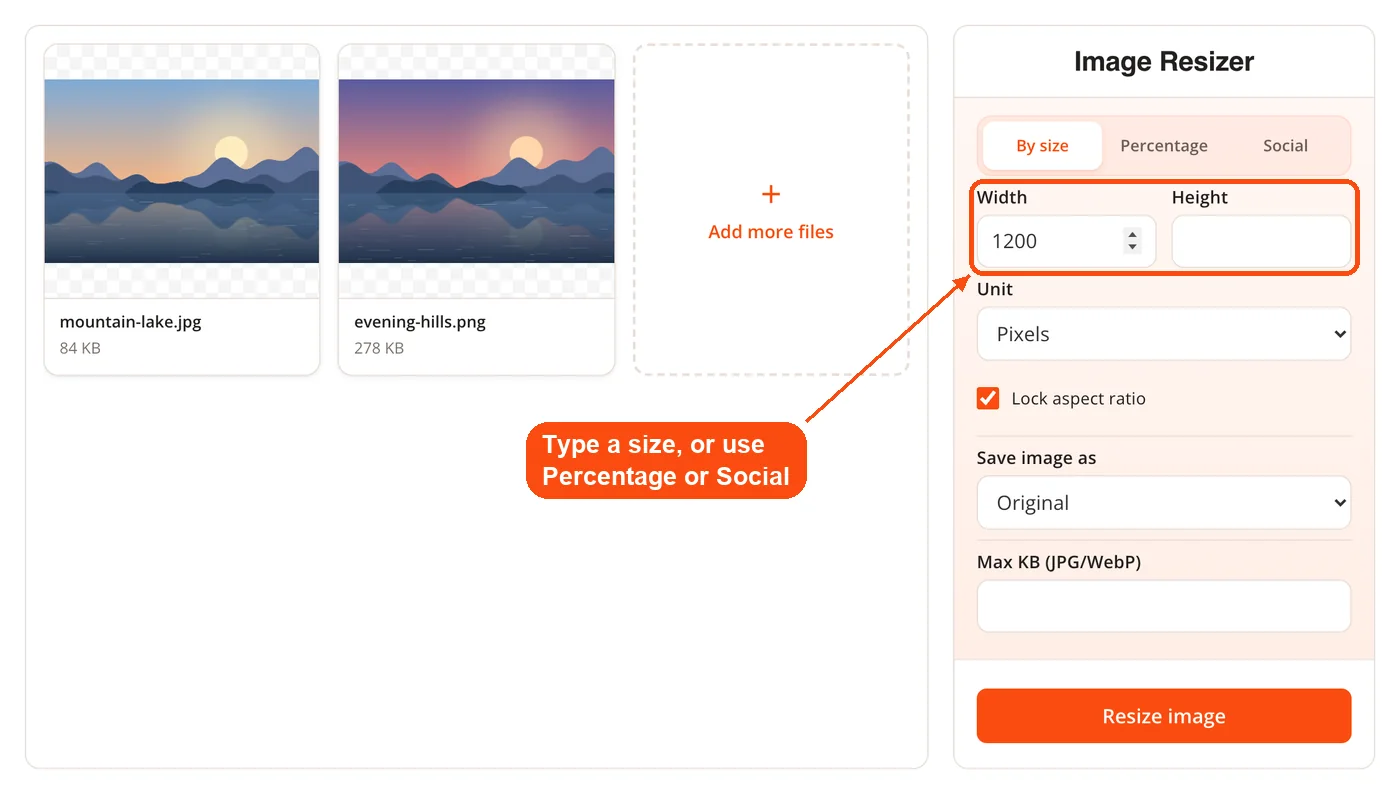
The By Size control takes width and height in pixels, inches, centimeters, or millimeters, converting print units at 96 pixels per inch. For a 4 inch by 6 inch photo you type 4 and 6 rather than working out 384 by 576 yourself.
Scaling by percentage
The Percentage control resolves against the source dimensions and is capped at 200 percent. Halving a folder of camera exports is faster than typing dimensions for each one, and the ratio holds across files that started at different sizes.
Using a social preset
Picking a platform and a preset writes the correct numbers into the width and height fields and then leaves them editable. That last part matters more than it sounds. Most preset menus apply a size and lock you out of it, so a request like "Facebook cover, but half the height" turns into a lookup and a second tool. Here it is one edit in a box that is already filled in.
How DocPivot Image Resizer Works
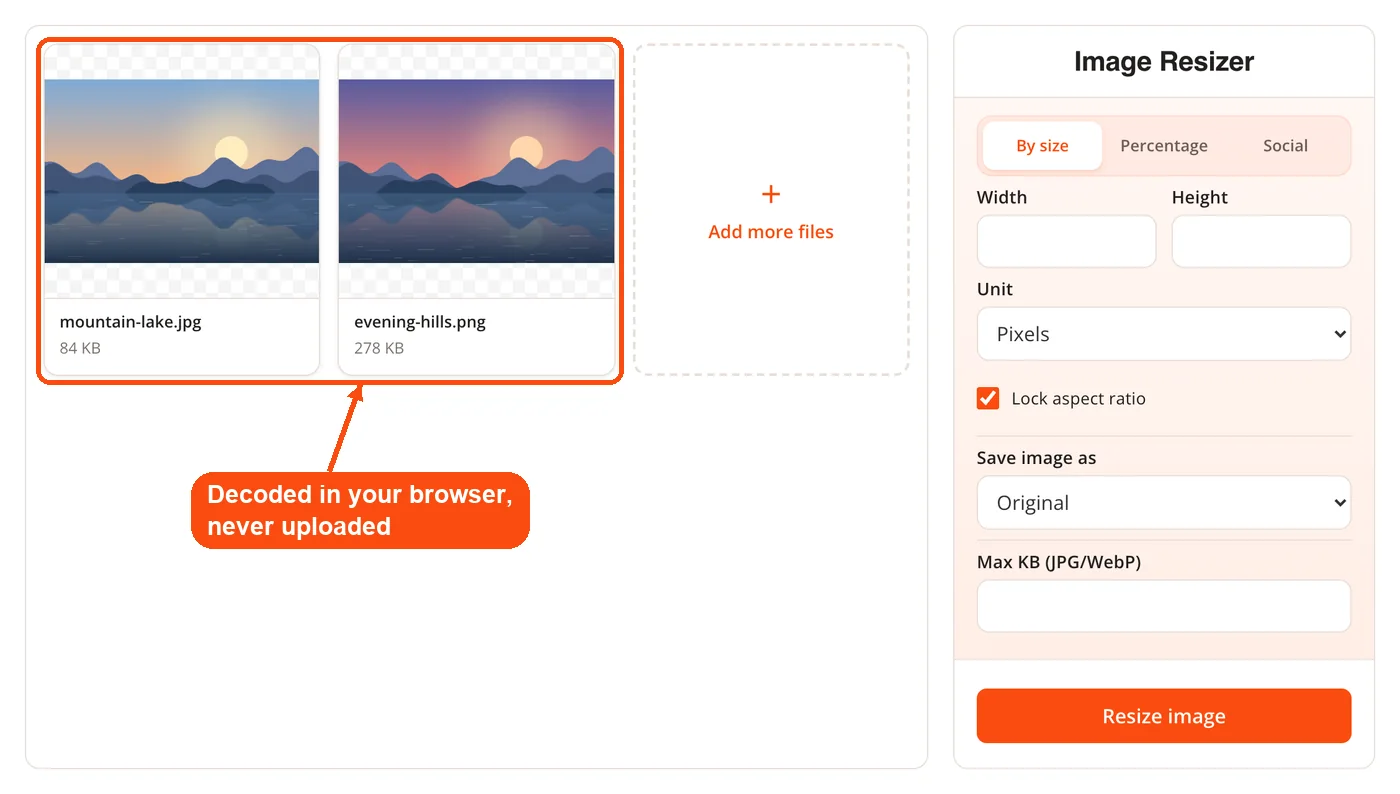
- Decode. Files are read locally and decoded to a canvas through the image loader. No network request carries your picture anywhere.
- Resolve the target size. The tool works out the destination box from whichever control you used, converting print units and percentages into pixel dimensions.
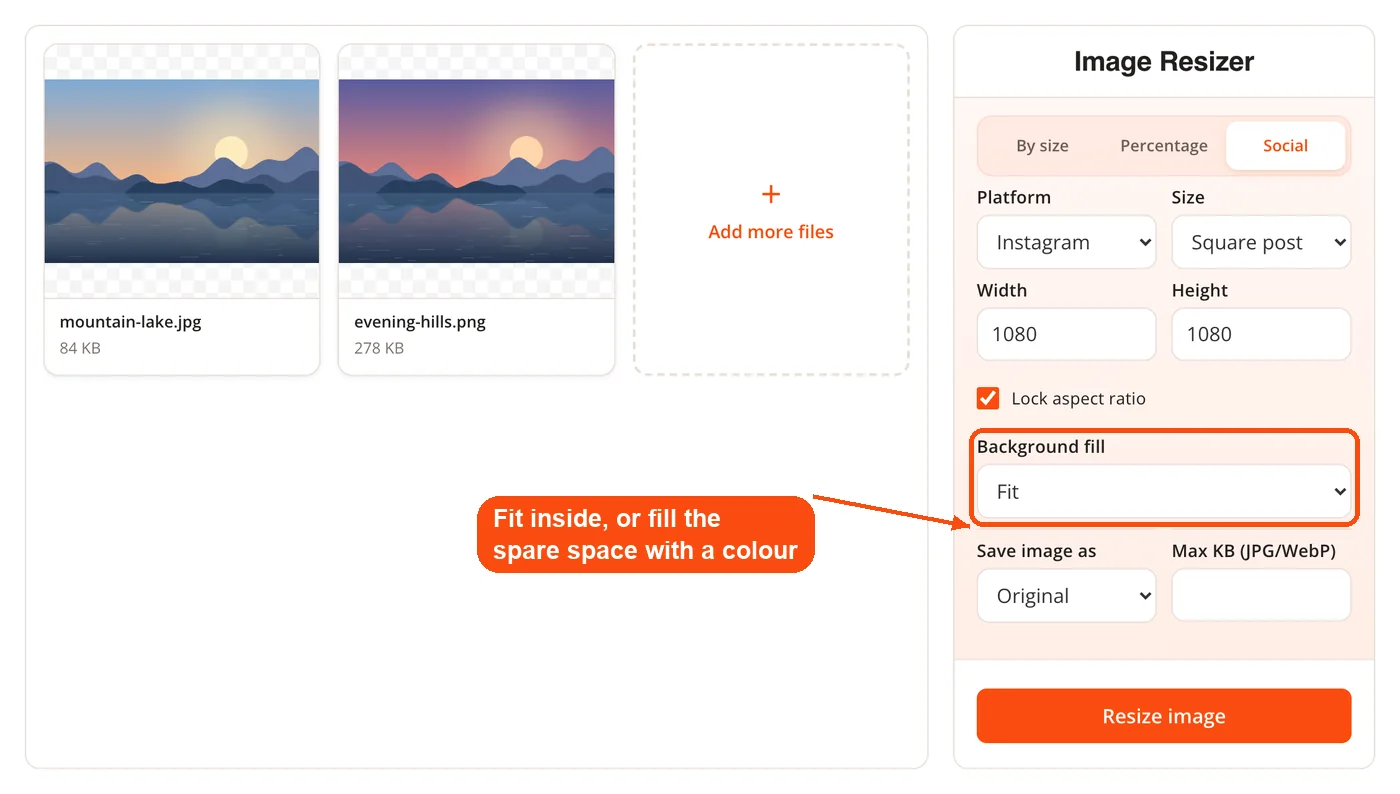
- Fit or fill. With the aspect ratio locked, the image is fitted inside the box so nothing stretches. The background fill setting then decides what happens to any leftover space.
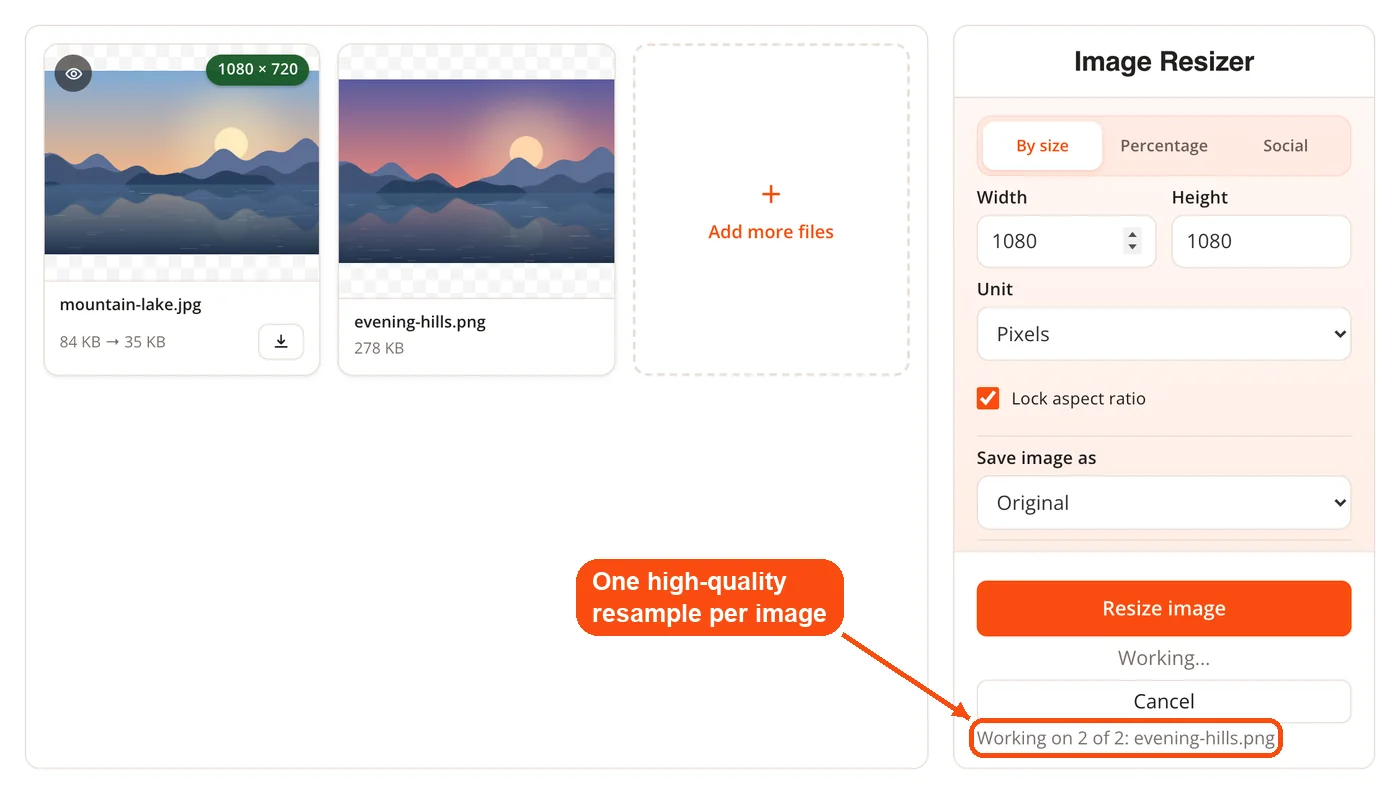
- Resample. One high quality draw handles the scaling, using the canvas smoothing quality setting rather than a stepped halving chain.
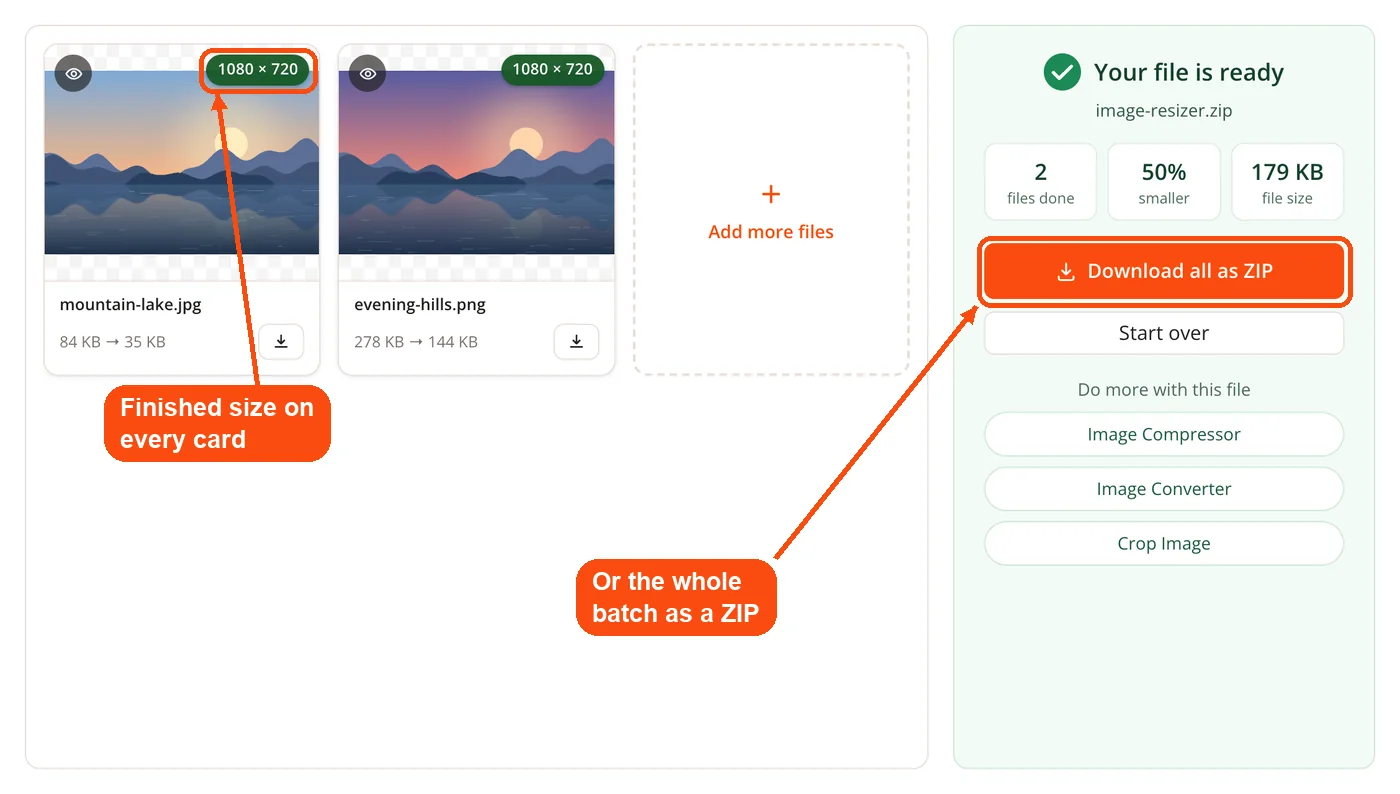
- Encode and hand back. Output keeps the original format unless you pick JPG, PNG, or WebP. Each result card shows the finished dimensions, and a whole batch can be taken as one archive.
Fit, Fill, and the Padding Problem
Fitting and filling produce different files, and that difference is why so many uploads get rejected. Fit preserves the aspect ratio and returns whatever size results, so a landscape photo asked for a 1080 by 1080 square comes back as 1080 by 720: correctly proportioned, still the wrong size.
The background fill setting solves this. Choosing white, black, or transparent centers the fitted image on a canvas of the exact dimensions you requested and pads the short edge. You get a true 1080 by 1080 file with no stretching and no cropping. Transparent padding requires a format that supports an alpha channel, so PNG or WebP rather than JPG.
Unlocking the aspect ratio is the third option, and the image then stretches to fill the box exactly. That is occasionally right for a texture and almost never right for a photograph of a person.
Social Media Size Presets
The preset library covers 24 sizes across 7 networks:
| Platform | Presets |
|---|---|
| Profile 170 square, Cover 851 x 315, Post 1200 x 630, Story 1080 x 1920, Event 1920 x 1005 | |
| Profile 320 square, Square 1080, Portrait 1080 x 1350, Landscape 1080 x 566, Story 1080 x 1920 | |
| X (Twitter) | Profile 400 square, Header 1500 x 500, Post 1200 x 675 |
| Profile 400 square, Banner 1584 x 396, Post 1200 x 627 | |
| YouTube | Profile 800 square, Channel art 2560 x 1440, Thumbnail 1280 x 720 |
| Profile 165 square, Pin 1000 x 1500, Board cover 600 square | |
| TikTok | Profile 200 square, Video cover 1080 x 1920 |
Pair a preset with a padded background when a platform enforces exact dimensions, and with Fit when it only sets a maximum. For anything that needs cropping rather than padding, DocPivot Crop Image is the better first step, and the cropped result can be resized afterward.
Setting a Target File Size in KB
The target KB field caps output weight without asking you to guess at a quality slider. Enter a number and the encoder runs a binary search for the highest quality that still fits under your limit. That is the difference between hitting a 100 KB requirement on the first try and exporting the same photo five times at descending quality values.
Encoding uses MozJPEG and libwebp compiled to WebAssembly rather than the browser's built in canvas encoder. Those encoders produce measurably smaller files at equivalent visual quality, which means the binary search settles on a higher quality setting for any given size ceiling. For lossless PNG output there is nothing to trade, so the field is hidden when PNG is selected.
Order matters here: shrinking dimensions first and then compressing gives a better looking file at the same weight than compressing a full size image, which is why DocPivot settles both in one pass. If the dimensions are already correct and only the weight needs to come down, the dedicated Image Compressor is the more direct tool, and it is also the one that can preserve metadata.
Key Benefits of DocPivot Image Resizer
- No upload wait. Processing starts the moment a file is selected because nothing has to travel to a server first.
- Private by architecture. Sensitive images such as ID scans and unreleased product shots never leave the device.
- Exact platform sizes. Padding produces the dimensions an upload form actually checks for, not an approximation.
- Print units without math. Inches, centimeters, and millimeters convert automatically at 96 pixels per inch.
- Weight and size in one pass. Dimensions and a KB ceiling are settled together rather than across two tools.
- Batch consistency. One size setting applies across up to 30 files, and a single unreadable file does not cancel the rest.
- No account or watermark. There is no sign up step and nothing is stamped on the output.
Core Features
- Eight input formats. JPEG, PNG, WebP, GIF, BMP, AVIF, SVG, and JFIF all decode without a conversion step first.
- Three output formats. Keep the original format or switch the batch to JPG, PNG, or WebP.
- Aspect ratio lock. Toggle between proportional fitting and exact stretching.
- Background fill. Fit, white, black, or transparent padding for the leftover space.
- Editable presets. Preset dimensions land in the width and height fields and stay editable.
- Percentage cap. Enlargement stops at 200 percent to prevent obviously invented detail.
- Binary search encoding. The KB target is met by quality search rather than a fixed quality guess.
- WebAssembly encoders. MozJPEG and libwebp handle lossy output; oxipng handles lossless PNG.
- Result cards and archive export. Finished dimensions show per image, and a batch downloads as one archive.
When to Use DocPivot Image Resizer
Reach for it whenever a destination has a dimension requirement and your source file does not match it. That covers most of a normal working week.
- Preparing social assets. A campaign image needs to exist as a story, a square, and a landscape post before it can be scheduled.
- Ecommerce listings. Marketplaces reject product photos that fall outside their pixel range, and padding rescues off ratio shots.
- Government and exam forms. Portals commonly specify both dimensions and a KB ceiling in the same instruction.
- Website performance. Serving a 4000 pixel photo into an 800 pixel slot wastes bandwidth on every page view.
- Private material. Passport scans and internal documents should not travel to a third party for a trivial edit.
It is the wrong tool when weight is the only problem, when animation must survive the edit, or when EXIF has to be preserved.
Practical Workflows
Shipping a product gallery
Photographers hand over full resolution exports, and a storefront needs uniform square thumbnails. Load the batch, lock the ratio, set a square target, and choose white padding so portrait and landscape shots both land at the exact dimension. Export as WebP with a KB ceiling to keep the collection page fast. If a listing needs several crops of one shot, Image Splitter handles the division first.
Building a full social kit from one asset
Run the hero image through once per platform preset, editing fields where a campaign needs a variant. Because presets fill the boxes rather than lock them, a half height banner takes one edit. Finished assets often move on to Watermark Image for branding or Collage Maker for multi image posts.
Clearing an application portal
Exam and visa portals typically demand a fixed pixel size and a file under a stated KB number. Set the dimensions, set the KB ceiling, export as JPG, and both conditions are met in one pass. Photos taken on an iPhone arrive as HEIC and need converting before they load.
Cutting page weight on a site
Audit which images are being served larger than their display slot, then resize the batch to the real slot width and convert to a modern format. PNG to WebP and JPG to WebP handle the conversion side when the dimensions are already correct, and the Favicon Generator covers the small icon sizes a resizer is not shaped for.
Why One Resample Pass Rather Than a Stepped Chain
A common recommendation is to reduce images in repeated halving steps on the theory that it preserves detail better than a single large reduction. That was tested rather than assumed. On a 2400 by 1600 detail chart reduced to 25 percent, mean absolute Laplacian measured 237.05 for the single high quality draw against 235.43 for the stepped chain. The single pass came out marginally sharper by that measure and used fewer intermediate canvases.
That figure describes one test image at one reduction ratio and is not a universal ruling on resampling. It settled the implementation question, which is all it was run to do.
Honest Limits of DocPivot Image Resizer
Metadata is not carried across. A canvas re-encode drops EXIF, including camera settings and GPS coordinates. That is convenient for privacy but it is a loss rather than a feature. Check what a file holds with EXIF Viewer first, or strip tags deliberately with Remove Metadata from Photo.
Animated files come back untouched. A canvas holds one frame, so resizing an animated GIF or WebP would silently return a still image. The tool hands those files back unchanged instead.
Enlargement is capped at 200 percent. Upscaling invents pixels that were never captured, and the cap exists to stop that from going badly rather than to be generous.
The KB target needs a lossy format. PNG is lossless and has no quality to trade, so the field disappears when PNG is the output.
Thirty files per batch. Larger jobs need to be split, since browser memory is the constraint when the work happens locally.
How DocPivot Image Resizer Compares to Typical Online Resizers
Local processing used to be the whole pitch for a browser based resizer. It is not anymore. Plenty of free resizers now run client side, so "your images never leave your device" is close to table stakes in this category rather than a distinguishing claim. The useful comparison is what the tool does once the file is loaded.
| Capability | This tool | Common in the category |
|---|---|---|
| Processing location | Your browser | Mixed; many upload, many now run locally |
| Batch capacity | Up to 30 files | Ranges from one at a time to several hundred |
| Size units | px, in, cm, mm | Usually pixels only; print units are uncommon |
| Social presets | 24 across 7 networks, editable after selection | Often a short fixed list that cannot be adjusted |
| Exact platform size | Fit, or pad with white, black, or transparent | Frequently fit only, which returns the wrong dimensions |
| Target file size | KB ceiling in the same pass | Widely available, but usually on a separate dedicated page |
| Encoders | MozJPEG and libwebp via WebAssembly | Typically the browser canvas encoder |
Read the batch row honestly. Thirty files is a working limit rather than a category leading one, and server based tools can offer higher ceilings precisely because they are not bounded by your device memory. Where DocPivot pulls ahead is the combination: editable presets, padding to exact canvas, print units, and a KB ceiling all reachable in one pass, a set most tools split across separate pages. For a format change rather than a size change, Image Converter is the shorter route, and Rotate Image covers orientation fixes first.
Frequently Asked Questions
Yes, the resizer is free with no account, no daily conversion cap, and no watermark on the output. Every feature described on this page is available without a sign up step.
No, images are decoded, resampled, and re-encoded entirely inside your browser tab. There is no upload, no server round trip, and no job queue to wait in.
Up to 30 files in a single batch. Each file runs in its own engine instance, so an unreadable image fails on its own without canceling the rest of the queue.
JPEG, PNG, WebP, GIF, BMP, AVIF, SVG, and JFIF are all accepted as input. Output can keep the original format or switch to JPG, PNG, or WebP.
Yes, enter a target in the KB field and the encoder searches for the highest quality that fits under it. This works alongside a dimension change in the same pass rather than requiring a second tool.
PNG is a lossless format, so there is no quality setting to trade against file size. The field is hidden rather than shown as a control that could not do anything.
Yes, re-encoding through a canvas drops all metadata including camera settings and GPS coordinates. If you need those tags preserved, use a compressor that keeps metadata rather than a resizer.
No, animated files are returned untouched rather than resized. A canvas holds a single frame, so resizing one would quietly turn an animation into a still image.
Enlargement is capped at 200 percent of the original dimensions. Beyond that point the resampler is inventing detail that was never captured by the camera.
It decides what fills the leftover space when a fitted image does not match the requested box exactly. White, black, or transparent padding produces a file at the exact dimensions requested, while Fit returns the smaller fitted size.
Yes, width and height accept pixels, inches, centimeters, or millimeters. Print units convert at 96 pixels per inch, which is the standard CSS reference resolution.
Yes, it runs in any modern mobile browser with no app installation. Very large batches are limited by device memory rather than by the tool, so phones handle smaller batches more comfortably than desktops do.
