About HTML Editor Online
ToolsPivot's HTML Editor Online is a free online HTML editor that pairs a visual WYSIWYG pane with a live source-code pane and keeps both in sync as you type. It solves the two problems that waste the most time in online HTML editing: markup that arrives full of junk when you paste from Word or Google Docs, and the constant flipping between an edit view and a preview view. ToolsPivot built version 2.0 around a single screen where you can write, clean, validate, and export without a single mode switch. No account, no install, no upload of what you type. It is a WYSIWYG HTML editor online: format text visually and the code updates as you go.
HTML Editor Online: WYSIWYG and Source With Live Preview
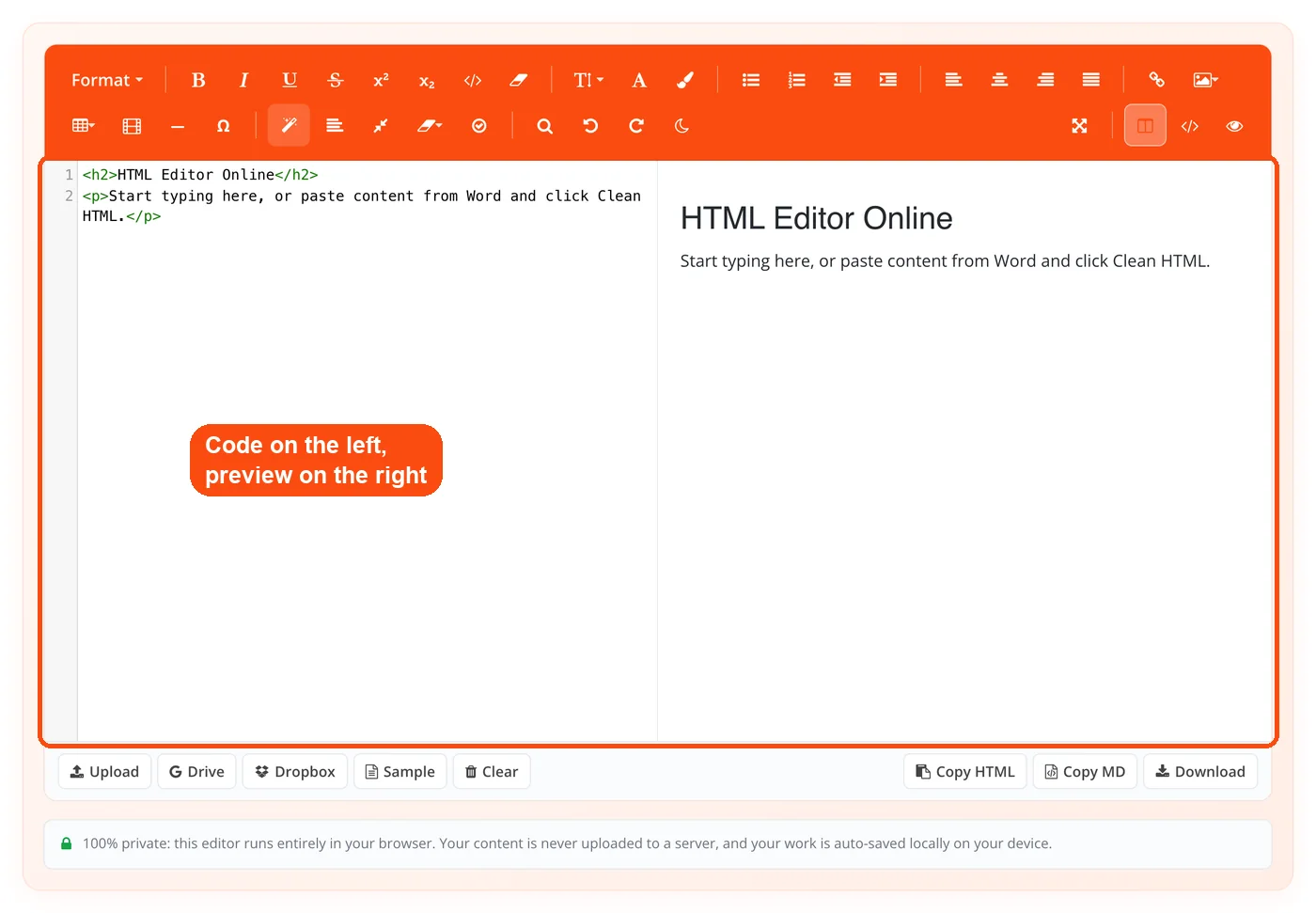
The editor gives you two synchronized views of the same document, which makes it an HTML editor online with preview built in: the preview is the visual pane, and you can type straight into it. The visual side is a native contenteditable region, which matters more than it sounds: because it is a real browser editing surface rather than a simulated one, it emits genuine HTML rather than a proprietary shadow format that has to be translated on the way out. The source side runs CodeMirror 5.51 in htmlmixed mode with line numbers and syntax highlighting.
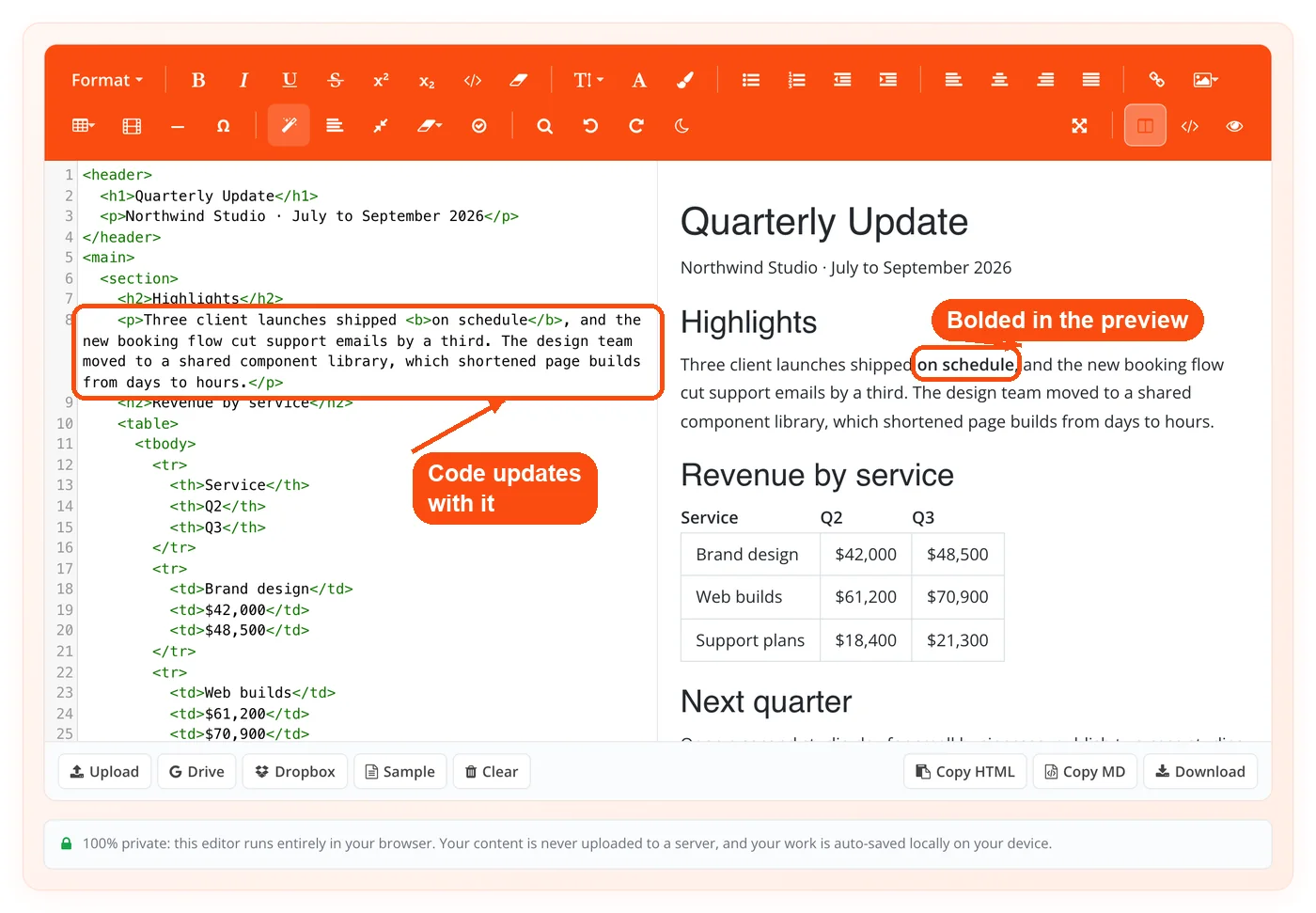
Type in either pane and the other follows. Visual edits are debounced, passed through js-beautify, and written into the code view as indented markup. Code edits write straight back into the visual pane. A guard flag stops the two panes from triggering each other in a loop, which is the failure mode that makes naive two-way sync editors jitter or drop characters mid-keystroke.
The people who reach for it most are content managers moving Word drafts into a CMS, email marketers who need tight inline-styled markup, developers sketching a layout without spinning up a local server, and students who want to see what a tag actually does the moment they type it. The common thread is a need to get clean, predictable HTML out of messy input quickly.
Key Benefits
- Paste from Word without the cleanup tax. Microsoft's mso- styles, o:p tags, empty spans and fonts, and stray classes get stripped on paste, before the content ever lands in your document.
- No mode switching. Both panes are live at once, so you never lose your cursor position hunting for the preview button.
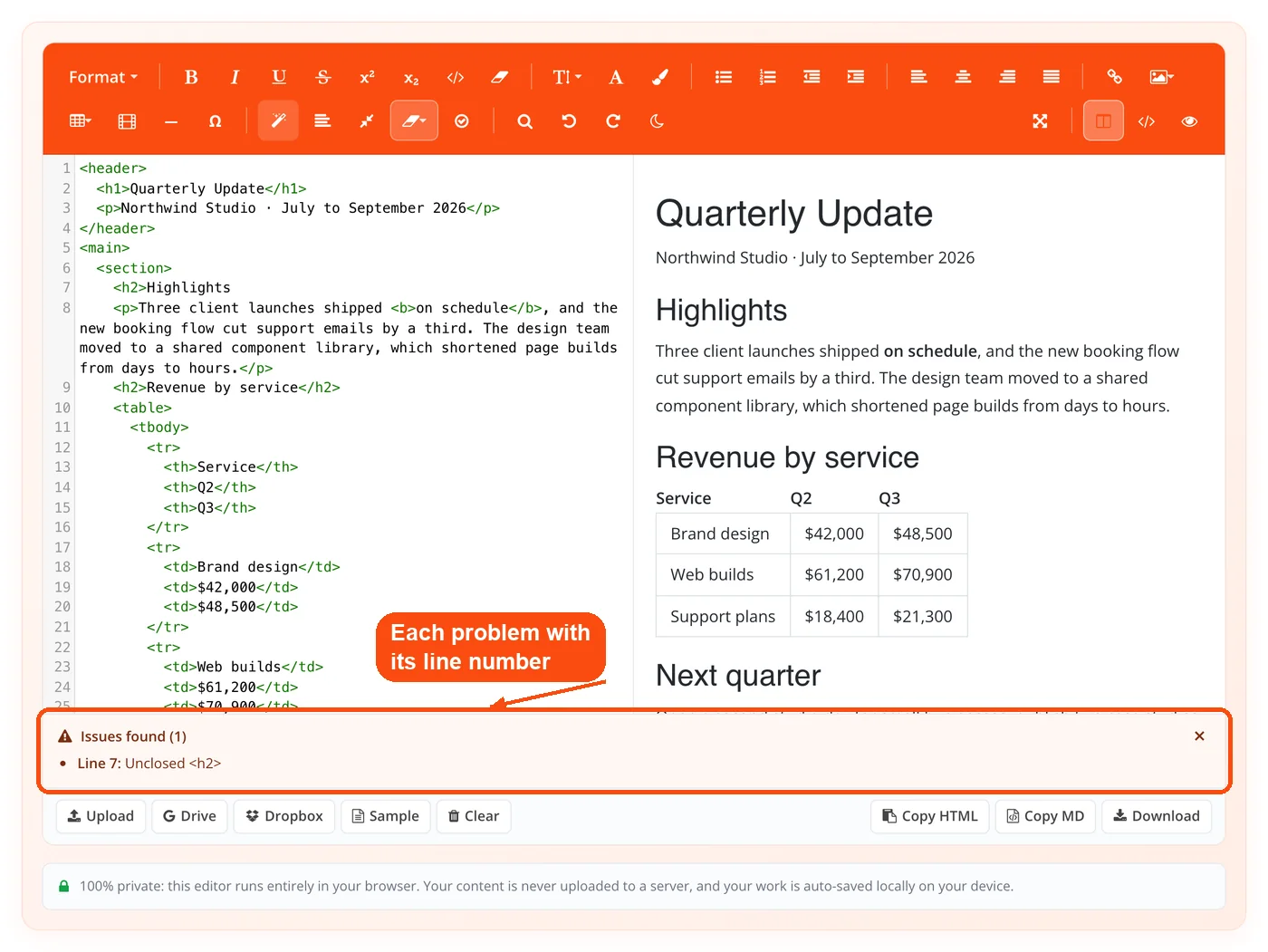
- Catch broken markup before you publish. The validator reports unclosed and mismatched tags with the line number, which turns a vague rendering bug into a specific fix.
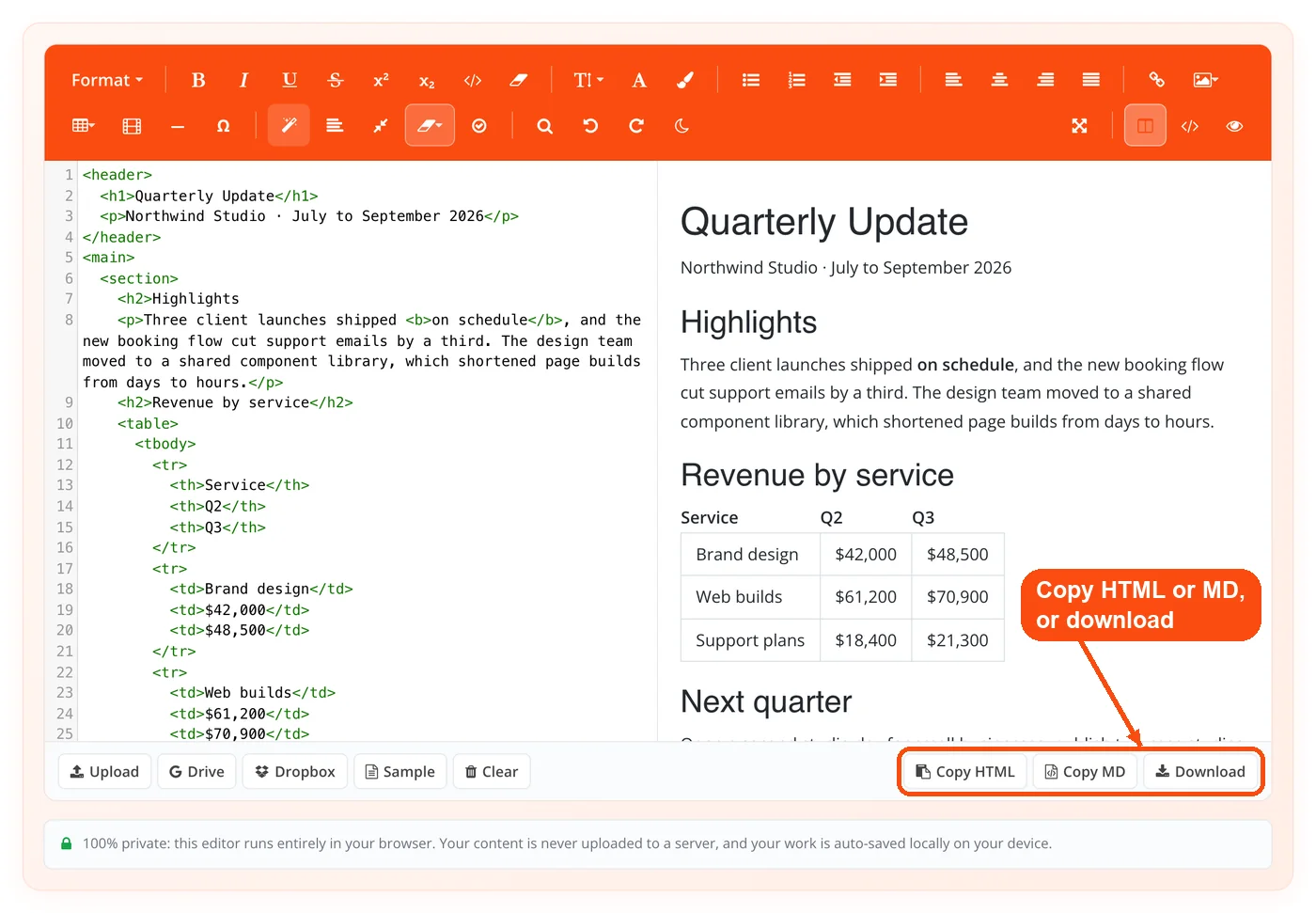
- Two export formats, not one. Copy the HTML, copy the same document as Markdown, or download a complete .html file.
- Your draft survives a closed tab. Work autosaves to your browser's local storage and comes back when you return.
- Typing never leaves your machine. Editing, cleaning, validation, and export all run client-side in your browser.
- Works in 18 languages. Most free HTML editors ship English only.
Core Features
- Dual-pane live sync: Visual editing and source editing on one screen, updating each other in real time with a loop guard to keep them stable.
- Smart paste cleaning: Clipboard HTML from Word and Google Docs is intercepted and stripped of Office markup before insertion.
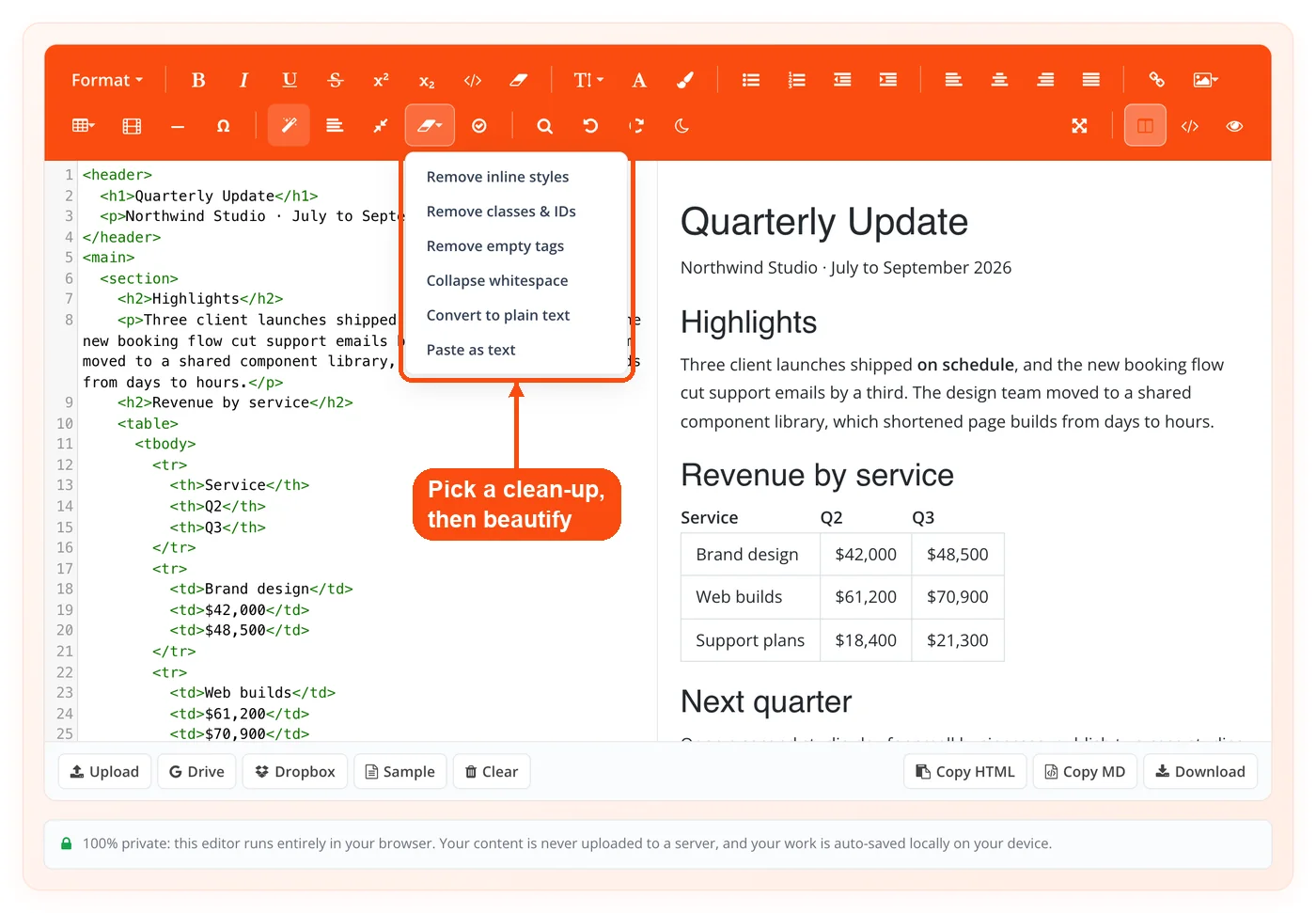
- Cleaning suite: One-click DOM-based actions to remove inline styles, remove classes and IDs, remove empty tags, collapse whitespace, and convert to plain text. There is also a paste-as-text option when you want nothing but the words.
- Beautify and minify: js-beautify reformats the source into readable indented HTML; the minifier collapses it to a single line. For production-grade compression of a finished file, hand the output to the HTML compressor.
- Tag validation: A tag-stack tokenizer walks your source, honors HTML optional-close rules for elements like li, tr, td, and p, skips script, style, and comment blocks, and reports what is actually broken.
- Markdown export: Turndown converts the current document to Markdown with one click, useful when the destination is a README or a docs platform rather than a CMS.
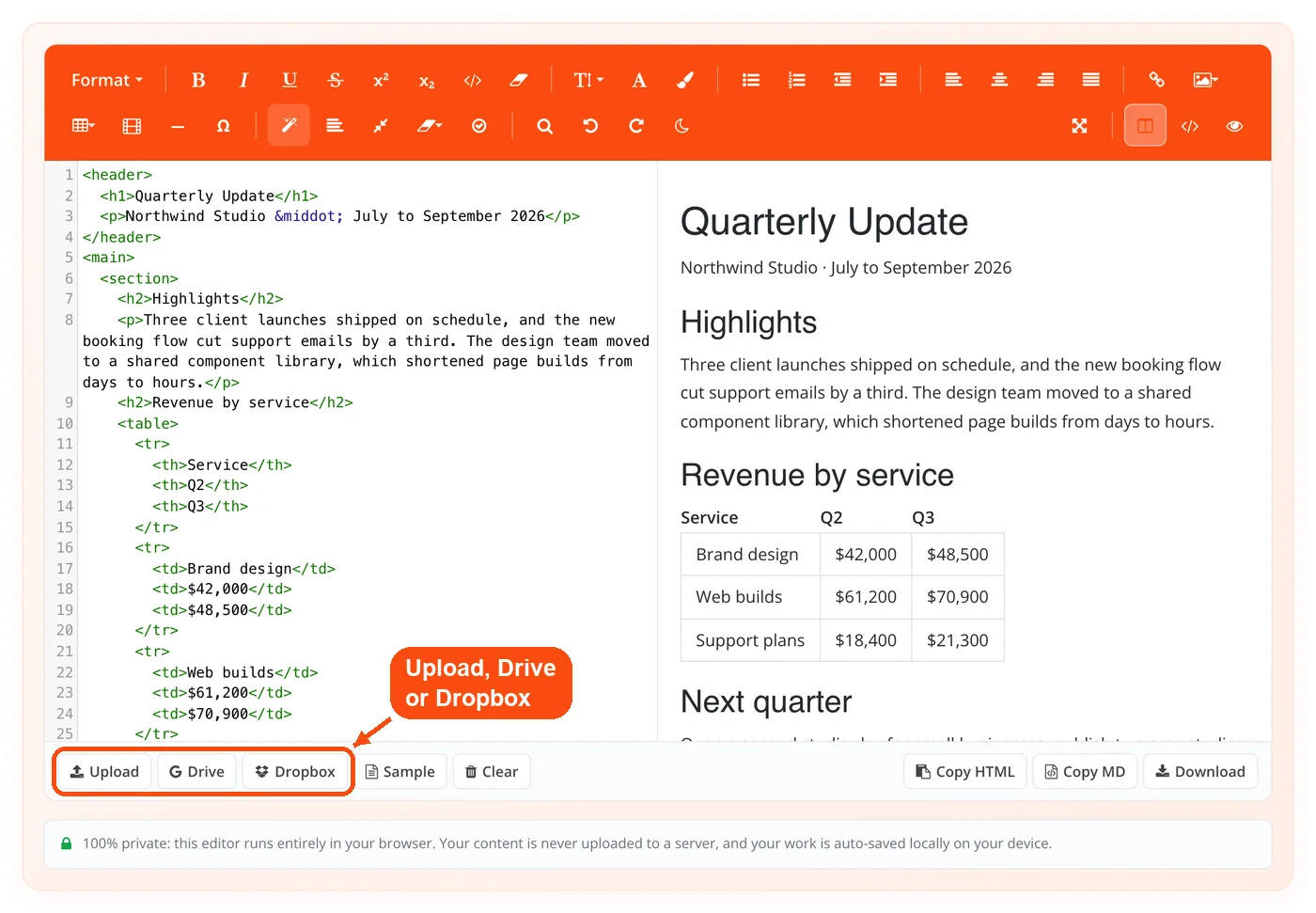
- Cloud and local import: Open a local file, or pull a document from Google Drive or Dropbox through their official pickers.
- Formatting toolbar: Paragraph, Heading 1 through Heading 4, quote, and code block from the format dropdown, plus bold, italic, underline, strikethrough, superscript, subscript, inline code, and remove-format.
- Structure controls: Bullet and numbered lists, indent and outdent, and left, center, right, and justified alignment.
- Insert menu: Links, images by URL or upload, tables with row and column editing, responsive video embeds from YouTube or Vimeo, horizontal rules, and 36 special characters.
- Find and replace: Search across the source and replace one match or all of them.
- View modes and dark mode: Split, code-only, or visual-only, plus fullscreen and a remembered dark theme.
How ToolsPivot HTML Editor Online Works
- Open the editor. The split-screen loads immediately with the visual pane and the source pane side by side. Nothing to install or sign into.
- Bring in your content. Type it, paste it from Word or Google Docs, upload a local file, or import from Google Drive or Dropbox.
- Edit on whichever side suits you. Use the toolbar for formatting or write raw markup in the code pane. The other side keeps up.
- Clean it. Run the cleaning actions you need, then beautify to make the source readable.
- Validate it. Check for unclosed or mismatched tags. Each problem is listed with its line number, so you can find it in the code pane and fix it.
- Export it. Copy the HTML, copy it as Markdown, or download the finished .html file.
When to Use This Editor
Reach for it whenever HTML has to move between two systems that disagree about formatting. That is where the time goes: not writing the content, but scrubbing what one application produced so a different one will accept it.
- Word draft to CMS: A writer sends a .docx and your CMS needs markup that will not fight your stylesheet.
- Inherited page: You have someone else's minified or badly indented HTML and need to read it before changing it.
- Newsletter build: Email clients need tight, inline-styled markup and rendering bugs are expensive to chase.
- Quick prototype: You want to test a layout idea without creating a project folder.
- Format handoff: The same content has to land as HTML in one place and Markdown in another.
- Teaching or learning: Seeing a tag and its rendered result together beats reading a spec.
- Pre-publish check: A page renders strangely and you suspect a tag never closed.
It is a page-level and snippet-level tool: an online website HTML editor for one page or fragment at a time. If you are building and maintaining a multi-page site, you want a real IDE and version control instead.
Use Cases
Word Draft Into WordPress
Context: A freelance editor receives a 1,500-word Word article that has to publish cleanly on a WordPress site.
- Paste the document into the visual pane; Office markup is stripped on the way in.
- Run remove inline styles and remove classes and IDs so site CSS controls appearance.
- Beautify, scan the source, then copy the HTML into the WordPress code editor.
Result: Markup that inherits the theme's styling instead of carrying a Word document's fonts and margins into production.
Newsletter Markup for Mailchimp
Context: A marketer builds a campaign and needs HTML that survives Gmail and Outlook.
- Compose the layout visually, adding tables and images from the insert menu.
- Validate to confirm no table cell or row was left unclosed.
- Copy the source into the campaign builder's HTML block.
Result: A structurally sound template, with the tag errors that break email layouts caught before send.
Documentation in Two Formats
Context: A developer writes a feature note that belongs both on a help site and in a repository README.
- Draft once in the visual pane with headings, lists, and code blocks.
- Copy HTML for the help site.
- Copy Markdown for the README without rewriting anything.
Result: One source document, two published formats, no manual reformatting pass. For Markdown-first drafting, the Markdown editor runs the conversion the other direction.
Auditing an Inherited Page
Context: An agency takes over a client site and finds a landing page shipped as one unreadable line.
- Paste the minified source and beautify it into indented HTML.
- Validate to surface mismatched tags with line numbers.
- Fix, then compare against the original using the code difference comparison tool.
Result: A readable, corrected page and a clear record of what changed.
What Each Cleaning Action Actually Removes
Each cleaning action targets one specific category of junk, and knowing which does what saves you from stripping something you needed. All five run against the DOM rather than by pattern-matching text, so they do not mangle content that happens to look like markup.
- Remove inline styles: Deletes every style attribute. Word pastes and CMS editors inject fonts, colors, and margins that override your external stylesheet; clearing them hands control back to your CSS. If leftover style blocks need shrinking for production, the CSS minifier handles that separately.
- Remove classes and IDs: Wipes attribute clutter carried over from another site's design system, so your own CSS can apply cleanly.
- Remove empty tags: Deletes elements with no content, which are the usual residue of a rich-text paste.
- Collapse whitespace: Reduces repeated spaces and line breaks to single spaces.
- Convert to plain text: Strips markup entirely when you want only the words.
How the Validator Decides Something Is Broken
The validator uses a tag-stack tokenizer rather than a regular expression, which is what lets it avoid the false positives that make most quick validators useless. It walks the source, pushing opening tags onto a stack and popping them as they close, then reports anything left unbalanced along with its line number.
The detail that matters is optional-close handling. HTML permits elements such as li, tr, td, and p to omit their closing tag, and a naive checker flags every one of them as an error, burying real problems in noise. This tokenizer honors those rules, and it skips script, style, and comment blocks so that a less-than sign inside JavaScript is not mistaken for a tag. What is left is a short list of genuine unclosed or mismatched tags worth fixing.
Honest Limitations
Cloud import is the one part of this tool that touches a server. When you pick a file from Google Drive or Dropbox, that file is fetched through a ToolsPivot server endpoint so it can be read and converted, and docx and pdf imports pass through a text-conversion step. Everything else, including typing, cleaning, beautifying, minifying, validation, and export, happens entirely in your browser. If a document is sensitive enough that server transit is unacceptable, download it first and use the local file upload instead.
Other constraints worth knowing:
- Format dropdown covers H1 to H4. H5 and H6 can be written directly in the source pane if you need them.
- Autosave is local to one browser. Your draft is stored on the device you used, not synced to an account, and clearing site data removes it.
- Very large documents slow the preview. Two-way sync means re-rendering on a debounce, and multi-megabyte files will feel it.
- The validator checks tag structure, not full HTML conformance. It finds unclosed and mismatched tags; it does not audit attributes or accessibility.
- It is a single-document editor. There is no file tree, no version history, and no build step.
Where It Sits Against Other Free Online Editors
Some of what this editor does is now standard. Live two-way sync between a visual and a source pane, one-click Word paste cleaning, browser-side processing, and localStorage autosave all appear on established free editors such as html-online.com, so treat those as the baseline rather than a reason to switch.
Four things are genuinely uncommon among free HTML web editors that run in the browser. Tag validation that reports unclosed and mismatched tags with line numbers is absent from htmleditor.io, html-online.com, and wordhtml.org. One-click Markdown export from an HTML editing surface is similarly rare. Direct Google Drive and Dropbox import is unusual outside paid tools. And 18-language support is uncommon in a category that is overwhelmingly English-only. Those are the reasons to pick this one; the rest is table stakes, and pretending otherwise would waste your time.
Frequently Asked Questions
Yes, with no account, no usage limits, and no paid tier. Every feature including validation, Markdown export, and cloud import is available on every visit.
Yes. Your draft autosaves to your browser's local storage and is restored when you return, and your dark-mode preference is remembered the same way. Because that storage is tied to one browser on one device, export anything you cannot afford to lose.
Not when you type, paste, clean, validate, or export, since all of that runs in your browser. The single exception is cloud import: a file chosen from Google Drive or Dropbox is fetched through a server endpoint so it can be read.
Yes. Paste from Word and the mso- styles, o:p tags, empty spans, and stray classes are stripped automatically before the content enters your document. Run the cleaning actions afterward if you also want classes, IDs, or inline styles gone.
Paste it in and the same paste cleaner runs. Google Docs output is span-heavy rather than mso-heavy, so follow up with remove inline styles and remove empty tags to clear what remains.
It reports unclosed and mismatched tags with line numbers. It honors optional-close rules for elements like li, tr, td, and p, and skips script, style, and comment blocks, so it does not flag valid markup as broken.
Yes, via the Copy MD button, which converts the current document using Turndown. This is useful when the same content needs to go into both a CMS and a repository README.
Yes, through the official Google Picker and Dropbox Chooser. Local file upload is also available, and it keeps only the body content when you open a full HTML document.
Yes, though the split-pane layout is built for wider screens. It handles quick fixes and content review well; long editing sessions are more comfortable on a desktop.
You can write style and script blocks in the source pane, and the validator deliberately skips them. Before publishing, you can shrink script payloads with the JS minifier.
A typical WYSIWYG editor online shows only the rendered page and hides the markup, so you cannot fix what it generates. This one shows both surfaces at once and lets you edit either, which matters when the generated HTML is almost right but not quite.
There is no hard limit. Practical performance is the constraint: multi-megabyte documents will slow the live sync, since both panes re-render as you type.
Building Out the Rest of the Workflow
Clean HTML is usually one step in a longer chain. If you are publishing an article, run the copy through the grammar checker and the readability checker before you format it. For technical SEO work, write your structured data in the source pane and generate it with the schema markup generator, then handle head tags with the meta tag generator.
When you are documenting code rather than shipping it, the HTML encoder turns markup into entities so it displays as text in a tutorial, and the HTML decoder reverses it. Filling a layout during design is what the Lorem Ipsum generator is for, and if you need to see what a live page is actually serving, the website source code generator will show you. ToolsPivot keeps these as separate tools on purpose, so the editor stays an editor rather than turning into a menu you have to navigate around.
