About Website Source Code Generator
A website source code generator is a free online tool that fetches the raw HTML any public webpage sends to a browser and displays it as readable, color-coded source, so you can view page source code from any device. ToolsPivot's rebuilt version works as a website source code viewer: it opens that source in a real code editor with line numbers and in-source search, then adds an instant SEO summary so you can read a page's title, meta tags, canonical, and schema at a glance. It solves a daily annoyance for developers and SEOs: inspecting a page's code shouldn't demand a desktop keyboard shortcut that mobile browsers stripped out years ago. Paste a URL, pick a user-agent, and read the exact markup a crawler sees first.
What the Website Source Code Generator Does
To get website source code, the tool retrieves the server HTML of any public URL and shows it as syntax-highlighted, searchable source alongside a structured breakdown of the page's SEO signals. You enter an address, choose whether to fetch as Desktop, Mobile, or Googlebot, and the request runs on our server rather than in your browser. That server-side fetch is what lets the tool read pages your browser would block on cross-origin grounds, and it means the target site's scripts never touch your device.
Developers, SEO professionals, agency teams, and site owners lean on this most. A front-end developer checks how a competitor structures markup, an SEO verifies a canonical tag before a migration goes live, and a marketer confirms a tracking pixel fired on a new landing page. Each of them needs the same thing: the real code, formatted well enough to scan, on whatever device is in front of them.
The problem it fixes is speed and access. Chrome on Android dropped the view-source: prefix and Safari on iOS never had it, so reading raw HTML on a phone used to mean emailing yourself a link or waiting until you got to a laptop. ToolsPivot removes that friction and formats the output on arrival, turning a five-minute workaround into a five-second check.
Key Benefits
- Real editor view: Source loads in a CodeMirror editor with line numbers and in-source search, so you can jump straight to a tag in a 3,000-line page instead of scrolling.
- Instant SEO read: A dedicated summary surfaces the title, meta description, canonical, robots, Open Graph, and schema without you hunting through markup.
- Works on any device: You can view page source online from any mobile browser, filling the gap left by phones and tablets that can't view source natively.
- Sees what crawlers see: You get the raw server response before JavaScript runs, which is exactly the HTML Google reads on its first pass.
- Safe on risky URLs: Because the fetch happens server-side, a suspicious page's scripts and trackers never execute in your browser.
- No account, no caps: There's no sign-up, no daily limit, and no premium gate on any feature.
- Honest when it can't fetch: Instead of a blank box, the tool tells you plainly when a page is blocked or gated, so you know it's the site, not a bug.
Core Features
- Syntax-highlighted source: HTML tags, attributes, inline CSS, and JavaScript each get their own color in a CodeMirror
htmlmixedview for fast scanning. - In-source search: Search inside the fetched code to locate a meta tag, a script ID, or an
hrefwithout reading top to bottom. - User-agent switching: Fetch as Desktop, Mobile, or Googlebot to catch pages that serve different HTML depending on who's asking.
- SEO summary tab: Reads title, meta description, canonical, robots, viewport, Open Graph, Twitter cards, JSON-LD schema, every H1, and common analytics pixels.
- Extraction tabs: Separate Meta, Links, Scripts, and Images tabs pull each element type into its own list so you can audit one category at a time.
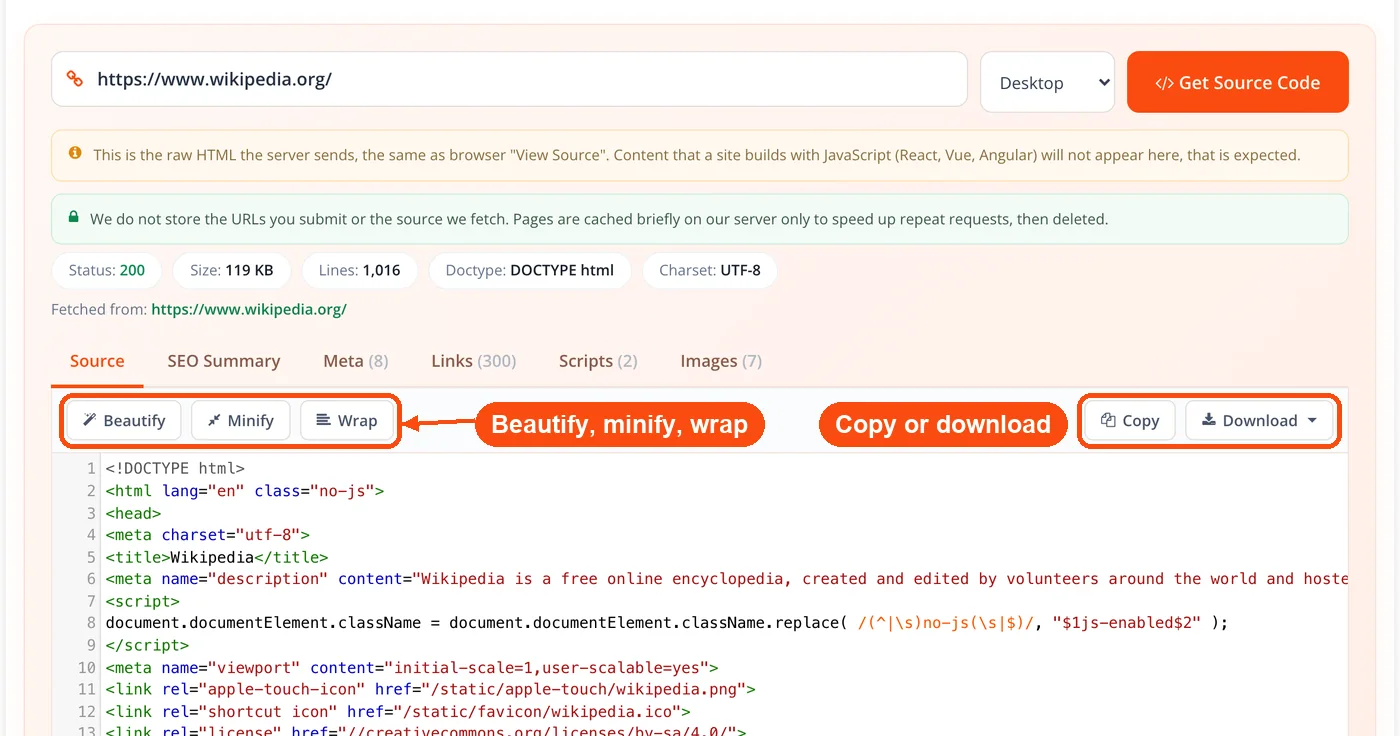
- Beautify and minify: Reformat cramped or minified markup into indented code, or compress it, both client-side in one click.
- Copy and download: Grab the full source to your clipboard, or download the website source code as an
.htmlor.txtfile for offline review, so the tool doubles as a website source code downloader. - Correct encoding: The response is transcoded to UTF-8 from the page's declared charset, so non-English pages don't come back as garbled characters.
- Redirect following: The fetch follows
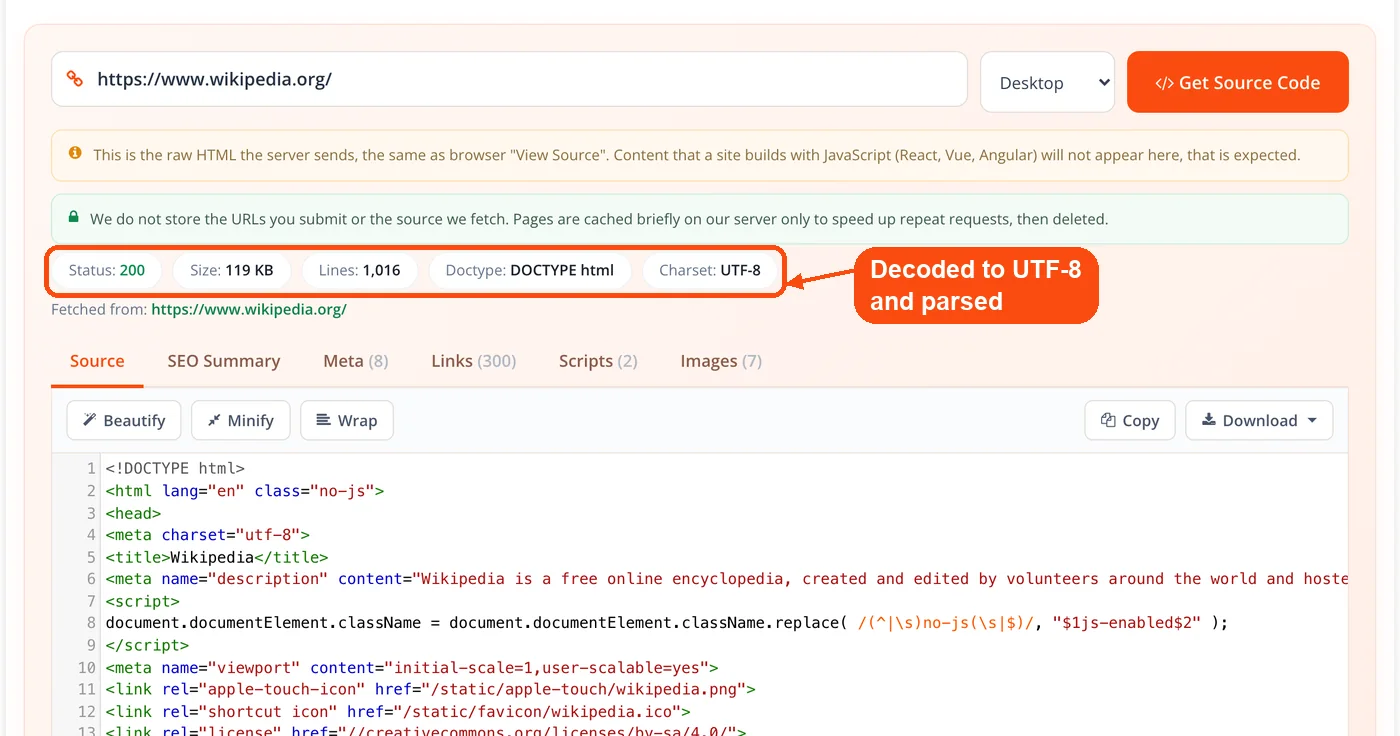
httptohttpsand cross-host redirects, then records the final URL and HTTP status it landed on. - Page stats: Alongside the source you see page size, line count, doctype, and charset for a quick sense of the document's shape.
How to View Website Source Code
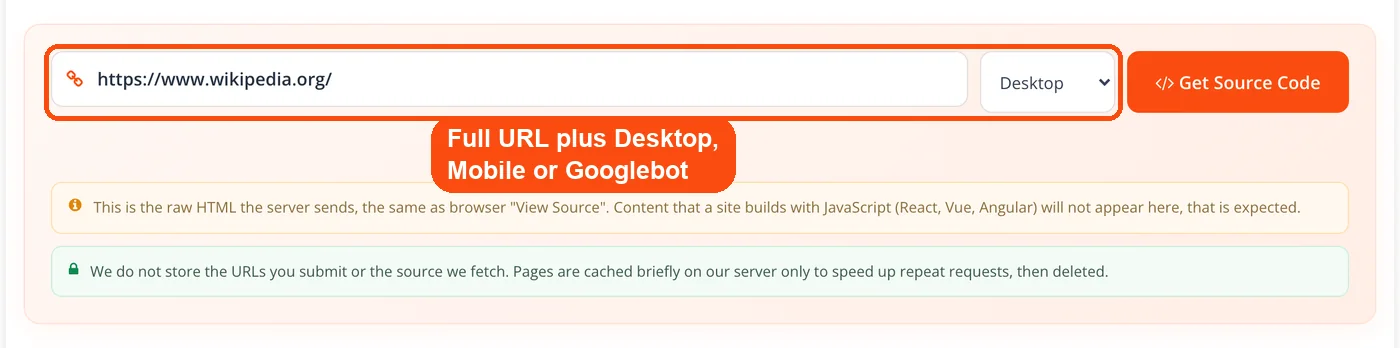
- Enter a URL and pick a user-agent. Paste the full address, including the protocol, and choose Desktop, Mobile, or Googlebot from the selector.
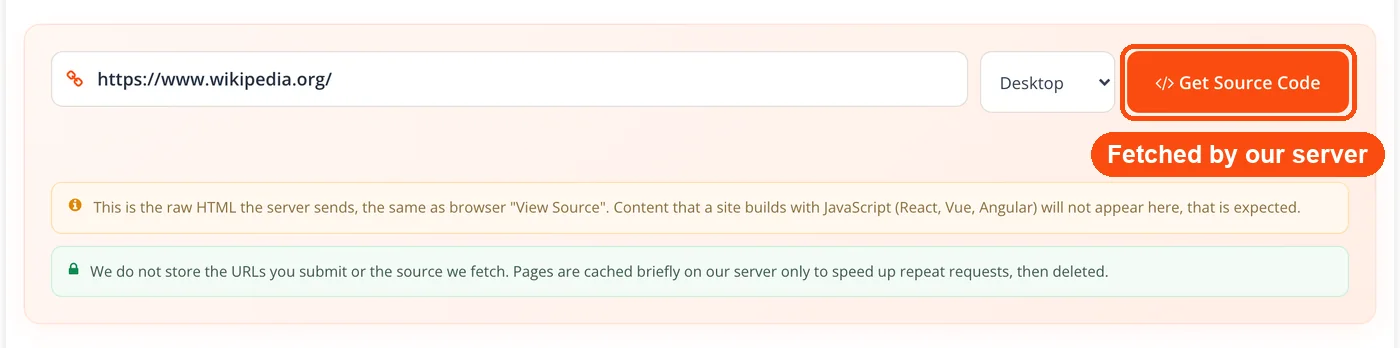
- Press Get Source Code. ToolsPivot sends a server-side request using a real browser user-agent, with gzip, redirect-following, and a timeout, then records the final URL and status.
- The response is decoded and parsed. The HTML is transcoded to UTF-8 and read to build the SEO summary plus the meta, link, script, and image lists.
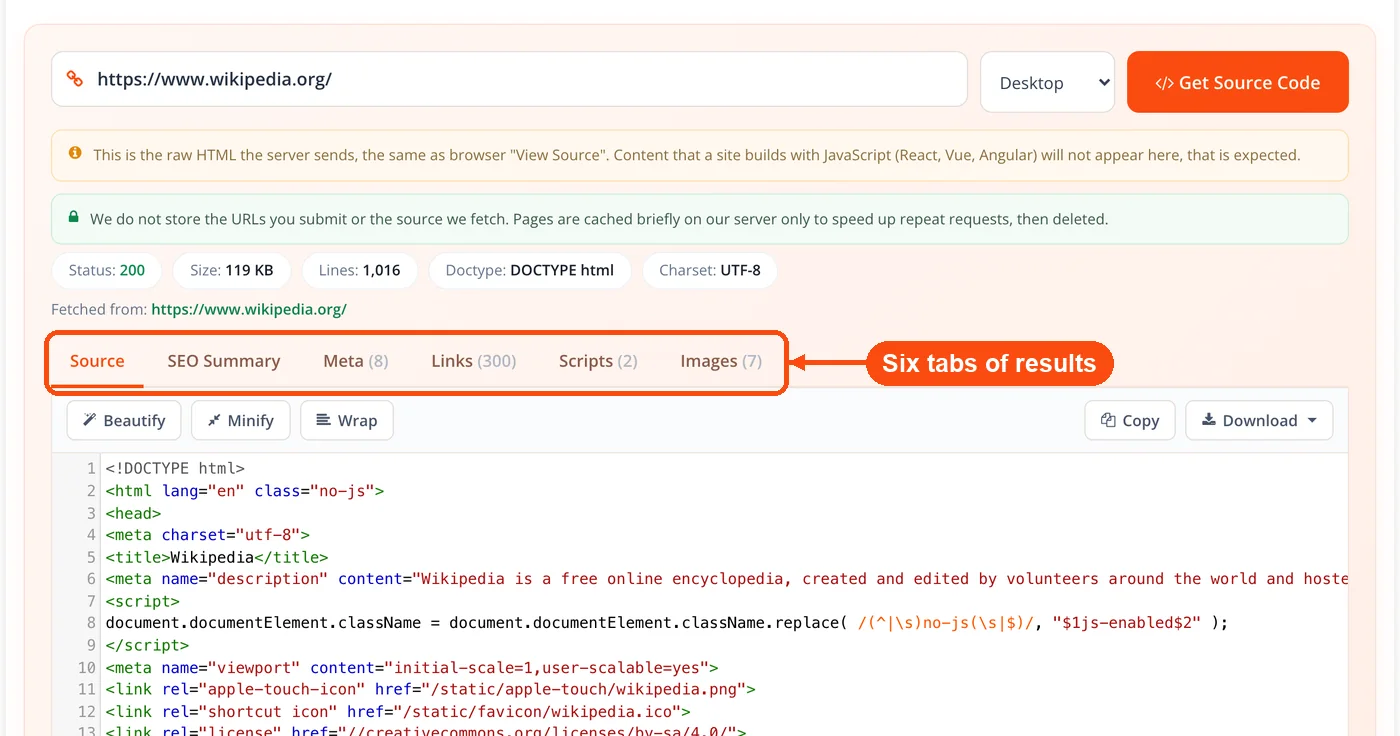
- Read the source and tabs. The raw HTML opens in the highlighted, line-numbered editor, with tabs for Source, SEO, Meta, Links, Scripts, and Images.
- Copy, download, beautify, or minify. Use the one-click actions to reformat the code or save it, all handled in your browser.
When to Use It
Reach for this tool whenever you need to see website source code and a desktop browser isn't handy or isn't enough. It earns its place during quick SEO checks, competitor teardowns, and any moment you'd otherwise be squinting at unformatted view-source. Here are the situations where it saves the most time.
- Mobile audits: Check a title tag or canonical from your phone when you're away from a laptop.
- Pre-launch verification: Confirm a tracking script or robots directive is in place before a campaign goes live.
- Competitor research: Study how a ranking page structures its headings, schema, and internal links.
- Migration checks: Catch a stray
noindexor wrong canonical that slipped through a staging-to-production move. - Backlink verification: Confirm whether a link on a third-party site carries
nofollow,sponsored, orugc. - Rendering diagnosis: Spot whether a page's content lives in the raw HTML or only appears after JavaScript runs.
It's less useful when you need the fully rendered page. If your content is injected by a framework after load, pair this tool with a rendered-DOM view, since the raw source won't show what the browser builds later.
Use Cases
Monthly Client Audit
Context: An SEO agency spot-checks meta tags across landing pages for fifteen clients every month.
Process: The team pastes each URL, reads the SEO summary tab, and confirms title, canonical, and robots in seconds. They cross-check the on-page signals against the meta tags analyzer for anything that looks off. Odd pages get a second fetch as Googlebot to rule out cloaked responses.
Result: A ninety-minute sweep drops under thirty, with every anomaly logged and screenshotted.
Backlink Attribute Check
Context: A freelance link builder placed eight guest-post links last quarter and needs to report on them.
Process: They fetch each host page, search the source for the client's domain, and read the rel value on each anchor. Two links carry nofollow. For a fuller picture of the outbound profile, they run the page through the link analyzer tool.
Result: One publisher agrees to remove the attribute, recovering link equity that was invisible without the check.
Tracking Code Deployment
Context: A marketing manager launches a paid landing page and can't afford blind analytics.
Process: Before spend starts, they fetch the source and search for the GTM container and pixel IDs. The SEO summary flags which analytics pixels it detected. They also check that duplicate scripts aren't dragging on page speed.
Result: A missing tag gets caught pre-launch, preventing weeks of lost conversion data.
What to Read in the Source Output
Fetching the HTML is the easy part; knowing which lines matter is where the value sits. A handful of elements decide how a page ranks and renders, and each one is checkable in seconds once the source is in front of you.
Start with the title tag and meta description, since Google shows roughly the first 55 to 60 characters of one and 150-odd of the other. If either is missing or stuffed, the AI meta title generator and AI meta description generator help you rewrite them cleanly. Next check the canonical tag: a wrong canonical can quietly de-index a page, and it's one of the most common technical mistakes hiding in plain sight.
Then scan the robots meta tag. A stray noindex, often left over from staging, pulls a page from the index entirely, so review the wider setup with the robots.txt generator if something looks wrong. Finally, confirm your Open Graph and Twitter tags so shared links preview correctly; the Open Graph checker validates them and shows how the card renders.
Raw Source Versus the Rendered Page
This tool shows the raw HTML the server sends before any JavaScript runs, which is not the same as the rendered DOM you'd see in browser dev tools. The distinction matters for SEO because Google reads the raw source on its first crawl and only processes JavaScript in a later pass. If your title, meta tags, or main content appear only after a framework runs, they may not be seen right away.
So when you fetch a page and find an near-empty <body> with just a script reference, treat it as a signal that the page depends on client-side rendering. Static and server-rendered pages won't have that gap; their source already contains the full content, which is exactly what search engines index on the first visit. To see a page the way a crawler walks it, the spider simulator gives you that crawler's-eye view, and the domain authority checker helps size up the sites you're studying.
Honest Limits
This tool returns the raw server HTML, not the JavaScript-rendered DOM, so on React, Vue, or Angular sites you'll see the initial shell rather than the finished page. That's the same thing crawlers get first, which is often the point, but it does mean the tool isn't a substitute for a rendered view when your content is built client-side.
It also can't reach everything. Pages behind Cloudflare or other bot protection, login walls, or datacenter-IP blocks will refuse the fetch, and the tool reports that clearly rather than faking a result. Servers that serve different HTML by location or cookies may also return something slightly different from what you'd see, since the request comes from a neutral server environment. For inspecting a URL you don't trust, that server-side fetch is a feature, and you can vet the address first with the website safety checker.
Frequently Asked Questions
Website source code is the HTML a server sends to your browser, along with the CSS and JavaScript files that HTML links to. The browser reads it to draw the page you see. This tool shows the HTML document itself, the part that holds the title, meta tags, links and script tags.
Yes, it's completely free with no account required. You can fetch source for unlimited URLs without daily caps or a premium tier. Every feature, including beautify, minify, and the SEO summary, is open to everyone.
When you need to view page source, Safari on iPhone has no option for it, and Chrome on Android no longer accepts the view-source: prefix. Open this tool in your phone browser instead, paste the URL and press Get Source Code. The raw HTML opens in the same highlighted, searchable editor you get on desktop.
No, it returns the raw HTML the server sends before any JavaScript runs. On sites built with React, Angular, or Vue, you'll see the initial shell rather than the rendered page. For the rendered version, use the URL Inspection tool in Google Search Console.
A user-agent tells a server which client is requesting the page, and some sites serve different HTML to desktop, mobile, or search crawlers. Switching between Desktop, Mobile, and Googlebot lets you see each version and catch responses that differ by visitor. This helps spot cloaking or mobile-specific markup a single fetch would miss.
Yes, because the tool retrieves the HTML on our server, not in your browser. The target page's scripts, cookies, and trackers never execute on your device, which makes it a safer way to inspect a suspicious URL than visiting it directly.
Ctrl+U shows the same raw source but only works on desktop and displays it without formatting or search. As a source viewer online, this tool adds a real editor with line numbers and in-source search, an SEO summary, user-agent switching, and one-click download, and it works on mobile too.
The tool shows the raw server response, while your browser shows the rendered DOM after scripts and styles run. Content added by JavaScript, and changes made by the browser, appear in the rendered view but not in the raw source. For SEO, the raw source is what matters because crawlers read it first.
Yes, fetch your page and search the source for your Google Analytics or GTM ID, or read the SEO summary, which flags detected analytics pixels. If neither appears, the tracking code is missing from that page. Running this on your key pages catches measurement gaps fast.
No, if a page needs a login, HTTP auth, or sits behind a paywall, the tool can't reach the content behind it. You'll typically get the login page's source instead. This is a server-side access limit, not something specific to ToolsPivot.
Yes, the beautify button reindents cramped or minified HTML into readable code, and minify does the reverse. Both run in your browser after the page is fetched, so you can switch between compact and expanded views freely. This makes heavily minified pages far easier to scan.
Yes, and it's one of the most common uses. Fetch a competitor's URL to study their heading structure, schema, and internal linking, and pair it with the keyword density checker to see how they weight terms. Studying HTML structure is a legitimate practice, though copying their code is not.
Some sites use Cloudflare or other bot protection that refuses automated requests, and the tool reports that instead of returning a blank result. Login walls and datacenter-IP blocks cause the same outcome. When a link audit is your goal, the broken link checker handles reachability across many URLs at once.
