DocPivot Image Compressor is a free browser-based tool that shrinks JPEG, PNG, WebP and AVIF files using the same encoders professional desktop software runs, without sending a single byte to a server. It accepts up to 30 files in one batch, each as large as 100 MB, and can compress to a file size you name rather than a quality slider you have to guess at. Photographers, developers and marketing teams use it when image weight is slowing a page down or an upload form is rejecting a file for being too big.
What DocPivot Image Compressor Does
The tool re-encodes your images with MozJPEG, libwebp, libavif and oxipng, all compiled to WebAssembly and executed inside your own browser tab. Your file is read from disk into memory, decoded to a canvas, re-encoded by the chosen codec, and handed back as a download. No upload happens at any point, so there is no queue, no API key, no account and no copy of your image sitting on someone else's storage. The output can be the original format, or WebP and AVIF copies generated in the same pass and ready to drop into a <picture> element.
The people who reach for it most are web developers cutting page weight to pass Core Web Vitals, photographers sending galleries that must stay under an email cap, e-commerce sellers preparing product shots for Shopify or WooCommerce, and anyone whose government portal refuses files over 200 KB. The problem it solves is specific: browser-native compression through canvas.toBlob is weak, and tools that avoid that weakness with a real encoder have historically required an upload first. Version 2.0 measured 64% off a test photograph where the previous canvas-based build managed 12%, and that build turned a 466 KB PNG into a 1.5 MB file rather than a smaller one.
Key Benefits of DocPivot Image Compressor
- Nothing leaves your device. Compression runs on your own CPU, which matters for client photography, medical scans, NDA-covered design assets and anything under a data handling policy.
- Desktop-grade encoders. MozJPEG with trellis quantisation produces the same output a command-line build does, so you are not trading quality for privacy.
- It never hands back a bigger file. The result is measured against the source, and if it is not actually smaller in the same format, the original is returned with a note explaining why.
- Batch work without a paywall. Thirty files at up to 100 MB each, delivered as a ZIP, with no daily cap or signup step.
- Compress to a number. Name 200 KB and the quality level is searched for you instead of being adjusted by hand across eight attempts.
- Modern formats in the same run. WebP and AVIF copies are produced alongside the original format, saving a second pass through a converter.
Core Features of DocPivot Image Compressor
- MozJPEG encoding. Trellis quantisation, progressive scans and optimised Huffman tables, the same configuration used in production build pipelines.
- Content-aware chroma subsampling. The engine samples the pixels to decide between 4:2:0 and 4:4:4 rather than applying one setting to every file.
- Target file size mode. A binary search across the 5 to 95 quality range, up to eight probes, keeping the best result that fits under your limit.
- WebP encoding at method 5. libwebp with sharp YUV conversion, plus true lossless WebP at the highest quality level.
- Optional AVIF output. libavif runs only when you ask for it, because its encoder is the heaviest of the four.
- Lossless PNG optimisation. oxipng rewrites the PNG container without changing a single pixel value.
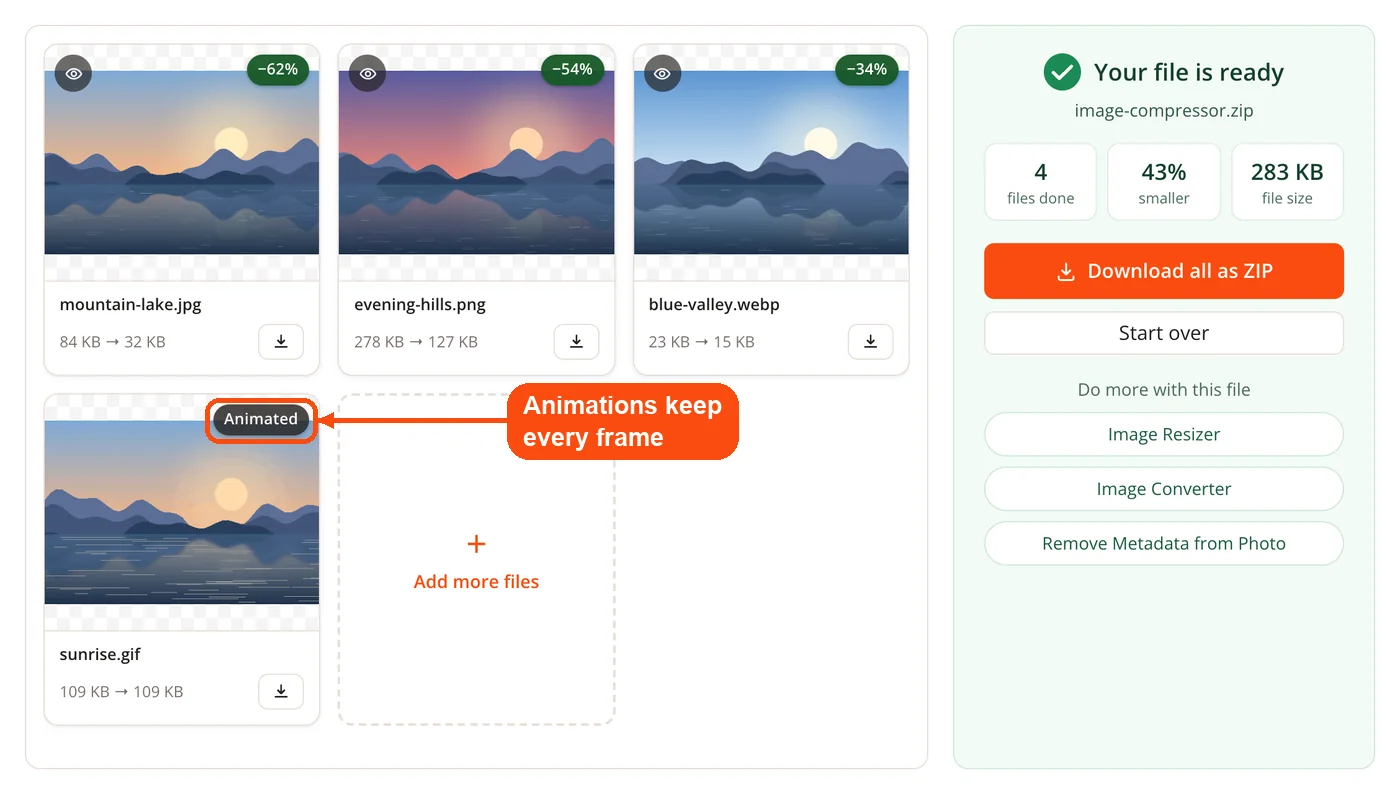
- Animation protection. Animated GIF, APNG and animated WebP are identified by reading their internal block structure and returned untouched.
- Metadata control. EXIF, XMP and ICC segments from a source JPEG can be carried across, with the orientation tag reset to 1 so the image does not rotate unexpectedly.
- Transparency matting. Transparent pixels are composited onto white before JPEG encoding, not left to default to black.
- CMYK disclosure. A CMYK source is converted to RGB and flagged, so a print-ready file does not quietly stop being one.
How DocPivot Image Compressor Works
- Add your files. Drag up to 30 images onto the panel or pick them from disk. They are read into browser memory, not transmitted.
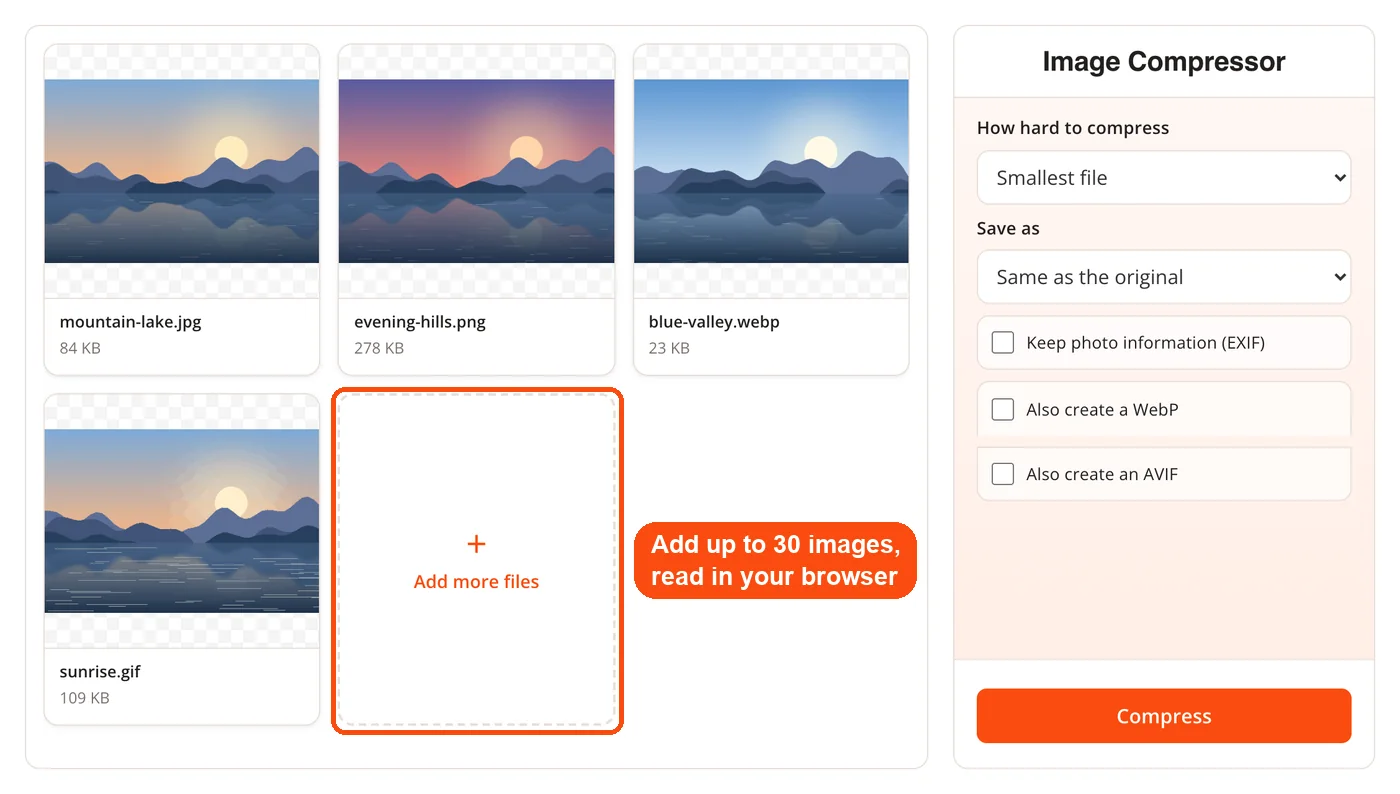
- Animations are screened out. Any animated GIF, APNG or animated WebP is detected and set aside so it comes back with every frame intact.
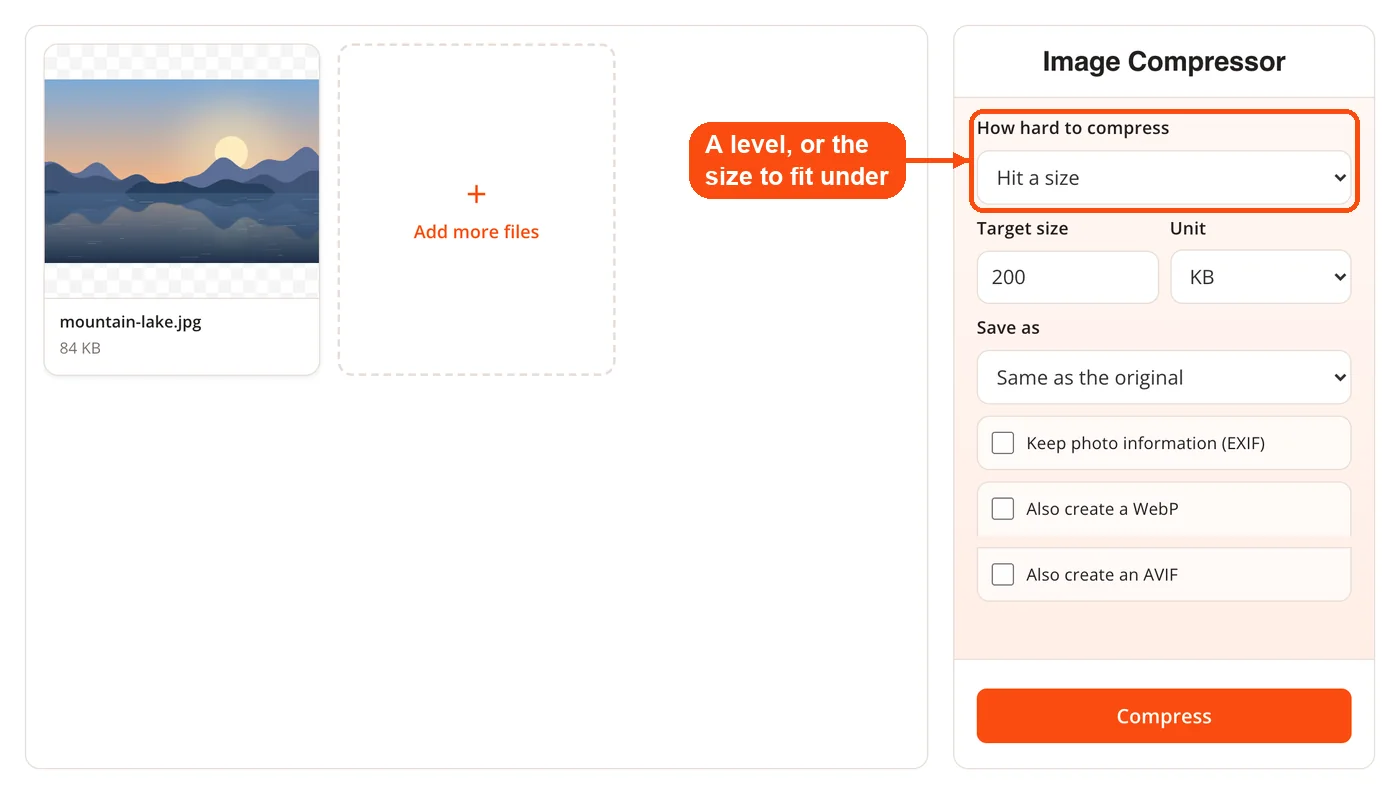
- Pick a level or a size. Choose Smallest file, Balanced or Best quality, or enter the file size you need each image to fit under.
- Encoding runs locally. The engine decodes each image, measures its content to set subsampling, and re-encodes it with the matching WebAssembly codec.
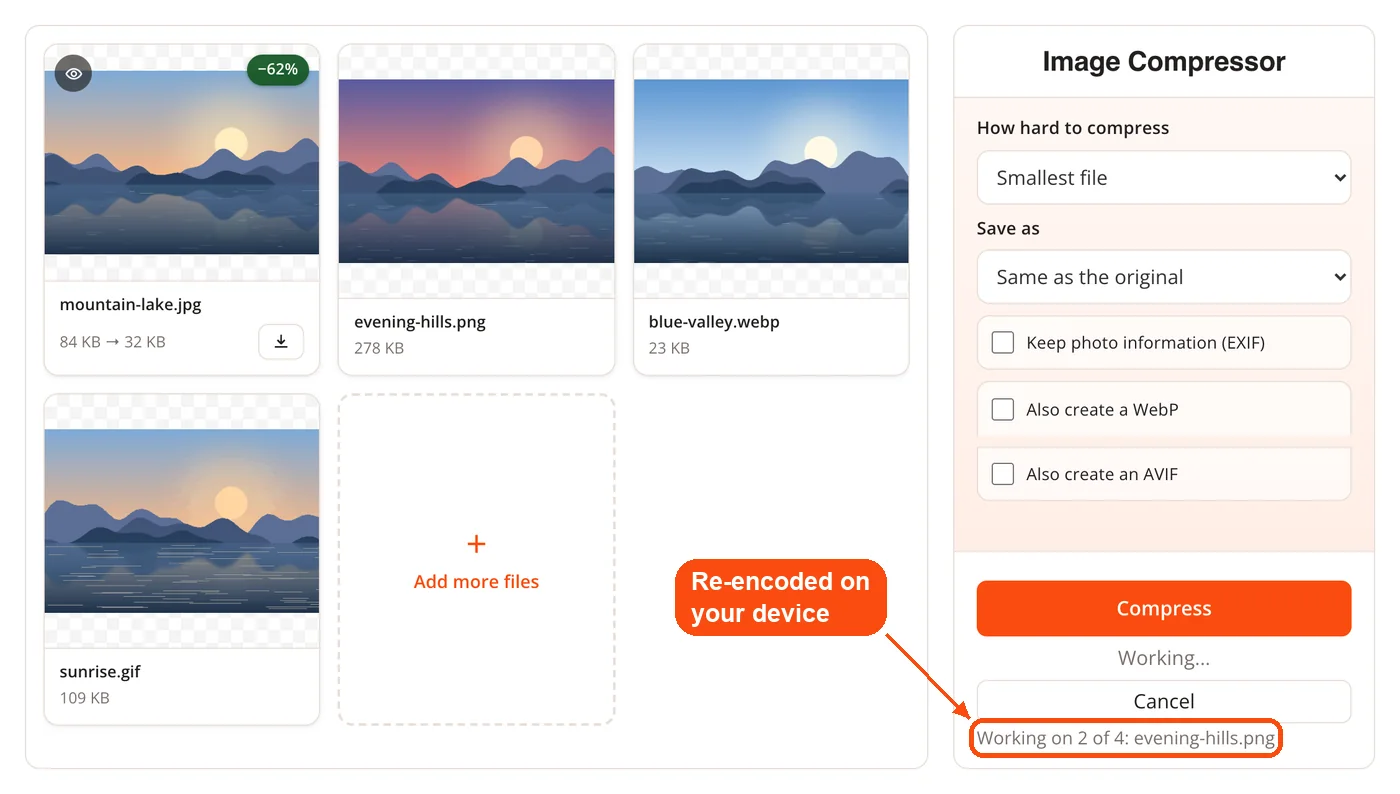
- Results are verified. Each output is compared with its source, and anything that did not actually get smaller is replaced by the original with an explanation.
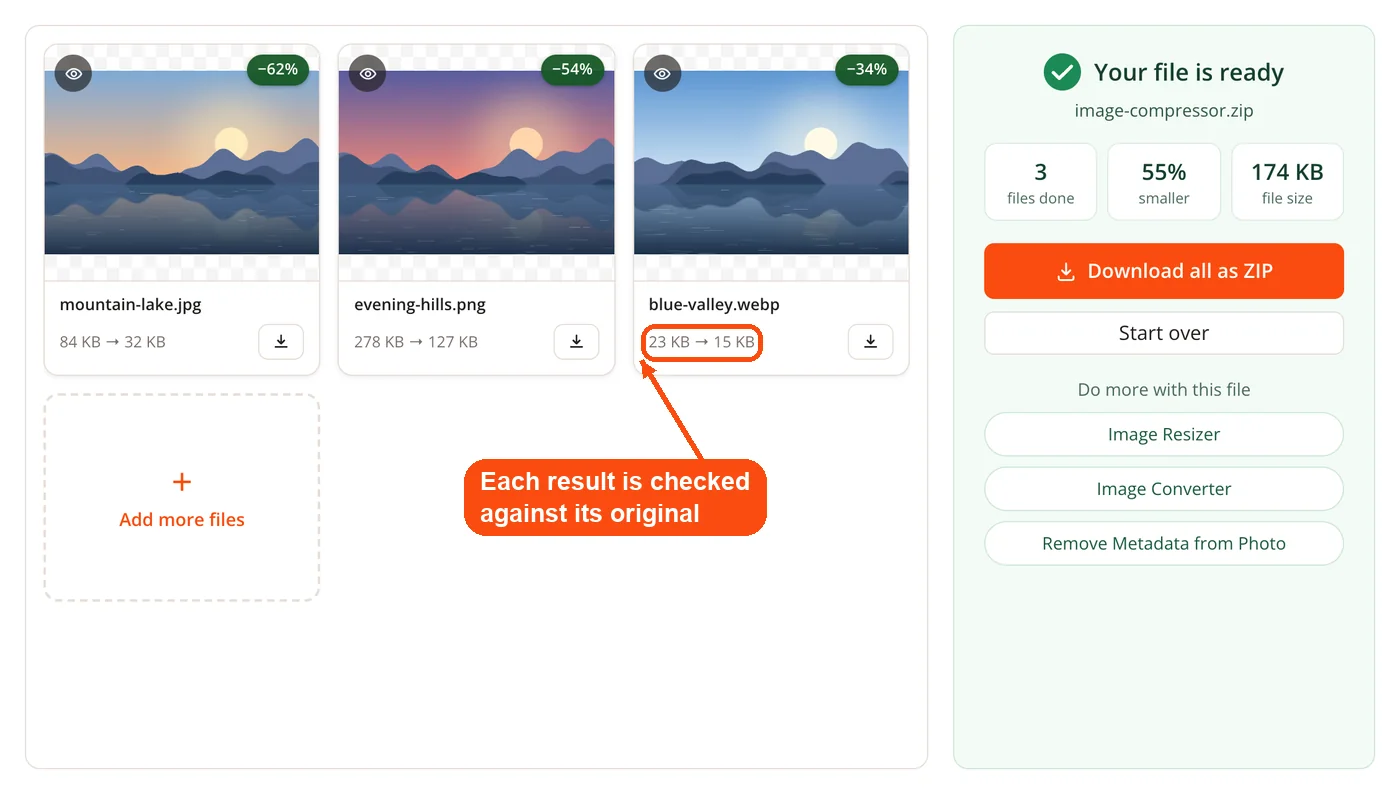
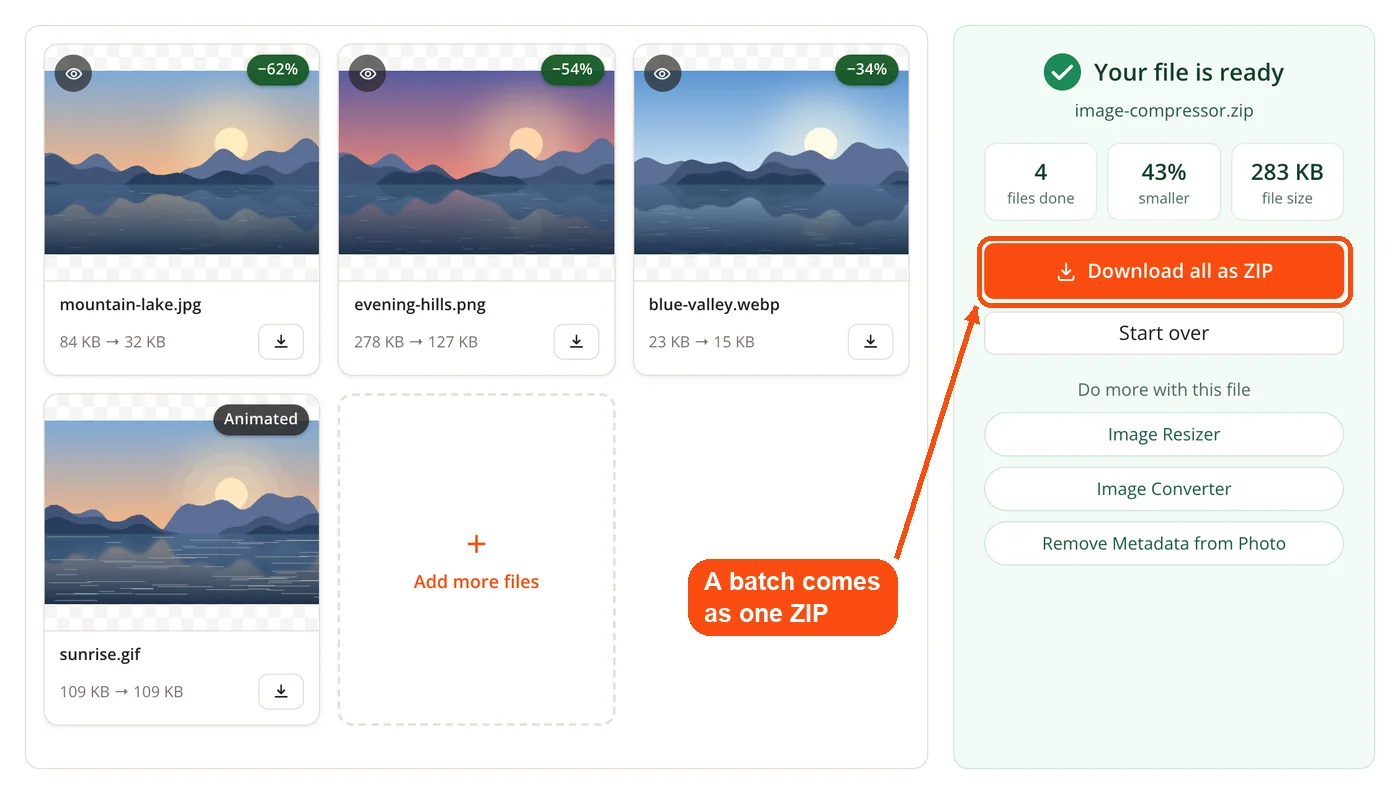
- Download. A single file downloads directly; a batch, or any run that produced extra WebP and AVIF copies, arrives as a ZIP.
Compression Levels in DocPivot Image Compressor
Four modes cover the situations that come up, and the difference between them is the quality value passed to the encoder plus how chroma is handled. Smallest file is the right default for anything destined for a website. Best quality exists for archives and for images you intend to edit again, where a second lossy pass would compound the first.
| Level | JPEG | WebP | Best for |
|---|---|---|---|
| Smallest file | q75, subsampling chosen by content | q75, sharp YUV | Web pages, blog images, email |
| Balanced | q82, 4:4:4 | q82 | Photography, client deliverables |
| Best quality | q95, 4:4:4 | True lossless | Archives, files you will edit again |
| Hit a size | Quality searched to fit | Quality searched to fit | Upload limits, attachment caps |
If you also need to change dimensions, do that first in the Image Resizer, then compress the result. Reducing pixel count is a larger lever on file size than any quality setting, and running the two steps in that order gives a smaller file at better quality than compressing hard at full resolution. Trimming dead space with Crop Image has the same effect for screenshots and product shots.
Why Subsampling Decides Whether Your Screenshot Looks Blurry
Chroma subsampling is the single most common reason a compressed image looks smeared, and it damages exactly the content that is not photographic. JPEG encoders store colour at lower resolution than brightness because human vision resolves brightness better, and most encoders default to 4:2:0 at any quality below 100. For a photograph that is invisible. For a screenshot, a logo or a chart, red text on white fringes and coloured interface edges pick up a soft halo, and the usual advice is to notice the problem yourself and switch to 4:4:4 by hand before shipping.
This engine makes that call for you. A strided sample of roughly 4,000 pixels measures how often a pixel exactly matches its neighbour. Photographs are noisy and repeat around 2% of the time; screenshots, logos and flat design assets repeat around 70% of the time because they are built from solid fills. Below a third, the file gets 4:2:0 and the smaller output that photographs can afford. Above a third, it gets 4:4:4 and keeps its colour edges sharp. The practical result is that a batch mixing camera photos with interface captures does not force you to compress both the same way, or to compress them in two separate runs.
When to Use DocPivot Image Compressor
Reach for it whenever image weight is the constraint and the files are ones you would rather not upload. It is most useful on batches, on files too large for a hosted service's free tier, and on jobs with a byte ceiling imposed on you.
- Before publishing a page. Images make up most of a typical page's weight, and compressing them is the fastest fix for a slow load.
- Hitting an upload cap. Portals and ticketing systems often cap attachments at 200 KB or 2 MB with no guidance on how to get there.
- Sending client galleries. Photographers can drop a full shoot under an email limit without exporting again from Lightroom.
- Preparing product listings. Shopify, WooCommerce and Etsy all render faster with lighter assets, and some enforce their own ceilings.
- Building a
<picture>element. Generate JPEG, WebP and AVIF variants in one pass instead of three trips through a converter.
Use Cases for DocPivot Image Compressor
Cutting page weight on a WordPress blog
Context: A writer publishes twelve posts a month, each with three or four full-resolution photographs straight off a phone.
- Drop the month's images into the panel in one batch.
- Select Smallest file and tick WebP as an extra output.
- Download the ZIP and upload the WebP files to the media library.
Result: Page weight drops sharply and Largest Contentful Paint improves without touching a plugin or a CDN. Phone photos arriving as HEIC can be handled first through HEIC to JPG.
Meeting a 200 KB portal limit
Context: An applicant needs to attach a scanned certificate and a passport photograph to a government form that rejects anything above 200 KB.
- Add both scans and switch to the target size mode.
- Enter 200 KB and let the search find the quality that fits.
- Confirm the reported output size before downloading.
Result: Both files land under the ceiling on the first attempt, and if one genuinely cannot fit, DocPivot says so rather than producing a file the portal will reject.
Preparing a product catalogue for launch
Context: An e-commerce team has 30 studio shots to publish across a storefront and a marketing email.
- Load the full set and choose Balanced to protect fabric texture and colour.
- Request WebP and AVIF copies for the storefront markup.
- Keep the JPEG originals for the email client fallback.
Result: One pass produces every variant the launch needs. Files that also require a logo overlay can go through Watermark Image before compression.
Shrinking documentation screenshots
Context: A technical writer has 40 interface captures for a help centre, full of small coloured text and button labels.
- Add the captures and choose Smallest file.
- Let content detection assign 4:4:4 automatically to the flat-fill images.
- Export as WebP for the documentation site.
Result: Screenshots stay legible at 100% zoom instead of picking up colour fringing around labels. Diagrams supplied as vectors are better rasterised through SVG to PNG first.
How DocPivot Image Compressor Compares
The honest comparison is against the tools people actually name. TinyPNG remains excellent at PNG quantisation but caps its free web app at 20 images and 5 MB per file and requires an upload. Squoosh runs the same class of WebAssembly codecs locally but handles one image at a time with no batch processing in its web interface. iLoveIMG processes batches on its own servers.
| Capability | DocPivot | TinyPNG | Squoosh | iLoveIMG |
|---|---|---|---|---|
| Uploads your images | No | Yes | No | Yes |
| Files per batch | 30 | 20 | 1 | Batch |
| Maximum file size | 100 MB | 5 MB | Browser memory | Tiered |
| WebP and AVIF output | Both | Neither | Both | WebP |
| Target file size | Yes | No | No | No |
| Keep EXIF option | Yes | No | No | No |
| Visual before and after | No | No | Yes | No |
Browser-based compression using real codecs is no longer unusual, and several newer tools now offer it. What is still uncommon is deciding subsampling per image, refusing to return a larger file, and saying out loud what changed. To move between formats without compressing, Image Converter handles that directly, and PNG to WebP covers the most useful conversion for the web.
Limitations of DocPivot Image Compressor
Lossy PNG quantisation is not offered, and that is a licensing decision rather than a technical one. The standard library for it, libimagequant, is GPL-3, and shipping it would place the page's entire JavaScript under the GPL. PNG to PNG is therefore lossless and saves very little. Converting to WebP is the better answer anyway and measured better: a 466 KB source came out at 171 KB as WebP against 441 KB with palette quantisation. JPG to WebP and PNG to AVIF cover the same ground when compression is not the goal.
CMYK sources always become RGB, because a browser canvas has no CMYK mode. There is no toggle to offer, so the tool reports when the conversion happened instead of letting a print-ready file quietly stop being one. Animations are returned untouched with a note rather than flattened; before that check existed, a three-frame GIF came back as a single-frame PNG and was reported as 89% smaller, which is the kind of statistic that looks good and means nothing.
There is no resize control on the panel and no side-by-side preview slider. Resizing lives in its own tool, and duplicating the control here would encourage compressing at full resolution when reducing dimensions would have done more. Self-hosted deployments need AddType application/wasm configured on the server, because WebAssembly.instantiateStreaming rejects any other content type by specification. If you want to inspect what metadata a file carries before deciding whether to keep it, EXIF Viewer reads the tags, and Remove Metadata from Photo strips them on their own.
Frequently Asked Questions
Yes, with no account, no watermark and no daily limit. Every codec is open source under Apache-2.0 or BSD licences, and there is no server cost to recover because nothing runs on a server.
No. Files are read into your browser's memory and processed by WebAssembly modules running in the same tab, so no image data is transmitted to DocPivot or anyone else.
Up to 30 files per batch, with a 100 MB ceiling on each individual file. Batches are returned as a ZIP with the original filenames preserved.
Yes, enter the size you need and the tool searches the quality range to find a fit. It runs up to eight probes between quality 5 and 95, and tells you if the target cannot be reached rather than handing back an oversized file.
JPEG, PNG, WebP and AVIF for both input and output. WebP and AVIF copies can be generated alongside your chosen format in the same pass.
Because the result was not actually smaller. Already-optimised images have little left to remove, and returning the original is more honest than reporting a saving that does not exist.
By default, yes, which reduces file size and strips GPS coordinates. You can turn on metadata preservation to carry EXIF, XMP and ICC segments across, with the orientation tag reset so the image displays the right way up.
They are detected and returned untouched. Compression works through a canvas, a canvas holds one frame, so processing an animation would flatten it to a still image.
Because subsampling is chosen per image instead of applied uniformly. Flat-fill content like screenshots and logos gets full colour resolution, which stops coloured text and interface edges from fringing.
Yes, PNG output is optimised losslessly with oxipng and no pixel values change. That also means the savings are modest, and converting to WebP usually produces a far smaller file.
No, resizing has its own dedicated tool. Reduce dimensions there first, then compress the result, which produces a smaller file at higher quality than compressing alone.
Partly. The codec modules download on first use of each format in a session, but once loaded, compression itself needs no network connection.
They are converted to RGB and flagged in the results. Browser canvases have no CMYK mode, so the conversion is unavoidable, and the tool reports it rather than hiding it.
Usually yes for web delivery, since AVIF files are typically smaller than WebP at similar quality. Its encoder is the slowest of the four, so DocPivot loads it only on request. Compressed images headed into a document can then go through JPG to PDF or be optimised further with Compress PDF.
