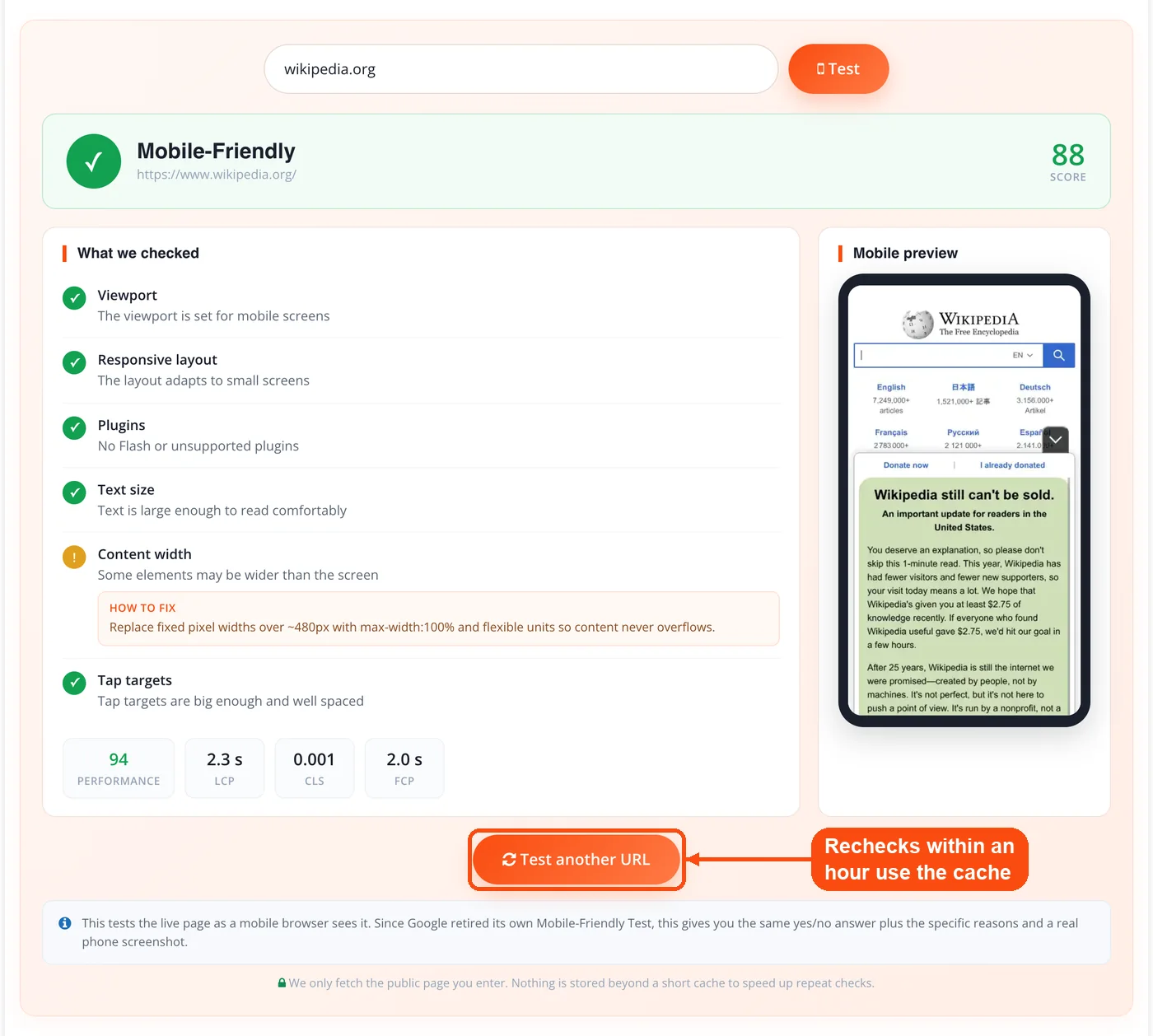
The Mobile-Friendly Test from ToolsPivot is a mobile friendly checker that tests whether any web page works well on phones and tells you exactly why. Paste a URL and you get a clear Mobile-Friendly or Not verdict, a 0 to 100 score, an itemized list of what passed and failed, a specific fix for each issue, a real screenshot of the page on a phone, and Core Web Vitals. There is no login and nothing to install.
What the Mobile-Friendly Test Checks
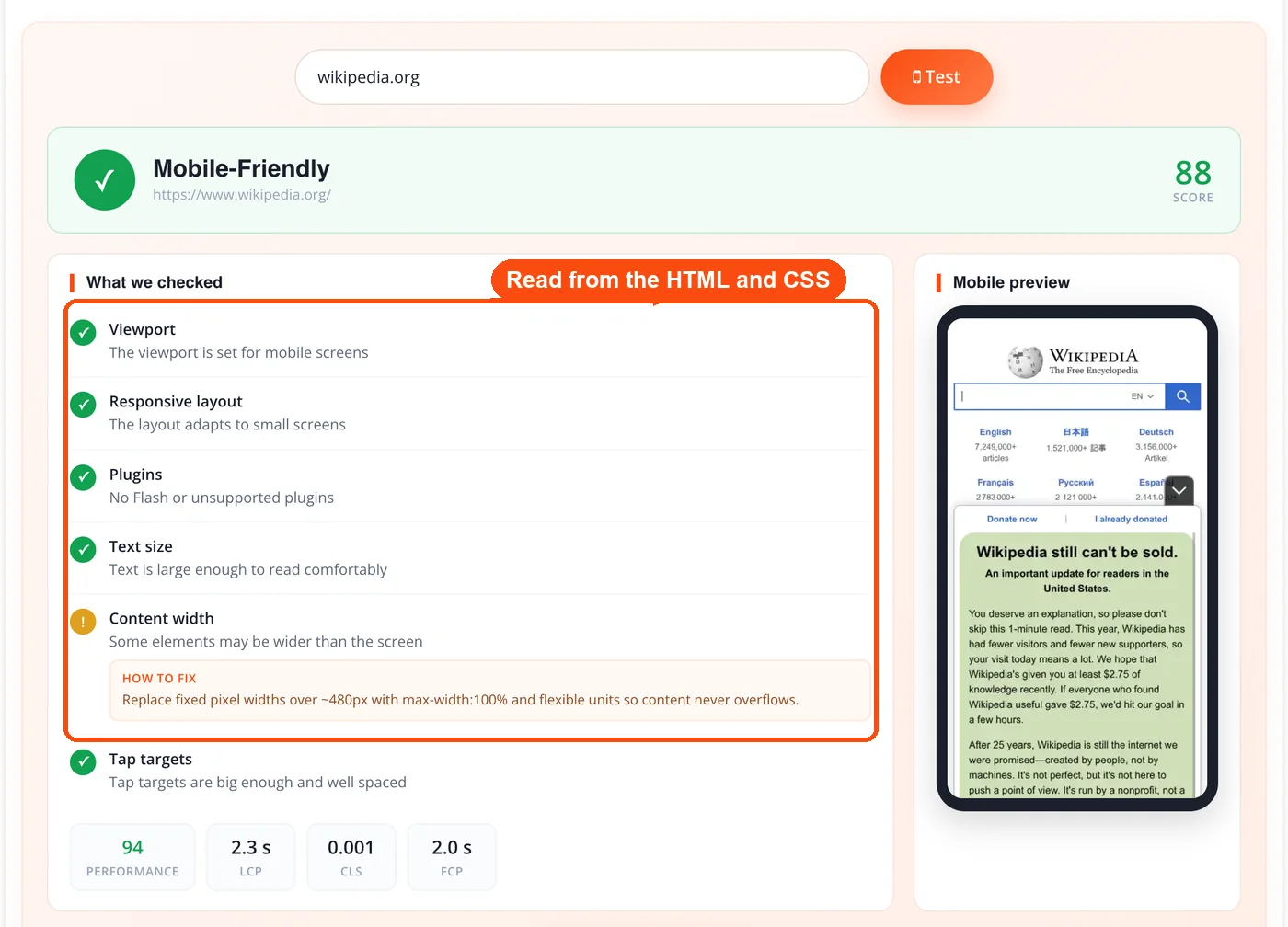
A mobile-friendly test scans a live web page for the signals a phone browser cares about, then reports whether the page passes and what needs fixing. This tool checks six things: the viewport meta tag, responsive layout, plugins, text size, content width, and tap targets.
- Viewport: the page adapts to screen width instead of showing a zoomed-out desktop layout. This is read straight from the viewport meta tag.
- Responsive layout: the design reflows on small screens. The tool looks for CSS @media breakpoints and responsive images (srcset and picture).
- Plugins: no Flash or other plugins that phones cannot run. The tool scans for object, embed, and .swf references.
- Text size: body text is legible without zooming. A font-size check flags rules set below 12px.
- Content width: nothing overflows the screen sideways. A fixed-width check flags hardcoded pixel widths wide enough to force horizontal scrolling on a phone.
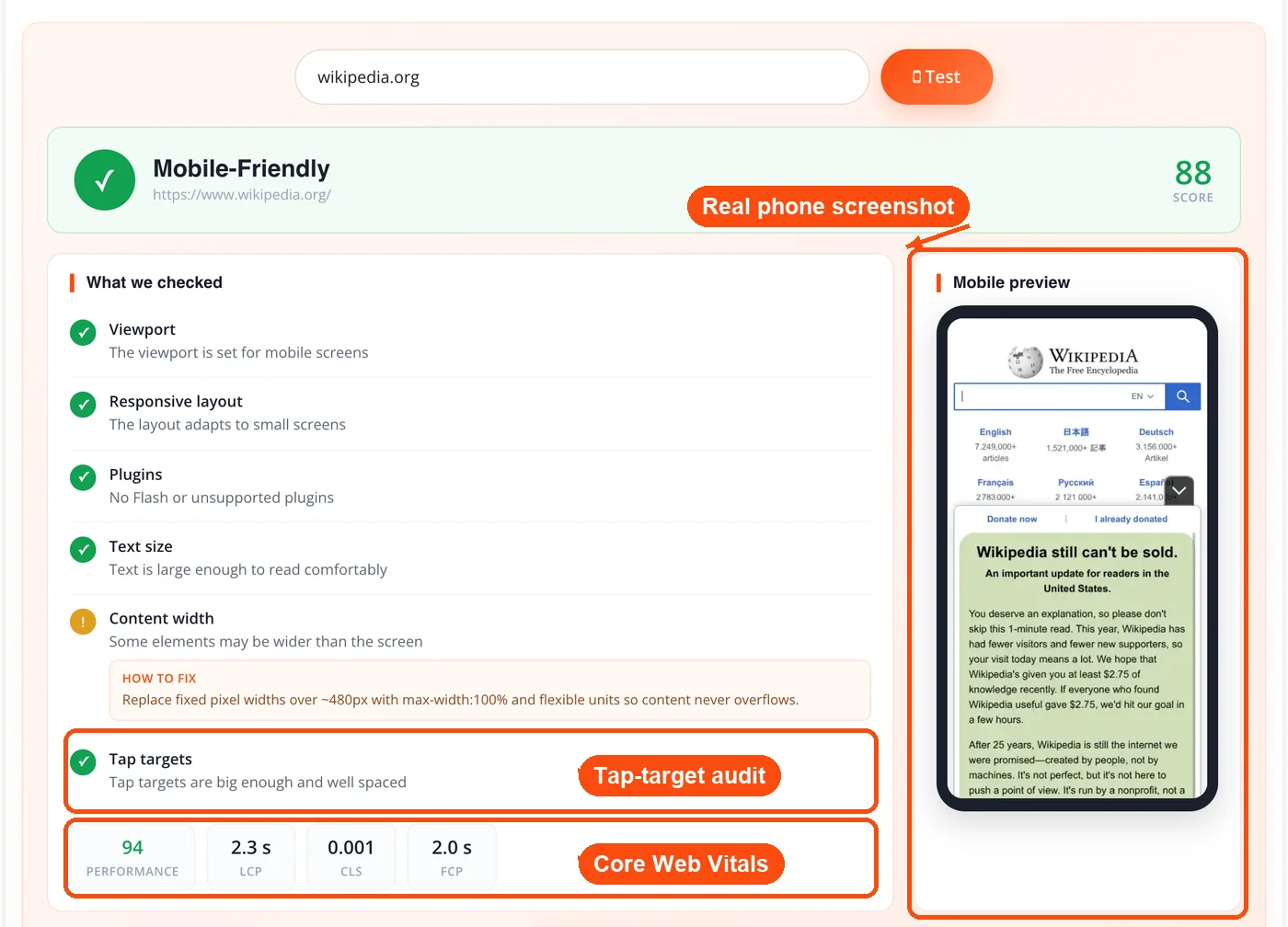
- Tap targets: buttons and links are large enough and spaced far enough apart to tap accurately. This measurement comes from a real Chrome audit through Google PageSpeed Insights.
How ToolsPivot Mobile-Friendly Test Works
The tool runs in two stages: a fast source-code analysis on our own servers, then enrichment from Google PageSpeed Insights.
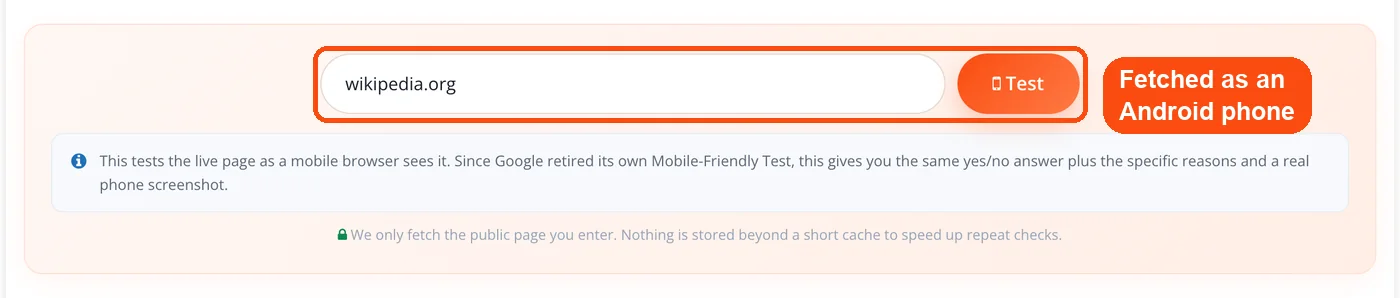
- Fetch as a phone. The server requests your URL with a mobile Chrome user-agent (an Android Pixel), follows redirects, blocks private or local hosts for safety, and caps the download at 3 MB.
- Parse the page. The tool reads the HTML and CSS directly to run the checks that are fully reliable from source: viewport, plugins, responsive signals, text size, and content width.
- Enrich with real Chrome data. Google PageSpeed Insights (mobile strategy) supplies the tap-target audit, a real mobile screenshot, and Core Web Vitals.
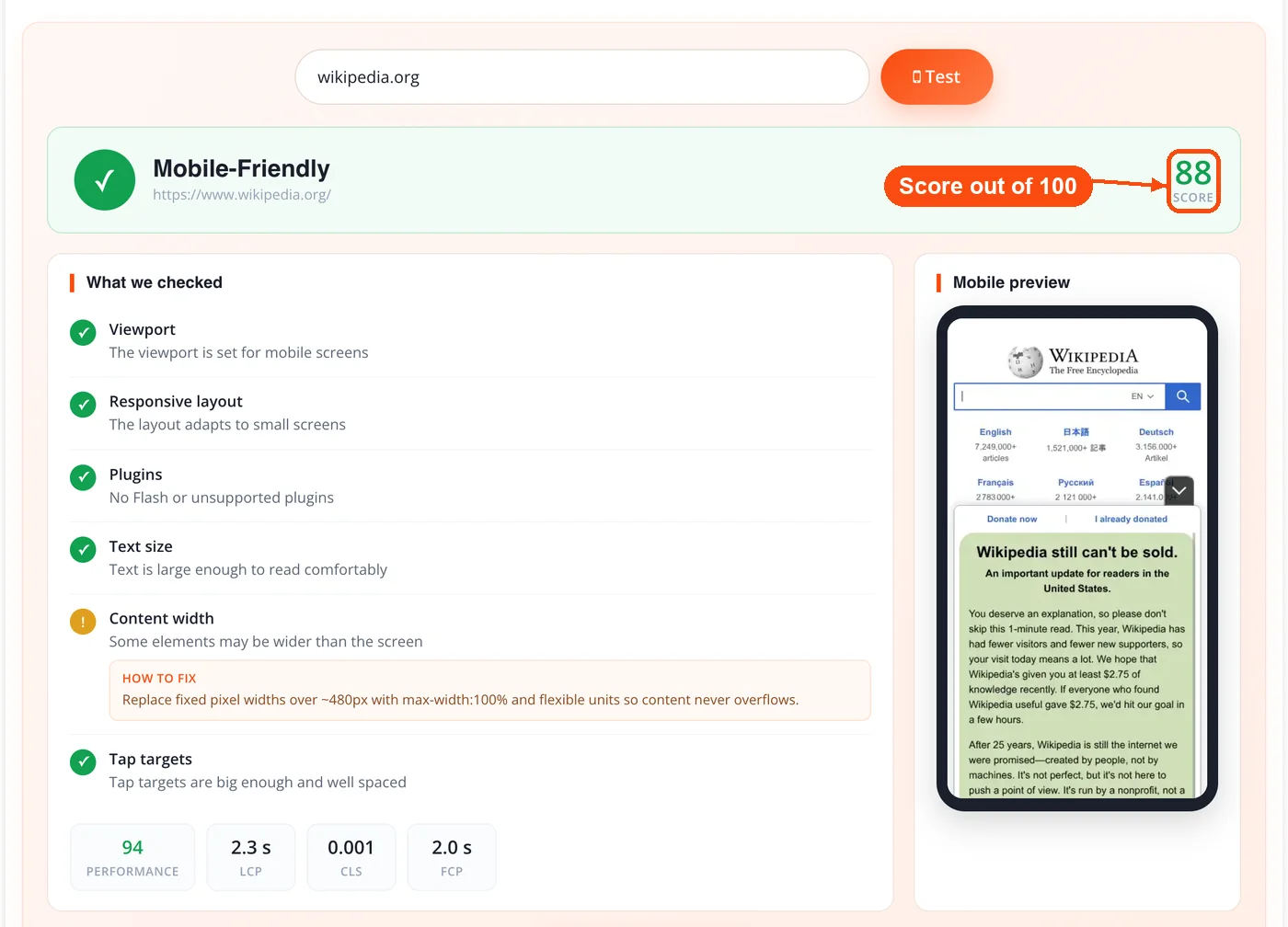
- Score and decide. Each check feeds a 0 to 100 score. A missing viewport or Flash content fails the page outright, and other issues deduct points.
- Cache. The full result is stored for one hour, so repeat checks return instantly.
Key Features
- Clear verdict and score. You get a plain Mobile-Friendly or Not answer plus a 0 to 100 score, so you know both the outcome and how close a borderline page sits to passing.
- Itemized pass and fail list. Every check is shown separately, so a failing page tells you which specific signal broke rather than handing you one vague grade.
- Specific fix for every failure. Each issue names the change to make, for example adding a viewport tag or setting max-width on an image, not just the problem.
- Real mobile screenshot. The result includes an actual screenshot of the page inside a phone frame, so you can see the layout, not only read about it. For static full-page captures across device sizes, the website screenshot generator covers that separately.
- Core Web Vitals. The report includes Largest Contentful Paint, Interaction to Next Paint, Cumulative Layout Shift, and First Contentful Paint, plus a performance score, so layout and speed sit in one place. To dig deeper into loading performance, pair the check with the page speed checker.
- Viewport and plugin detection. The tool flags a missing or misconfigured viewport tag and any Flash or legacy plugin content that phones cannot run.
- Text and width checks. It catches body text set too small to read and fixed-width elements wide enough to force horizontal scrolling.
- Graceful fallback. If PageSpeed Insights is slow or unavailable, the verdict still stands from the source-code checks, though the screenshot, tap-target audit, and Core Web Vitals may be missing from that run.
Why Run a Mobile-Friendly Test
Mobile usability affects both your visitors and your search rankings. More than 60% of global web traffic now comes from mobile devices, so a page that breaks on phones turns away most of the people who reach it.
Google uses mobile-first indexing. Since July 2024, Google crawls and ranks the mobile version of your site as the default, not the desktop version. If your mobile layout hides content or breaks key elements, rankings can fall across every device, which is why mobile checks belong in any SEO audit alongside a keyword rank check.
Google also removed its own answer. It retired the standalone Google Mobile-Friendly Test tool in December 2023 and pointed users to Lighthouse and PageSpeed Insights. Those tools are thorough but bury the simple yes or no in a technical report. As a Google Mobile-Friendly Test alternative, the ToolsPivot Mobile-Friendly Test brings back that direct verdict and adds the reasons behind it. A quick test after any theme update, plugin install, or CSS change also catches regressions before they reach your audience, since a mobile layout can break with no visible warning on desktop.
Reading Your Score and Verdict
The result gives you a verdict, a 0 to 100 score, and a list of issues. What you do next depends on which issues appear, because they are not equal in severity.
A missing viewport tag is the most serious failure. Without it, the whole page renders at desktop width (around 980px) and shrinks to fit, so everything else becomes secondary until you add that one line of HTML.
Tap-target and text-size issues rank next. They do not break the page visually, but small buttons cause mis-taps and small text forces pinch-zooming, both of which frustrate visitors and raise bounce rates.
Content wider than the screen usually traces to one element: an image with no max-width, a fixed-width table, or an iframe that does not scale. Fix the single offending element and the horizontal scroll disappears.
A passing page is not passing forever. Updates can break a layout later, so recheck after significant changes. Because heavy pages load slowly on cellular connections, it also helps to watch total page weight; the page size checker shows how large your page is.
Who Should Use It and When
This test matters most at specific moments rather than every day.
- Web developers before deployment. A site built and reviewed on a large monitor can still ship viewport bugs that device emulators miss. Test the live URL before pushing to production, and check mobile navigation with the broken link checker since dead links annoy phone users even more than desktop ones. Cross-check layout across sizes with the screen resolution simulator.
- SEO professionals during audits. Mobile usability belongs in every serious audit. Run the mobile-friendly test site-wide by checking each key landing page in turn (the tool tests one URL at a time), record the verdict and score, confirm mobile meta tags with the meta tags analyzer, and include the phone screenshot as visual proof in client reports.
- E-commerce managers after checkout changes. Mobile carts abandon at higher rates than desktop. After any change to buttons, forms, or payment steps, test each stage of the mobile checkout, because one bad tap target on a pay button can cost conversions.
- Bloggers after theme or plugin updates. WordPress theme updates often introduce mobile regressions, such as a sidebar that suddenly overflows. Test the homepage and a couple of inner pages after every update rather than assuming the layout held.
How to Fix Common Mobile Failures
Most failures come down to five problems, each with a direct fix.
- No viewport meta tag. Add a viewport tag with width=device-width and initial-scale=1 inside the head of your HTML. That single line tells the browser to match the page width to the device screen. The meta tag generator can produce it for you.
- Content wider than the screen. The usual causes are images with no max-width, iframes with hardcoded widths, and tables that do not collapse. Set images to max-width 100% with auto height, and wrap wide tables in a container that scrolls. Resizing oversized images first with the image resizer also helps them fit their containers.
- Text too small. Set the base body font to at least 16px and use relative units (rem or em) so text scales. If body copy reads densely on a phone, the readability checker can flag overly long sentences and paragraphs.
- Tap targets too close. Increase padding and spacing so clickable elements are large enough (Google suggests 48 by 48 pixels) with at least 8px between them. Footer and sidebar links are the common offenders. Preview CSS changes before publishing with the online HTML editor.
- Unsupported plugins. Replace Flash or Java content with HTML5 video or CSS. While reworking media, run images through the image compressor to speed up mobile loading.
Google Mobile-Friendly Test Alternatives Compared
Google's retirement left several ways to check mobile-friendliness, each with trade-offs.
| Method | What it checks | Cost | Effort |
|---|
| ToolsPivot Mobile-Friendly Test | Verdict, score, viewport, responsive layout, text size, width, tap targets, Core Web Vitals, screenshot | Free, no sign-up | Paste a URL |
| Lighthouse (Chrome DevTools) | Performance, accessibility, SEO, best practices, some mobile checks | Free | Needs Chrome and DevTools knowledge |
| PageSpeed Insights | Performance and Core Web Vitals, lab and field data | Free | Reads as a technical report |
| BrowserStack | Real rendering across many physical devices | Paid after a trial | Account and setup |
| Testing on your own phone | Real experience on one device | Free | Limited to devices you own |
For a fast mobile verdict with the reasons attached, this tool covers the core checks. For pixel-level rendering on dozens of specific handsets, a paid device lab like BrowserStack fills that gap.
Limitations to Know
No tool covers every case, and being clear about the edges helps you read the results correctly.
- Public URLs only. The tool fetches your page over the open internet and blocks private or local addresses for security, so a staging site behind a firewall or on localhost cannot be tested until it is publicly reachable.
- Source-code heuristics. The text-size and content-width checks read your HTML and CSS rather than rendering every element, so they can occasionally flag a value that a specific layout handles fine, or miss an overflow created by scripting after load.
- The URL is shared with Google. The tap-target audit, screenshot, and Core Web Vitals come from Google PageSpeed Insights, which means the URL you test is sent to Google's API. Nothing beyond a short one-hour cache is stored on our side.
- Cached results. Because results are cached for an hour, a change you just published may show the previous result until the cache clears.
Frequently Asked Questions
The Mobile-Friendly Test checks a live page's viewport meta tag, responsive layout, plugin use, text size, content width, and tap-target sizing. It returns a Mobile-Friendly or Not verdict with a 0 to 100 score and a specific fix for each issue it finds.
Yes. The ToolsPivot Mobile-Friendly Test is completely free with no sign-up and no cap on how many URLs you test. Every result, including the screenshot and Core Web Vitals, is available without an account.
Google retired its standalone Mobile-Friendly Test tool and API in December 2023 and now points users to Lighthouse and PageSpeed Insights. This tool restores the simple yes or no verdict those replacements bury inside a longer technical report.
Google uses mobile-first indexing, so it ranks your site based mainly on its mobile version. A page that fails basic mobile checks can lose rankings on both mobile and desktop, and with more than 60% of web traffic on phones, the stakes are high.
Google recommends tap targets of at least 48 by 48 pixels with about 8 pixels of spacing between them. WCAG accessibility guidance sets a slightly lower floor of 44 by 44 pixels. Targets smaller or closer than that lead to accidental taps.
Yes. This website mobile-friendly test works on any publicly reachable URL, so you can audit competitor pages, evaluate a WordPress theme demo, or review a client site. No ownership verification is required.
Yes. Each report includes Largest Contentful Paint, Interaction to Next Paint, Cumulative Layout Shift, and First Contentful Paint, along with a performance score. These come from Google PageSpeed Insights running a mobile audit.
Your phone may have a larger or higher-resolution screen than the average handset the test simulates. A page that looks fine on a 6.7-inch display can fail where touch targets overlap or text shrinks on a smaller screen.
Only if it is publicly reachable. The tool blocks private and local addresses for security, so a staging site behind a firewall or on localhost cannot be tested until it is exposed to the open internet.
Not always. A responsive theme handles layout scaling, but oversized images, fixed-width tables, or tiny tap targets can still fail inside a responsive design. Testing catches the issues that a responsive framework alone does not prevent.
Most tests finish within a minute. The source-code checks run in seconds, and the extra time comes from Google PageSpeed Insights generating the screenshot and Core Web Vitals. Repeat checks on the same URL return instantly from a one-hour cache.
