About AI Humanizer
ToolsPivot's AI Humanizer is an online tool that helps you humanize AI text: it rewrites AI-generated writing so it reads like a real person wrote it. Whether you're cleaning up a ChatGPT draft, polishing a Claude response, or smoothing out Gemini output, this tool strips the robotic patterns that trigger AI detectors and replaces them with natural, varied prose. It's free, requires no account, and handles up to 1,000 words per run.
AI Humanizer Tool Overview from ToolsPivot
This online AI humanizer takes your AI-generated text and rewrites it with human-sounding sentence structures, varied rhythm, and natural vocabulary. You paste your content, pick a style preset, and click one button. The tool scores your original text for AI probability before rewriting, identifies which AI model likely produced it (ChatGPT, Claude, or Gemini), and then applies source-specific editing rules to eliminate that model's signature phrases.
After humanization, you get a side-by-side comparison of your original and rewritten text, each with its own AI detection score. The AI Content Detector engine runs in your browser, so scoring is instant and doesn't require a separate API call. If the first pass doesn't bring the score low enough, you can click "Humanize again" to iterate until you're satisfied.
Content writers, marketing teams, students, and freelancers use the AI Humanizer when they need AI-assisted drafts to sound authentic. Bloggers cleaning up posts before publishing on WordPress or Shopify, email marketers softening robotic sales copy, and ESL writers who want their AI drafts to read like native English all benefit from this tool.
The core problem is straightforward: raw AI output follows predictable patterns. Sentences land at similar lengths, vocabulary stays unnaturally consistent, and certain phrases show up like fingerprints. The AI Humanizer breaks those patterns while keeping your original meaning intact, and your readability score typically improves in the process.
Key Benefits of AI Humanizer
- Pre-Flight AI Scoring: See your text's AI probability (0-100%) before you touch anything. The tool auto-scores on paste, so you know exactly where you stand before committing to a rewrite.
- Source-Aware Rewriting: The tool identifies whether ChatGPT, Claude, or Gemini generated your text and targets that model's specific tell-phrases during humanization.
- Six Style Presets: Choose from Natural, Aggressive, Light, Casual, Professional, or ESL-Friendly modes depending on your audience and how much rewriting you want.
- Side-by-Side Comparison: View your original and humanized text next to each other, each tagged with its AI detection score, so improvements are immediately visible.
- Iterative Refinement: One click feeds your humanized output back as new input. Re-run with the same or different style until the score drops where you need it.
- No Signup, No Cost: It is a free AI humanizer tool: paste, click, and copy. There's no account wall, no fee per use, and no subscription needed.
- Cross-Tool Integration: Results flow directly to and from the AI Content Detector, closing the detect-humanize-verify loop without manual copy-pasting.
- ESL-Friendly Output: A dedicated vocabulary toggle caps word complexity at intermediate level, producing text that reads like a fluent non-native writer rather than a thesaurus.
Core Features of AI Humanizer
- Live Word Counter: Tracks your input in real time and disables the humanize button if you exceed the 1,000-word limit.
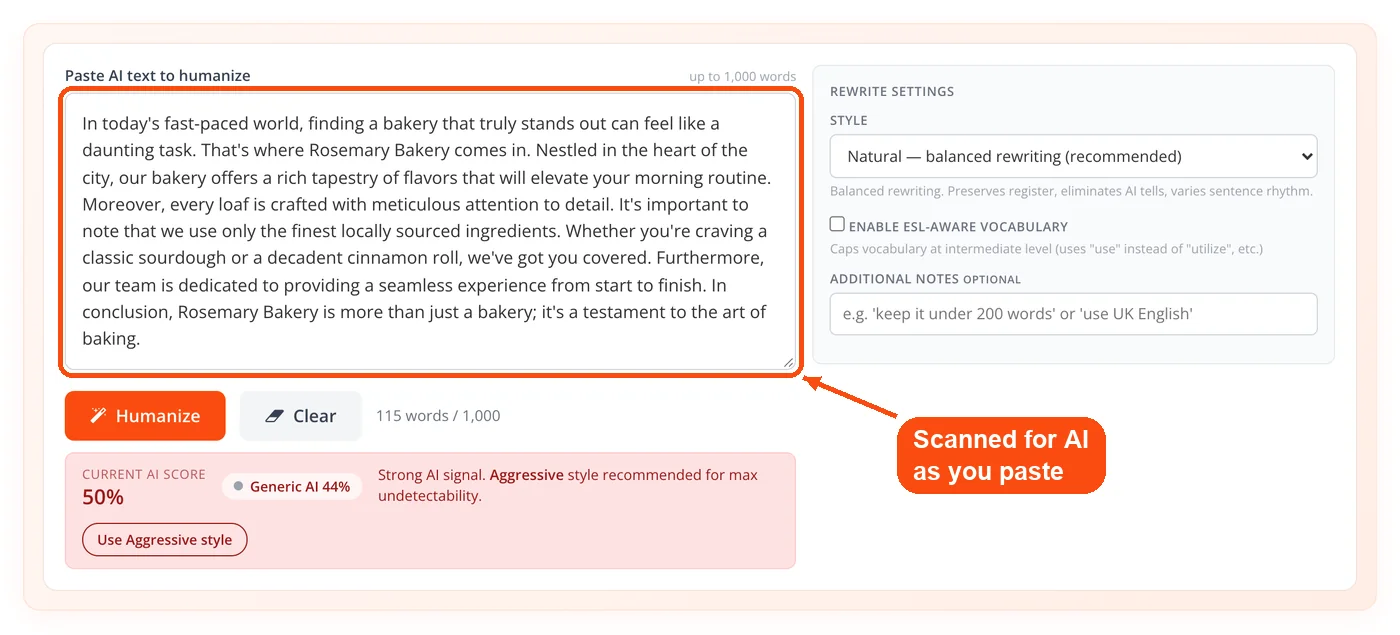
- Automatic Pre-Flight Detection: After a 500ms pause from pasting, the tool scores your text and recommends a style preset based on the result.
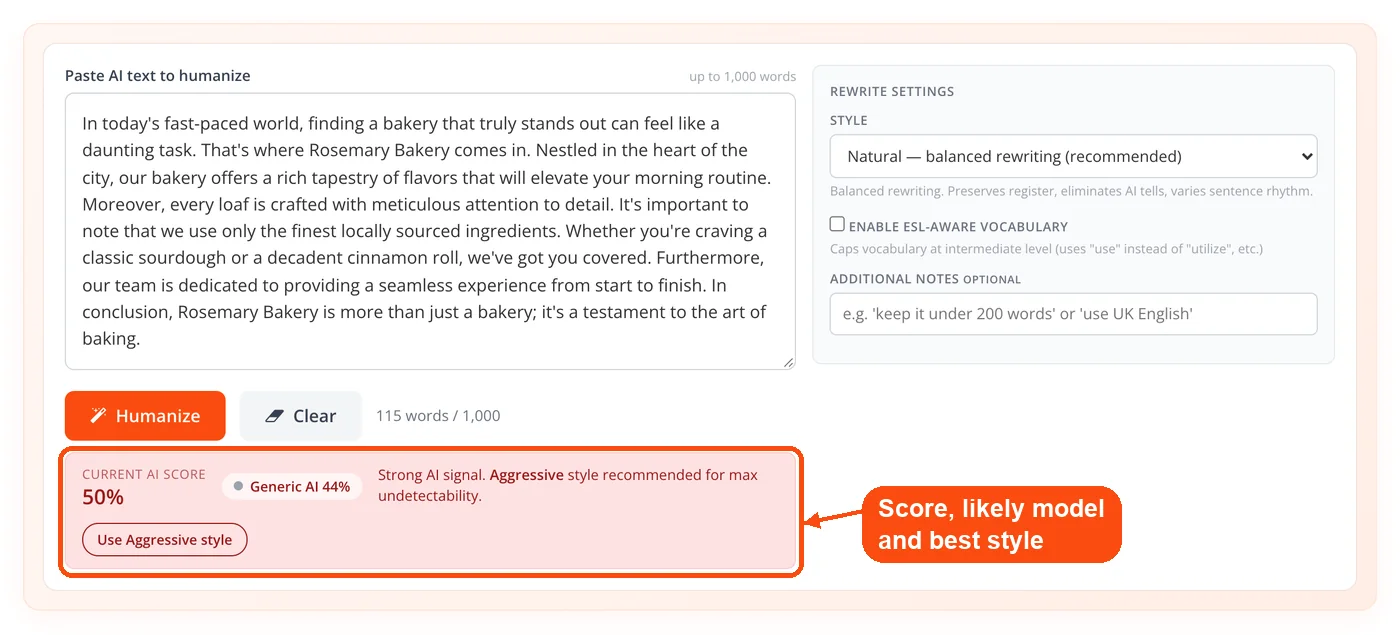
- LLM Source Identification: Detects whether your text came from ChatGPT, Claude, Gemini, or another AI model and labels it on-screen.
- Style Recommendation Engine: Based on your pre-flight score and detected source, the tool suggests the best style. An "Apply recommendation" button selects it for you.
- Source-Specific Phrase Elimination: When the pre-flight identifies a source model, the rewriting engine adds a high-priority list of that model's signature phrases to remove, such as "delve into," "key takeaway," or "nuanced" depending on the source.
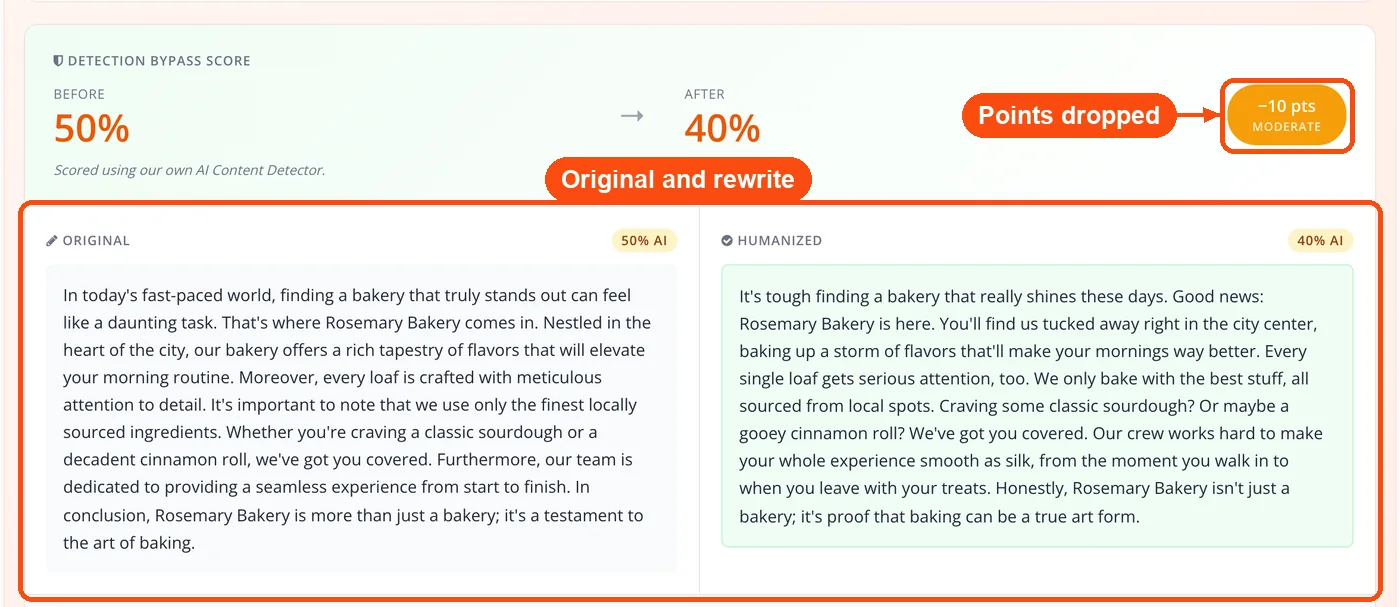
- Detection Bypass Score: After humanization, a gauge shows your before-and-after AI probability with color coding and an improvement chip (e.g., "-42 pts, big improvement").
- Custom Instructions Field: A free-text input lets you add specific directions to the AI rewrite, such as "keep under 200 words," "use UK English," or "match the tone of my previous email."
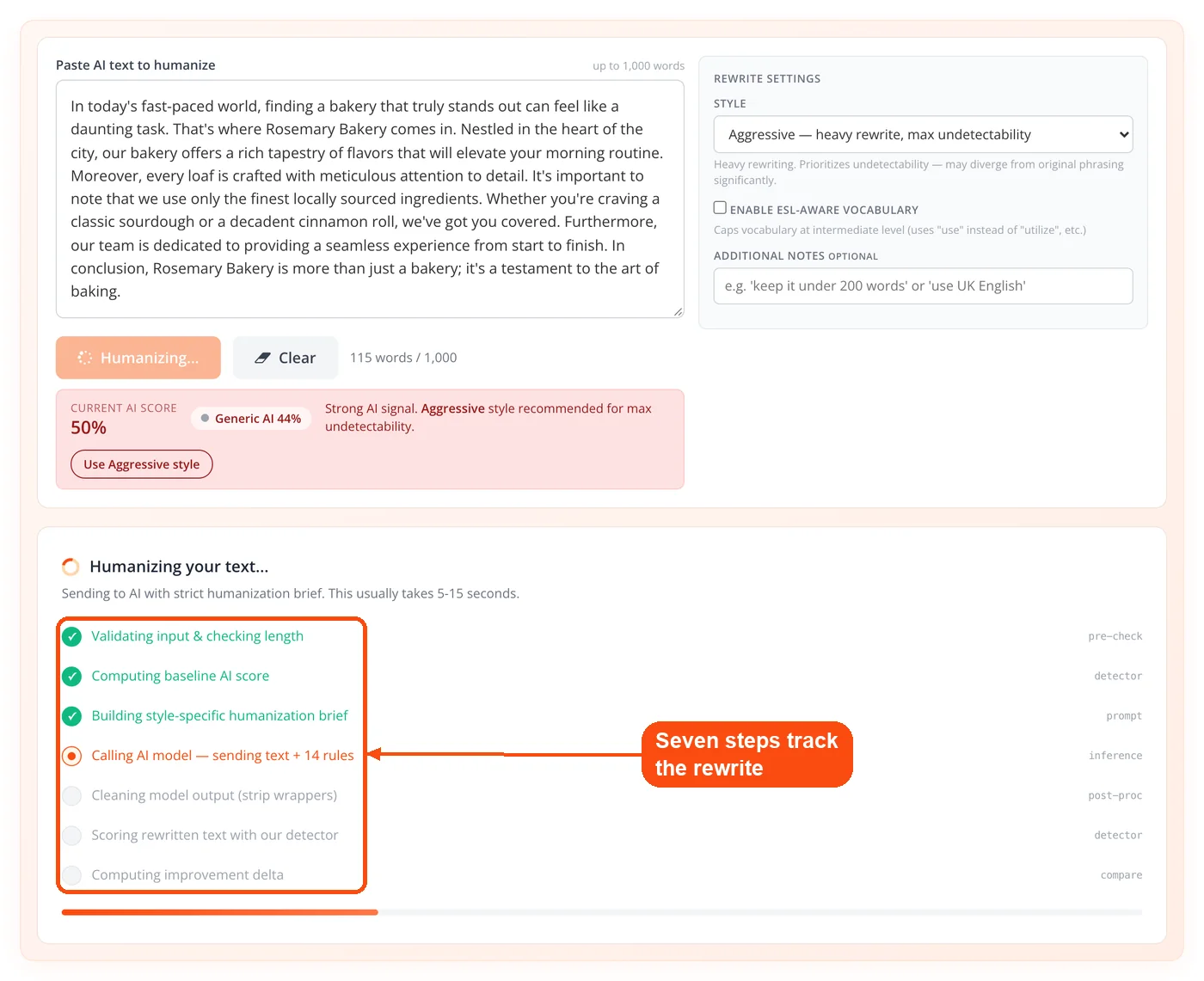
- Seven-Step Progress Animation: While processing, the UI shows each backend step lighting up in sequence, from input validation through final scoring, so you're never guessing what's happening.
- History Panel: Stores your last five humanizations in the browser with snippet previews, style used, before/after scores, and timestamps. One click reloads any previous result.
- Output Actions: Copy to clipboard, download as .txt, humanize again, or send directly to the AI Content Detector for a full breakdown report.
- Two-Way Detector Linkage: When the AI Content Detector scores your text at 40% or higher AI probability, a CTA like "Humanize this Claude text" appears. Clicking it opens the Humanizer with your text pre-filled and source hint already passed.
How to Humanize AI Text in 5 Steps
-
Paste your text. Drop your AI-generated content into the AI humanizer text box. The tool counts words in real time and runs an automatic AI detection scan after you stop typing for half a second.
Review the pre-flight report. Check your AI probability score, see which model likely wrote it, and read the recommended style preset. Click the suggested style button (for example "Use Aggressive style") or choose your own.
-
Click "Humanize." The tool sends your text, selected style, ESL toggle state, custom notes, and detected source model to the server. A seven-step animation tracks progress on-screen.
-
Compare results side by side. Your original text appears on the left with its score; the rewritten version appears on the right with its new score. An improvement chip shows the point drop.
-
Iterate or export. If you want the score lower, click "Humanize again." Otherwise, copy the output, download it as a .txt file, or open it in the full AI Content Detector for a sentence-level breakdown.

When to Use AI Humanizer
The AI Humanizer is most useful when you've got a solid AI draft that says what you need it to say, but reads like a machine wrote it. You don't need this tool if your text already scores under 25% AI probability. The pre-flight check tells you that upfront.
- Blog Post Cleanup: You used ChatGPT to draft a blog post for your WordPress site, and the language sounds flat and formulaic. Run it through Natural mode to add rhythm and variety.
- Client Deliverables: You're a freelancer who used AI to speed up a first draft, and you need the final version to reflect your voice before sending it to the client.
- Email Marketing Copy: Your AI-drafted email sequences sound robotic. As an AI humanizer for emails, it rewrites them with the Casual or Professional preset depending on your brand's tone.
- Academic Editing: You used AI to structure your research notes, and you want the final paper to sound like your writing. Light mode preserves about 80% of your original phrasing.
- ESL Content Polishing: English isn't your first language, and you want AI drafts to read like a fluent non-native writer, not a dictionary. The ESL-Friendly preset plus the vocabulary toggle handles this.
- Social Media Posts: Short-form content that sounds too polished or generic. The Casual preset rewrites in a "you" voice with contractions and shorter sentences.
- SEO Content Production: You're scaling content with AI but need each piece to pass editorial review. Use Natural mode and verify the result with the keyword density checker to make sure your target terms survived the rewrite.
- Resume and Cover Letters: AI-generated job application materials often sound identical to every other applicant's. Professional mode rewrites them with enough variation to stand out.
If your content is heavily formal by nature (legal briefs, academic citations, compliance documents), keep in mind that formal writing has lower burstiness even when a human writes it. AI detectors may still flag it regardless of humanization.
Use Cases and Applications
Content Team Scaling Blog Output
Context: A content marketing team produces 20 AI-assisted blog posts per week for an e-commerce brand on Shopify. Process:
- Writers generate first drafts in ChatGPT, then paste each one into the AI Humanizer
- The pre-flight identifies ChatGPT as the source and recommends Natural mode
- After humanization, the team verifies each post with the full AI Content Detector report Result: Posts pass editorial review faster because the rewritten drafts already sound like the brand's voice, and the before/after scoring gives editors a quick quality check.
Freelance Writer Protecting Reputation
Context: A freelance copywriter uses Claude to outline and draft client projects, but needs every deliverable to sound original. Process:
- The writer pastes Claude output and sees source identification flag "Claude" with specific tells highlighted
- Aggressive mode does a heavy rewrite that diverges from Claude's typical phrasing
- The writer iterates once more in Natural mode for a polished finish Result: Final copy scores under 15% AI probability, and the writer's client receives content that reads like hand-crafted work.
ESL Professional Humanizing AI-Drafted Emails
Context: A non-native English speaker working in a global SaaS company uses Gemini to draft internal and client-facing emails. Process:
- The ESL-Friendly preset rewrites with intermediate vocabulary, replacing words like "facilitate" with "help" and "execute" with "do"
- The vocabulary toggle stacks on top, adding slight grammar variations typical of fluent non-native writers
- Custom instructions specify "keep under 150 words" and "use UK English" Result: Emails read naturally and match the writer's actual communication level, reducing the uncanny-valley effect of over-polished AI text.
SEO Agency Producing City Landing Pages
Context: An agency generates 50+ location-specific landing pages per month using AI, each needing unique voice. Process:
- Each page runs through the AI Humanizer in Natural mode with custom instructions tailored to the local market
- The team checks word count and readability after humanization to confirm content length and grade level
- Before publishing, final drafts go through the plagiarism checker to verify originality Result: Landing pages index faster, and the agency eliminates the risk of Google flagging templated AI content across hundreds of similar pages.
How the Tool Works: Technical Workflow
Understanding what happens behind the scenes helps you get better results from each run. Here's the complete eight-step process from paste to export.
Step 1: Input Validation and Baseline Scoring
When you paste text, the tool counts words in real time. After 500 milliseconds of inactivity (a debounce to avoid scoring while you're still typing), the in-browser AI Content Detector runs against your input. This produces a pre-flight panel showing your AI probability as a percentage (0-100%), color-coded green (under 30%), orange (30-60%), or red (over 60%). The detector also identifies the most likely source LLM and displays it alongside a style recommendation.
If your text scores under 25% AI probability, the tool tells you humanization isn't needed. This saves you a round trip for text that's already natural enough.
Step 2: Style Selection
You choose one of six presets, each tuned for a different output character:
| Style | Temperature | Behavior |
|---|---|---|
| Natural | Moderate | Balanced rewrite, preserves register, removes AI tells |
| Aggressive | High (0.9) | Heavy rewrite, maximum undetectability, may diverge from original phrasing |
| Light | Low (0.5) | Minimal changes, only fixes obvious AI tells, keeps about 80% of original wording |
| Casual | Moderate | Informal, conversational, uses "you" voice, short sentences, contractions |
| Professional | Moderate | Formal business register, removes AI feel for B2B content |
| ESL-Friendly | Moderate | Rewrites at B2-level English, slightly varied grammar like a fluent non-native writer |
You can also toggle the ESL-aware vocabulary setting (saved in your browser for future sessions) and add custom instructions in the additional notes field.
Step 3: Prompt Construction
The server builds a four-layer prompt for the AI rewrite:
Layer 1 (System role): Establishes the model as an expert editor specializing in humanizing AI text.
Layer 2 (Source priority directive): If the pre-flight identified a source model, this layer adds a high-priority list of that specific model's signature phrases to eliminate. ChatGPT-targeted directives flag phrases like "let me know if," "key takeaway," and "game-changer." Claude-targeted directives flag "I should clarify," "nuanced," and "the caveat." Gemini-targeted directives flag "broadly speaking," "multifaceted," and "as previously mentioned." Generic directives catch 2023-era patterns like "delve into," "tapestry," and "in the realm of."
Layer 3 (Style guidance): One or two sentences describing the target style's character and constraints.
Layer 4 (14 strict rules): These cover phrase blocklists across all major AI models, sentence length variation requirements, punctuation rules, factual preservation mandates, and output format restrictions. The rules explicitly prohibit markdown formatting, signoffs, preambles, and meta-commentary in the output.
This layered approach is why source-aware humanization outperforms generic one-size-fits-all tools. In testing, a Claude-style sample with the source hint active had all six Claude-specific tells removed, compared to inconsistent results from generic prompts.
Step 4: AI Processing
The text, style, ESL flag, custom notes, and source hint travel to the server as a single POST request. The AI model processes the prompt with temperature settings that vary by style (0.5 for Light, 0.9 for Aggressive, moderate for everything else). Max tokens are budgeted proportionally to input length to avoid truncation or unnecessary padding.
Step 5: Output Cleaning
AI models sometimes add wrappers despite explicit instructions not to. The server strips these before returning the result:
- Markdown code fences (triple backticks)
- Preambles like "Here's the humanized version:"
- Surrounding quotation marks
- Trailing signoffs like "Let me know if you'd like..."
This cleaning step ensures you get clean, ready-to-use text every time, without needing to manually delete AI pleasantries.
Step 6: Post-Humanization Scoring
Your browser runs the same AI Content Detector on the humanized output. This produces a second AI probability score, and the tool renders both scores side by side with gauges and color coding. An improvement chip calculates the delta and labels it: "big improvement" (30+ point drop), "moderate improvement" (15-29 points), "minor improvement" (5-14 points), or "poor improvement" (under 5 points).
Step 7: Results Display
The side-by-side comparison view shows your original text on the left and humanized output on the right, each with its own score chip. Scroll both panels independently. Plain text formatting is preserved. The full session gets saved to your browser's history panel with a snippet, style used, both scores, and a timestamp.
Step 8: Iteration or Export
From here, you have four options. Click "Humanize again" to feed the output back as input and re-run with the same or different style. Click "Copy" to send the text to your clipboard. Click "Download .txt" to save a file. Or click "View full report" to open the text in the AI Content Detector, which auto-runs analysis on arrival and shows sentence-level highlights, per-LLM probability bars, and matched phrase chips.
Understanding AI Detection Scores
AI probability scores measure how closely your text matches patterns common in AI-generated writing. A score of 85% doesn't mean "85% of this was written by AI." It means the text exhibits patterns that strongly resemble AI output in areas like sentence length uniformity, vocabulary predictability, and phrase frequency.
Different detection tools use different scoring models. The in-browser detector powering the ToolsPivot AI Humanizer is a heuristic engine optimized for speed. Commercial detectors like GPTZero, Originality.ai, or Copyleaks may return different scores for the same text because they use different training data, thresholds, and classification methods.
Score Ranges and What They Mean:
| Score Range | Color | Interpretation |
|---|---|---|
| 0-30% | Green | Low AI probability. Text reads as human-written to most detectors. |
| 30-60% | Orange | Mixed signals. Some AI patterns present. A second humanization pass usually helps. |
| 60-100% | Red | High AI probability. Strong AI patterns detected. Likely needs Aggressive or multiple passes. |
Why Formal Content Scores Higher:
Legal documents, academic papers, and technical documentation naturally have lower "burstiness" (variation in sentence length and structure). Human writers in formal contexts tend to produce text that looks similar to AI output because both favor consistency and precision. If your formal content scores 40-50% after humanization, that may be the floor for that content type.
Honest Limits
No detector or humanizer is 100% accurate. The before/after scores use an in-browser heuristic detector, and commercial tools like GPTZero, Originality.ai, or Copyleaks may produce different results. Heavily formal content (legal, academic) may still flag as AI even after humanization because formal writing has lower burstiness by nature. Very short input (under 50 words) produces low-confidence scoring in both before and after metrics. Quality of the rewrite depends on the configured AI model: GPT-4o, Claude, and DeepSeek produce noticeably better output than GPT-3.5.
Related Tools
Complete your workflow with these complementary ToolsPivot tools:
- AI Content Detector: Scan text for AI probability with sentence-level highlights and per-model scoring.
- Paraphrasing Tool: Rewrite sentences and paragraphs while preserving meaning.
- Article Rewriter: Spin entire articles into fresh versions with unique phrasing.
- Grammar Checker: Catch grammar, spelling, and punctuation errors after humanization.
- Readability Checker: Test your humanized text for grade level and readability scores.
- Word Counter: Count words, characters, sentences, and paragraphs in your content.
- Plagiarism Checker: Verify that humanized output is original and not flagged as duplicate content.
- AI Meta Title Generator: Generate SEO-optimized meta titles for your humanized blog posts.
- AI Meta Description Generator: Create compelling meta descriptions that pair with your humanized content.
- Small Text Generator: Convert text to small caps, superscript, or subscript for social media formatting.
Frequently Asked Questions
An AI humanizer is a tool that rewrites AI-generated text to sound more natural and human-written. It adjusts sentence structure, vocabulary, and rhythm to reduce patterns that AI detectors flag.
It scores your text before and after humanization, identifies which AI model wrote it, and applies source-specific rewriting rules. Most competitors use a single generic prompt regardless of source.
Yes. It works as a ChatGPT AI humanizer and handles Claude and Gemini text the same way: the pre-flight detection identifies the likely source model and adjusts the humanization prompt to target that model's specific signature phrases and patterns.
Completely free with no signup and no hidden charges. Each run handles up to 1,000 words, and a fair-use daily limit per visitor keeps the service fast for everyone.
Six presets are available: Natural (balanced rewrite), Aggressive (maximum rewrite), Light (minimal changes), Casual (conversational tone), Professional (business register), and ESL-Friendly (simplified vocabulary). The tool recommends one based on your pre-flight score.
The in-browser detector is a heuristic engine that provides fast, consistent scoring. Commercial detectors like GPTZero or Originality.ai use different models and may return different scores for the same text.
Yes. Click "Humanize again" to iterate. Each pass feeds the previous output back as input. You can switch styles between passes for different results.
When the tool identifies the AI model that generated your text, it loads a targeted list of that model's tell-phrases and prioritizes removing them. This produces cleaner output than a generic prompt.
Yes. The 14-rule system used in prompt construction includes explicit factual preservation rules. Meaning, data, and key points stay intact while phrasing and structure change.
The ESL-Friendly preset rewrites text at B2-level English with simplified vocabulary. A separate vocabulary toggle caps word complexity further and introduces slight grammar variations typical of a fluent non-native writer.
If the AI Content Detector scores your text at 40% or above, a "Humanize this text" button appears. Clicking it opens the Humanizer with your text pre-filled. Going the other way, the Humanizer's "View full report" button sends your rewritten text to the detector for a sentence-level breakdown.
Very short text produces low-confidence scoring. The detector doesn't have enough data points to measure patterns reliably, so both before and after scores should be treated as approximations.
Text processing happens through the AI model on the server side, and your history is stored locally in your browser using localStorage. Nothing is saved to an external database, and clearing your browser data removes the history.
Formal writing (legal, academic, technical) naturally has low burstiness, meaning sentences tend to be uniform in length and structure. This pattern overlaps with how AI writes, so detectors may flag it regardless of authorship.
It works for making AI text read more naturally, and this tool shows you the result instead of asking you to trust it: every rewrite comes with a before and after AI score from the built-in detector. Scores usually drop, but no humanizer can promise a pass on every detector. GPTZero, Originality.ai, or Turnitin may score the same text differently, and very formal writing can still flag.
It can. Turnitin runs its own AI writing detector, and this tool cannot test text against it, so no humanizer, this one included, can promise that Turnitin will not flag the result. The before and after score shown here comes from the built-in detector and is a guide, not a Turnitin prediction. If your school or workplace has an AI policy, follow it rather than relying on a rewrite.
