Binary Translator
A binary translator that turns any text into binary code and back, instantly. Type in either box and it converts live. Works correctly with any language and even emoji, and also does hex, decimal, octal and Base64.
About Binary Translator
A binary translator converts readable text into binary code (sequences of 0s and 1s) and converts binary code back into readable text. The rebuilt ToolsPivot Binary Translator does both at the same time, in two live boxes, with no convert button to press. It also outputs hexadecimal, decimal, octal, and Base64, encodes everything as proper UTF-8 so accented letters and emoji survive the round trip, and shows a byte-by-byte breakdown of exactly what happened to each character.
What a Binary Translator Actually Does
A binary translator sits between characters and bytes. Your keyboard produces characters, your computer stores bytes, and binary is one way of writing those bytes down. The translator walks that chain in both directions.
The common misunderstanding is that one character always equals one byte. It does not. The letter A is a single byte, 01000001. The letter é is two bytes. A grinning face emoji is four. That gap between "character" and "byte" is where most free binary tools break, and it is why a decoded string sometimes comes back as a row of question marks.
Version 2.0 was rebuilt around that problem. The old version used a character-code shortcut that worked for plain English and silently corrupted everything else. The current build encodes text through the browser's native UTF-8 encoder, so what goes in comes back out unchanged.
What Changed in Version 2.0
The rebuild replaced the entire conversion engine rather than patching the old one. Five things changed that you will notice within the first thirty seconds of using it.
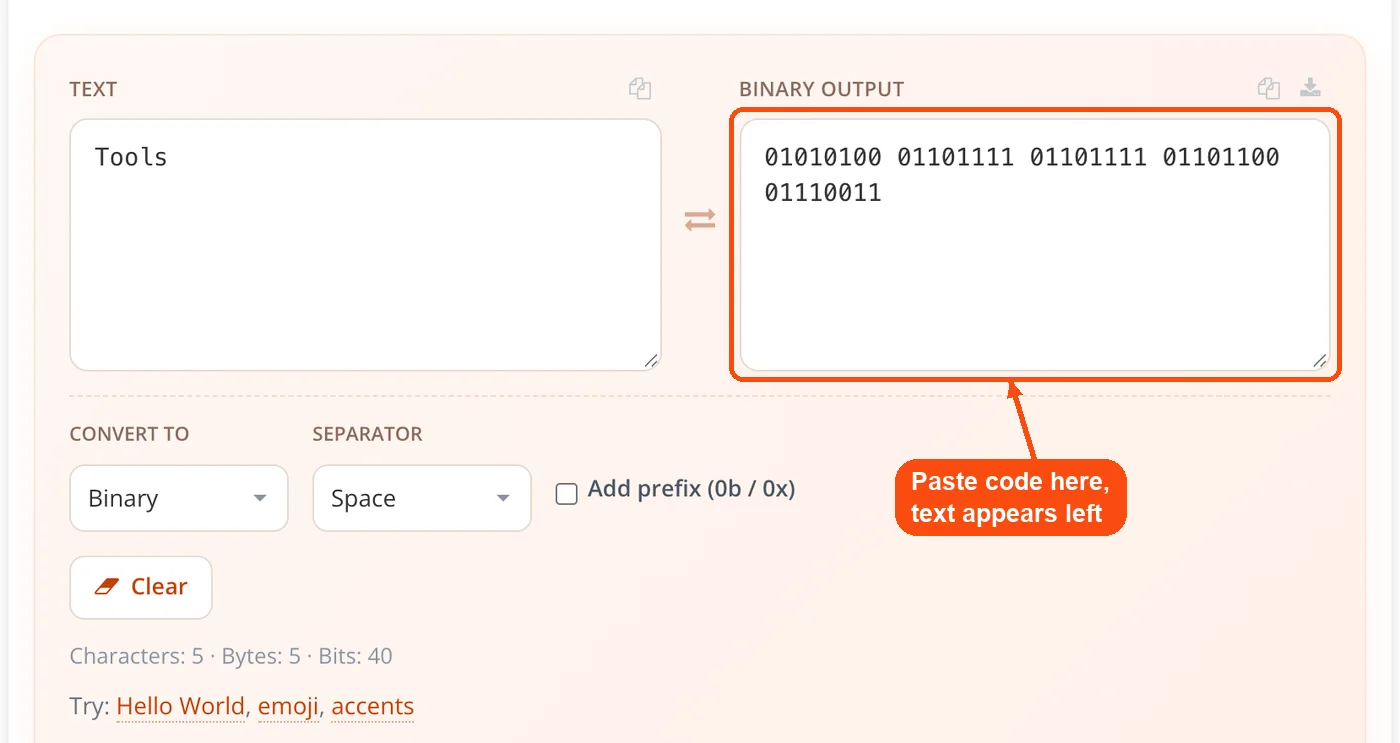
- Two-way live editing: The text box and the encoded box are both editable. Type in either one and the other updates as you go, so the same view is an English to binary translator and a binary translator to English. There is no convert button and no mode switch.
- Correct Unicode handling: Text is encoded to UTF-8 bytes properly, so é, 中文, Arabic script, and emoji all round-trip without loss. The previous version produced wrong output for anything outside basic English.
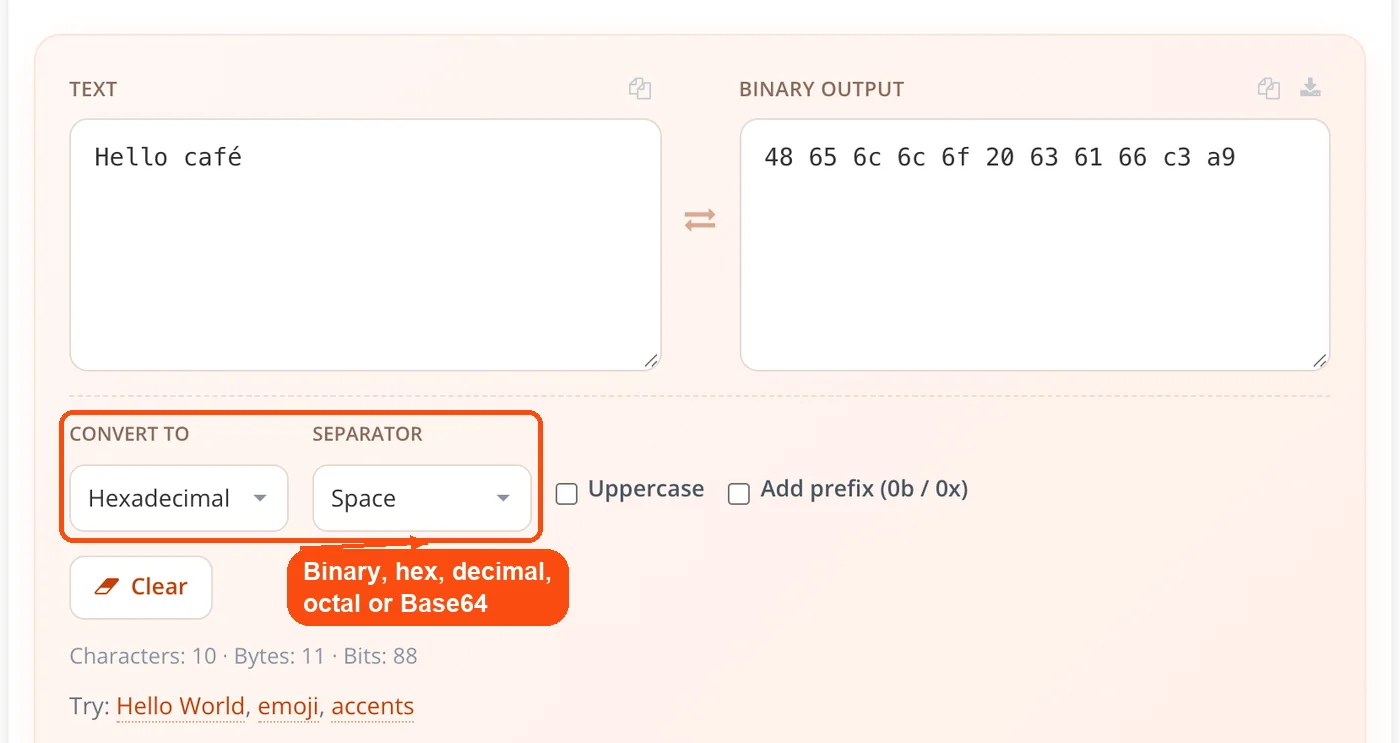
- Five output formats: Binary, hexadecimal, decimal, octal, and Base64, all from the same input. The old build did binary only.
- Formatting control: Choose your separator, toggle uppercase hex, and add 0b or 0x prefixes. Useful when you need output that pastes cleanly into source code.
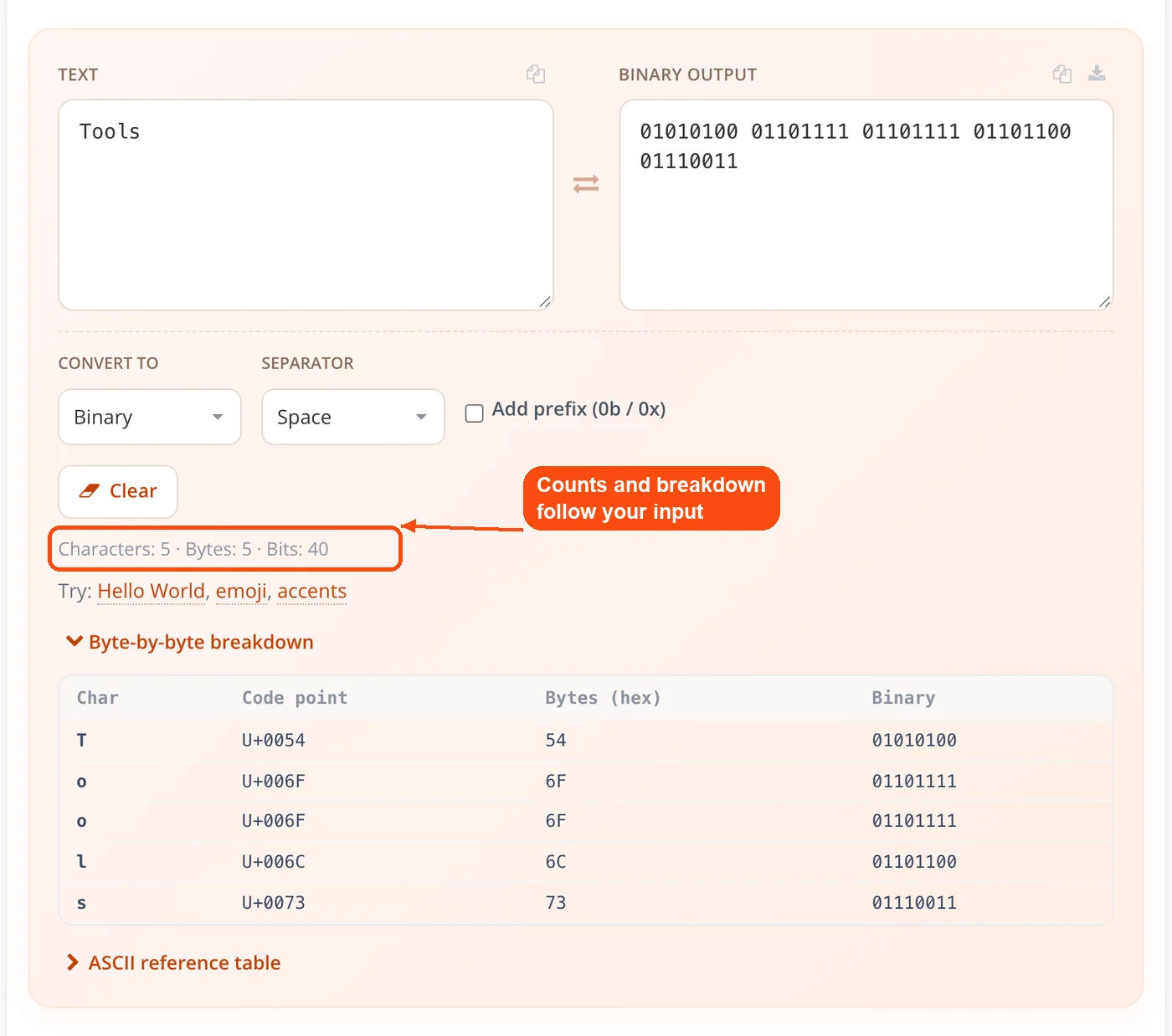
- A byte-by-byte breakdown: A collapsible panel shows each character, its Unicode code point, its UTF-8 bytes, and those bytes in binary. This is the part students tend to use most.
If you only need one direction and prefer a file upload workflow, the older single-purpose tools are still available: the text to binary converter encodes plain text, and the binary to text converter decodes it. Both accept a .txt upload, which the translator does not.
Key Benefits
- No button, no waiting: Output appears as you type in either box, which makes it faster for the quick single-character checks that make up most real usage.
- Nothing leaves your browser: It works as a binary translator online, but the whole engine runs locally in JavaScript. No upload, no API call, no account.
- Any language, correctly: UTF-8 encoding means Cyrillic, Devanagari, CJK, and emoji all convert accurately instead of producing garbage.
- One page for five formats: Switching from binary to hex to Base64 does not mean loading a different tool or losing your input.
- Output you can paste into code: Prefix and separator options produce strings that drop straight into a source file without hand editing.
- It shows its working: The breakdown panel turns the tool into a teaching aid rather than a black box.
- Forgiving input: Paste messy binary with stray spaces, line breaks, or 0b prefixes and it still parses.
Core Features
- Live two-way conversion: Both panes are editable and stay in sync, so one page encodes text and decodes binary at the same time. Edit the binary and the text updates; edit the text and the binary updates.
- UTF-8 encoding engine: Built on the browser's native TextEncoder and TextDecoder, the same components a modern browser uses to read a web page.
- Binary output: Eight bits per byte, zero-padded, so the letter A always reads as 01000001 rather than 1000001.
- Hexadecimal output: Two hex digits per byte, with optional uppercase and an optional 0x prefix.
- Decimal output: Plain byte values from 0 to 255, which is the format most textbook exercises expect. Paste binary, then switch the format to decimal, and it acts as a binary translator to decimal, one byte at a time.
- Octal output: Three octal digits per byte, still used in Unix permissions and some legacy protocols.
- Base64 output: Standard Base64 encoding of the whole byte stream, handled as a single block rather than byte by byte.
- Separator control: Space, none, new line, comma, or a custom character of your choosing.
- Tolerant decoder: Extra whitespace, mixed separators, and 0b or 0x prefixes are stripped before parsing. Genuinely invalid input returns a clear error instead of silent nonsense.
- Live counts: Character count, byte count, and bit count update as you type, which immediately exposes the difference between characters and bytes.
- Byte-by-byte breakdown: A collapsible table mapping each character to its code point, UTF-8 bytes, and binary.
- ASCII reference table: A built-in lookup table so you do not need a second tab open for common values.
- Per-side copy and download: Copy or save either pane independently.
How ToolsPivot Binary Translator Works
- Type or paste into either box. The left box holds text, the right box holds encoded output. Whichever one you touch becomes the source.
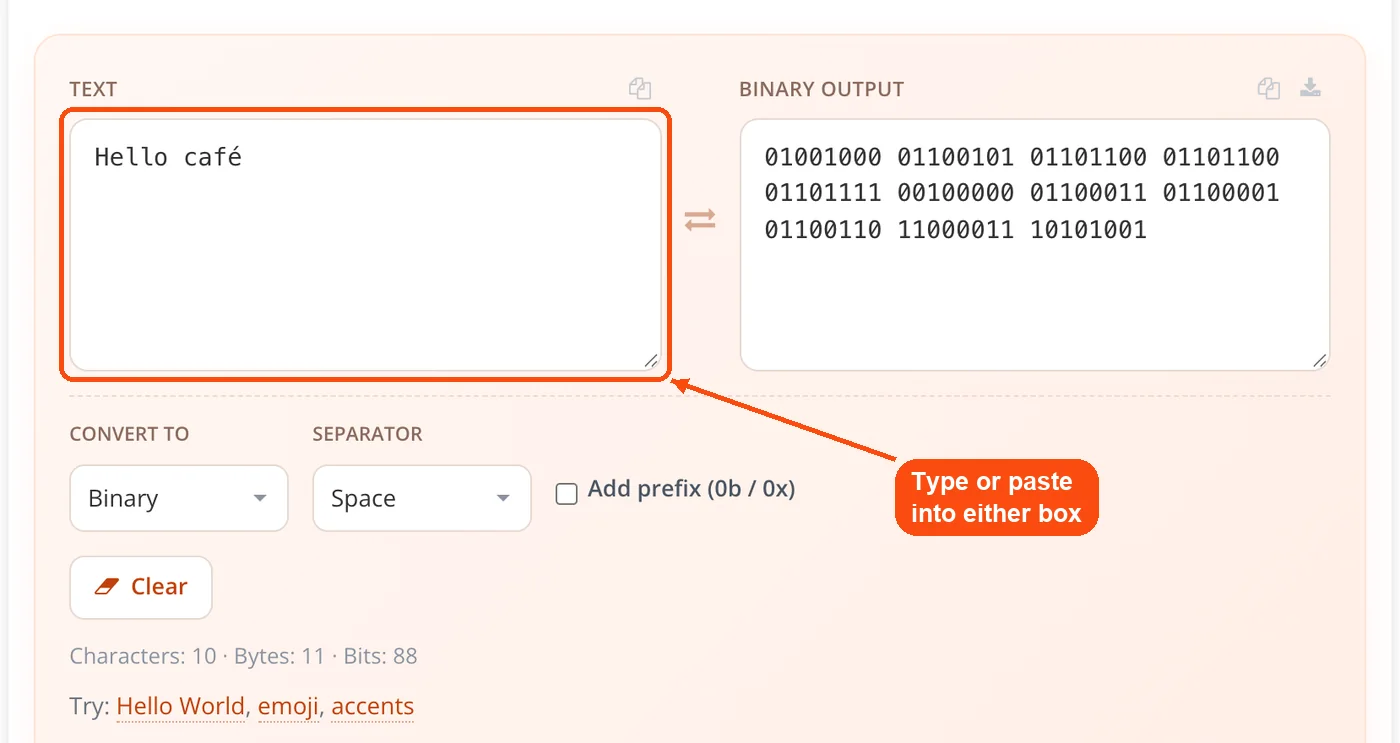
- Text is encoded to UTF-8 bytes. Each character is converted into one to four bytes using the browser's native encoder, which is what keeps emoji and accents intact.
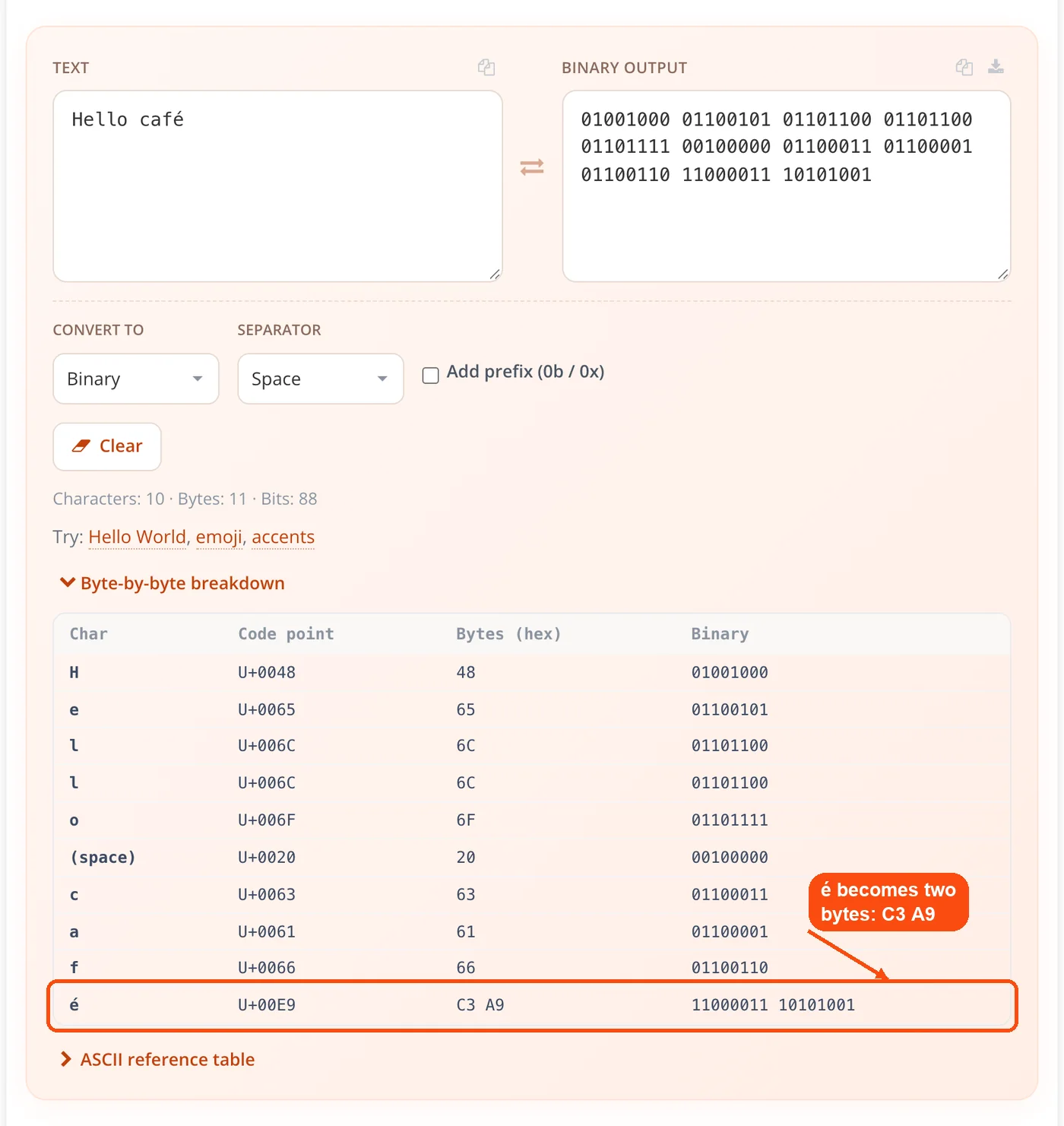
- Bytes are written in your chosen format. Each byte becomes 8-bit binary, two hex digits, a decimal value, or three octal digits, joined by your separator. Base64 encodes the full stream at once.
- Pasted code is parsed and decoded. Separators and prefixes are stripped, the remainder is grouped into bytes, and the bytes are decoded back to text.
- Extras update alongside. Counts, the byte-by-byte breakdown, and the copy and download buttons all reflect the current input.
Binary, Decimal, Hex, Octal and Base64: Output Formats Explained
Each format is a different way of writing the same bytes, so nothing is gained or lost by switching between them. What changes is readability and where the output can be pasted.
| Format | Per byte | "Hi" produces | Typical use |
|---|---|---|---|
| Binary | 8 bits, zero-padded | 01001000 01101001 | Coursework, puzzles, teaching place value |
| Hexadecimal | 2 digits | 48 69 | Debugging, memory dumps, color and hash values |
| Decimal | 0 to 255 | 72 105 | ASCII table lookups, textbook exercises |
| Octal | 3 digits | 110 151 | Unix permissions, older protocols |
| Base64 | whole stream | SGk= | Embedding binary data in text-only channels |
Separator and prefix options exist mainly for pasting into code. Comma separators with the 0b prefix give you a string that drops straight into a Python or JavaScript array. Setting the separator to none produces the continuous bit string most binary puzzles use. Uppercase hex with 0x matches the convention in C and C-derived code.
Base64 behaves differently from the other four on purpose. It encodes groups of three bytes into four characters across the whole input, so there are no per-byte boundaries for a separator to sit between and the prefix toggle does not apply. If you are working with Base64 image data specifically, the image to Base64 converter and the Base64 to image tool handle that side of the job.
When to Use a Binary Translator
Reach for this tool when you need to see or produce the exact bytes behind a piece of text. That covers more ground than it sounds like.
- Checking coursework: Convert your handwritten answer and compare it character by character against the breakdown panel.
- Diagnosing encoding bugs: When text renders as mojibake, the byte values reveal whether the problem is UTF-8 read as Latin-1 or the reverse.
- Decoding puzzle text: Escape rooms, geocaching clues, and CTF challenges lean heavily on binary and Base64.
- Preparing code constants: Generating a formatted byte array without writing a throwaway script.
- Teaching encoding: Typing one emoji and watching the byte count jump to four makes the point faster than a lecture slide.
- Inspecting log fragments: Turning a hex or decimal dump back into readable text to confirm what a payload contained.
- Verifying a single value: Confirming the space character really is 00100000 before committing to it.
It is worth being clear about the edge case: this is an encoding tool, not a security tool. Binary and Base64 are readable by anyone who knows the format. If you need something that cannot be read back, the password encryption utility and the MD5 hash generator serve that purpose instead.
Real-World Use Cases
Verifying a Homework Answer
Context: A first-year student has converted the word "Cache" to binary by hand and wants to check it before submitting.
- Type Cache into the text box and read the binary output.
- Open the byte-by-byte breakdown to compare each letter individually.
- Note that the capital C and lowercase c differ by exactly one bit.
Result: The mistake, if there is one, is isolated to a single character rather than requiring a full recheck. For arithmetic on binary numbers rather than text, the binary calculator is the better fit.
Tracking Down a Mojibake Bug
Context: A developer sees customer names rendering as é instead of é in an export file.
- Paste the broken text into the translator and switch the output to hexadecimal.
- Compare the byte values against the correct é, which is C3 A9 in UTF-8.
- Confirm whether the export wrote UTF-8 bytes that were then read as single-byte characters.
Result: The fault is located in the read step rather than the write step, which narrows the fix to one configuration setting. The URL encoder and decoder covers the same class of problem for percent-encoded strings.
Solving a CTF Challenge
Context: A capture-the-flag player has a blob of digits that could be binary, decimal, or octal.
- Paste the blob into the encoded box and cycle through the format options.
- Watch which format produces readable text instead of an error.
- Copy the decoded string straight out of the text pane.
Result: Format identification takes seconds rather than requiring a separate attempt in three different tools. The decimal to ASCII converter handles pure numeric input if that is all you have.
Building a Byte Array for Firmware
Context: An embedded developer needs a device identifier string as a comma-separated hex array.
- Type the identifier, switch output to hexadecimal, and enable uppercase.
- Set the separator to comma and turn on the 0x prefix.
- Copy the result directly into the source file.
Result: A correctly formatted array with no manual editing. For arithmetic on the resulting values, the hex calculator handles base-16 operations.
Reading the Byte-by-Byte Breakdown
The breakdown panel is the feature that separates this from a plain conversion box. For each character in your input it shows four columns: the character itself, its Unicode code point, its UTF-8 bytes, and those bytes rendered in binary.
Typing "café" produces five bytes from four characters. The breakdown shows why: c, a, and f each occupy one byte, while é sits at code point U+00E9 and encodes as the two bytes C3 A9. A single emoji gives one character, one code point, and four bytes.
That distinction between characters, code points, and bytes is what most encoding bugs trace back to. If you need character counts for writing rather than encoding, the word counter is built for that.
How This Compares to Other Free Binary Tools
Multi-format output is no longer unusual, and correct UTF-8 handling has become common rather than rare. Several established free translators already do both. The honest differences are narrower than that.
Most competing text binary translator tools use a convert button or a direction toggle, so you pick a direction before you start and switch modes to reverse it. Both panes here stay live and editable at once. Base64 alongside the four number bases in a single binary translator is less common. And a per-character breakdown showing code points next to UTF-8 bytes, generated from your own input rather than a fixed example table, was the hardest feature to find elsewhere.
Limitations Worth Knowing
- UTF-8 only: There is no UTF-16 or Latin-1 option. If your binary came from a UTF-16 source, the decoded text will be wrong, and some competing tools do offer those encodings.
- No file upload: Input is typed or pasted. For file-based work, the one-way Text to Binary and Binary to Text tools accept uploads.
- Base64 sits outside some options: Separator, prefix, and per-byte breakdown do not map onto Base64, since it encodes the stream as a whole.
- Browser memory sets the ceiling: Everything runs locally, so very large inputs are limited by your device rather than by a server. Long inputs can slow down live updates on older phones.
- Nothing is saved: No history, no autosave, no session recovery. Close or refresh the tab and your input is gone.
- Encoding is not encryption: Binary, hex, and Base64 are trivially reversible by anyone. They offer no confidentiality whatsoever.
- Ambiguous input can be misread: A string of digits could legitimately be binary, decimal, or octal. The tool decodes according to the format you select, not by guessing.
Frequently Asked Questions
Yes, with no account, no usage cap, and no premium tier. Everything runs in your browser, so there is no server cost to pass on.
Yes, at the same time. Both boxes are editable and stay in sync, so there is no direction to select and no convert button to press.
Yes. Text is encoded as UTF-8 through the browser's native encoder, so accented letters, non-Latin scripts, and emoji all convert and decode back without corruption. Plain English text keeps its familiar one-byte codes, because UTF-8 matches ASCII for those characters, so it behaves like a classic binary translator, ASCII values and all.
It decodes to Hello. Each 8-bit group is one byte: 72 is H, 101 is e, 108 is l twice over, and 111 is o. For comparison, help in binary is 01101000 01100101 01101100 01110000, and ok is 01101111 01101011.
Binary, hexadecimal, decimal, octal, and Base64. All five are generated from the same UTF-8 byte stream, so switching between them does not change the underlying data.
Yes. Space is the default, and you can switch to none, new line, comma, or a custom character. Binary and hex output also accept optional 0b and 0x prefixes.
No. The conversion engine is a self-contained script that runs entirely in your browser, with no upload and no API request.
UTF-8 uses one to four bytes per character depending on the code point. Most emoji sit high in the Unicode range and need the full four bytes, which is why the byte count jumps while the character count stays at one.
Yes. The decoder strips separators and prefixes before grouping the digits into bytes, so continuous strings, mixed spacing, and stray line breaks all parse.
The tool returns a clear error message rather than partial or misleading output. The usual causes are a bit count that does not divide into whole bytes, or digits that do not belong to the selected format.
No. Binary, hex, and Base64 are encodings, which means anyone can reverse them without a key. They provide no security at all.
Not in this tool. The one-way Text to Binary and Binary to Text converters on ToolsPivot accept .txt uploads if you need that workflow.
It shows each character alongside its Unicode code point, UTF-8 bytes, and binary. It is aimed at anyone learning how encoding works, and at debugging cases where character count and byte count disagree.
Yes, in any modern mobile browser with no app to install. Very long inputs may update more slowly on older devices, since the processing happens on your hardware.
A translator converts between text and byte representations. A calculator performs arithmetic on binary numbers. Different jobs, and both are available separately. To compare two decoded outputs side by side, the text comparison tool is useful, and the text case changer reformats decoded text once you have it.


