DocPivot PDF to Excel pulls the tables out of a PDF and writes a real .xlsx workbook, so the figures arrive as numbers you can actually sum. It runs inside your browser with no page limit and nothing uploaded, unless you switch on OCR to read a scanned page. Most converters hand back a grid that looks right and calculates wrong, because every value lands in the sheet as text. This page covers what the tool does, the four settings that change the output, and the cases where it will not give you what you want.
What DocPivot PDF to Excel Does
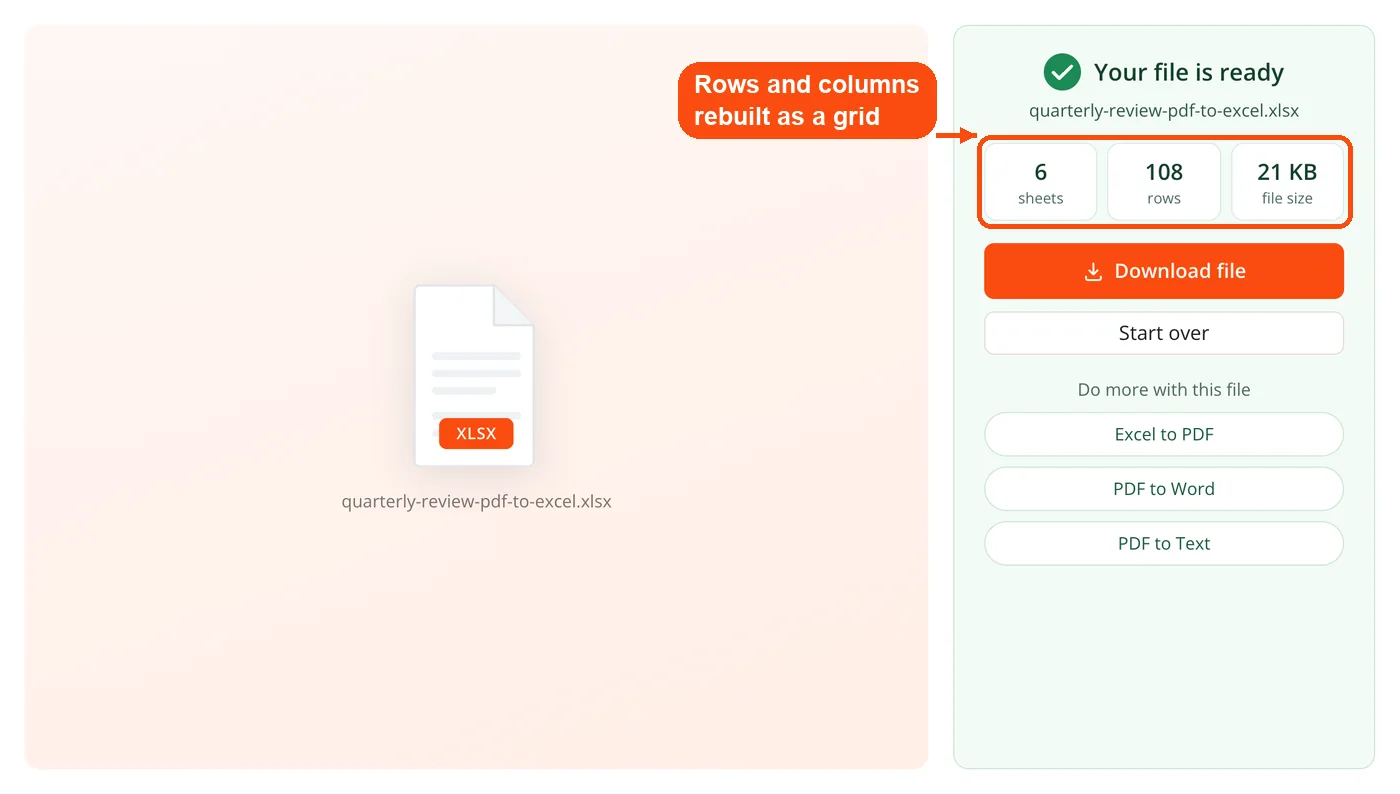
The tool reads the text and coordinates on every page of a PDF, rebuilds the rows and columns, and writes the result to an .xlsx workbook. The output is a genuine Excel file, not a CSV with a spreadsheet extension on the end. Numbers are written to numeric cells, so a total column adds up the moment you open it.
The conversion happens on your device. Your PDF is never sent to a server, which is why there is no page ceiling and no file size cap. A 400 page annual report converts the same way a two page invoice does. The single exception is optical character recognition for scanned pages, which needs a server and says so before you start it.
Tables are found by position rather than by ruling lines. Plenty of financial and government PDFs have no visible borders at all, just careful spacing. Clustering text runs by baseline and by horizontal position finds those columns anyway, so a table without a single drawn line still comes out as a grid.
Why DocPivot PDF to Excel Writes a Real Workbook
The reason for .xlsx instead of CSV comes down to one character: the comma inside a number. A cell holding 1,240 has to be quoted in a CSV file, and Excel then reads that quoted value as text. The column looks correct on screen and returns zero when you sum it.
This is not a rare edge case. Numbers arriving as text is one of the most common complaints about converted spreadsheets, and the usual repair is a manual pass with Text to Columns, or multiplying every affected column by one. Excel's SUM function skips text cells without warning, so the mistake never announces itself. You still get a total. It is just the wrong total.
Writing the workbook directly sidesteps the whole problem. Each value is typed as it is written: 1240 goes into a numeric cell, North goes into a string cell. Checked in LibreOffice, the sheet XML shows B3 holding a numeric 1240 next to A3 holding the text North. Nothing needs cleaning before you build a formula on top of it.
CSV is still available if you want plain values, or you are piping the data into another script. The difference is that it is a choice rather than the only thing on offer. When your source document is prose rather than tabular data, PDF to Word is usually the better route, and PDF to Text strips a file down to raw characters with no structure at all.
How DocPivot PDF to Excel Works
Five stages run between the file you drop in and the workbook you download.
- Read the page. A vendored build of pdf.js returns every text run on the page along with its exact coordinates. Nothing leaves your device at this stage.
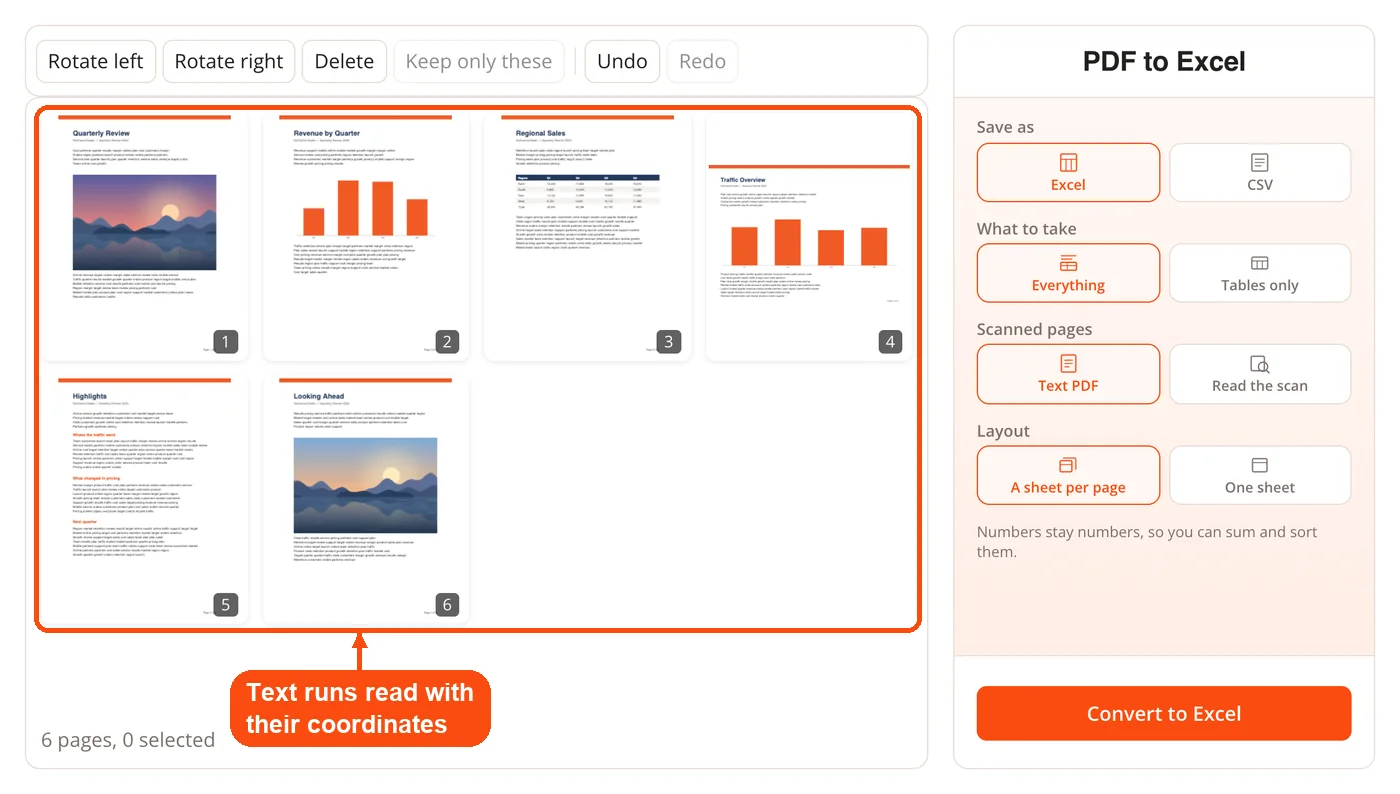
- Rebuild the grid. Runs are clustered into rows by their baseline and into columns by their horizontal position, which turns a visual table back into a real grid.
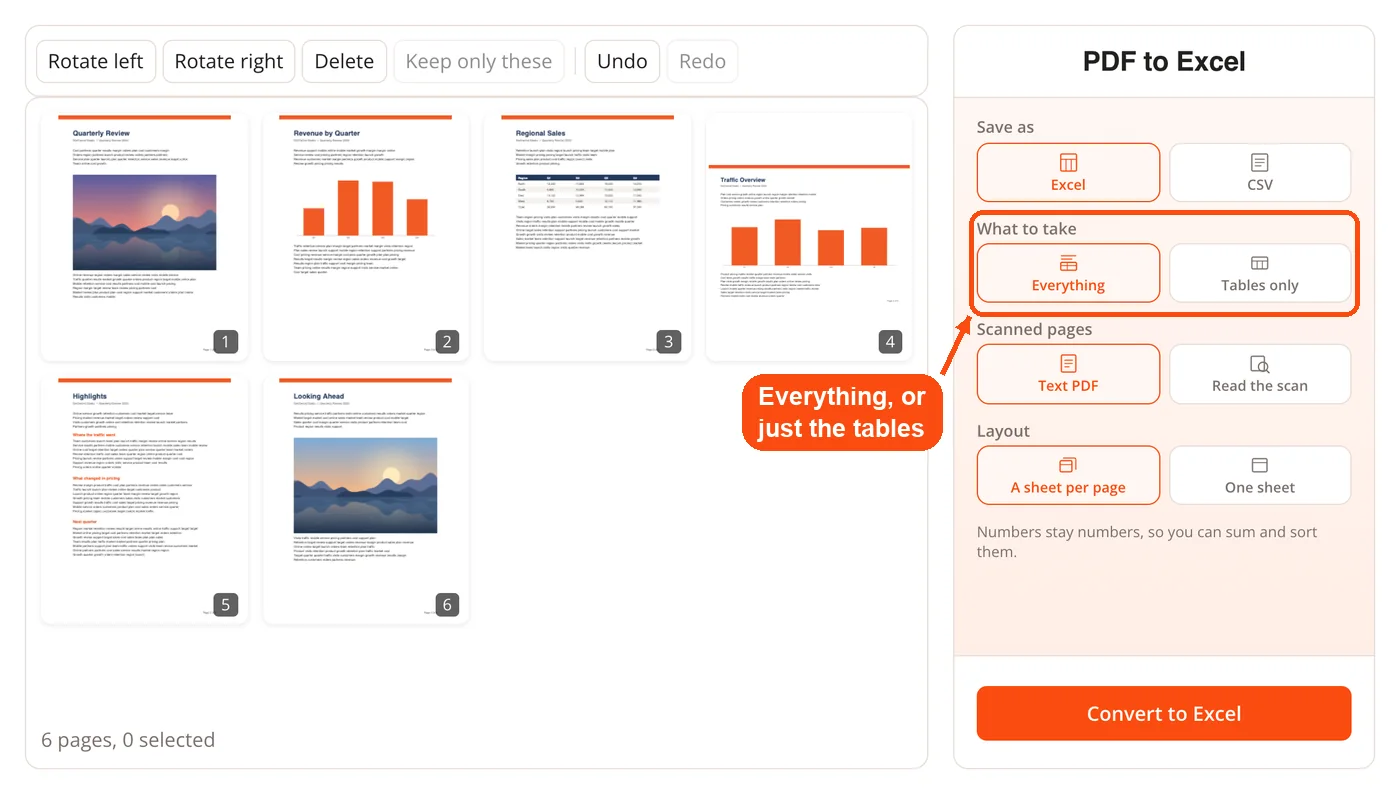
- Narrow to the tables, if you want. Titles, paragraphs and footnotes arrive as single cell rows. They stay in by default, and one setting drops them so your real header becomes row 1.
- Write the workbook. Sheets are XML packed inside a ZIP container, assembled by the ZIP writer already in the engine. Numeric values go to numeric cells, everything else to inline strings.
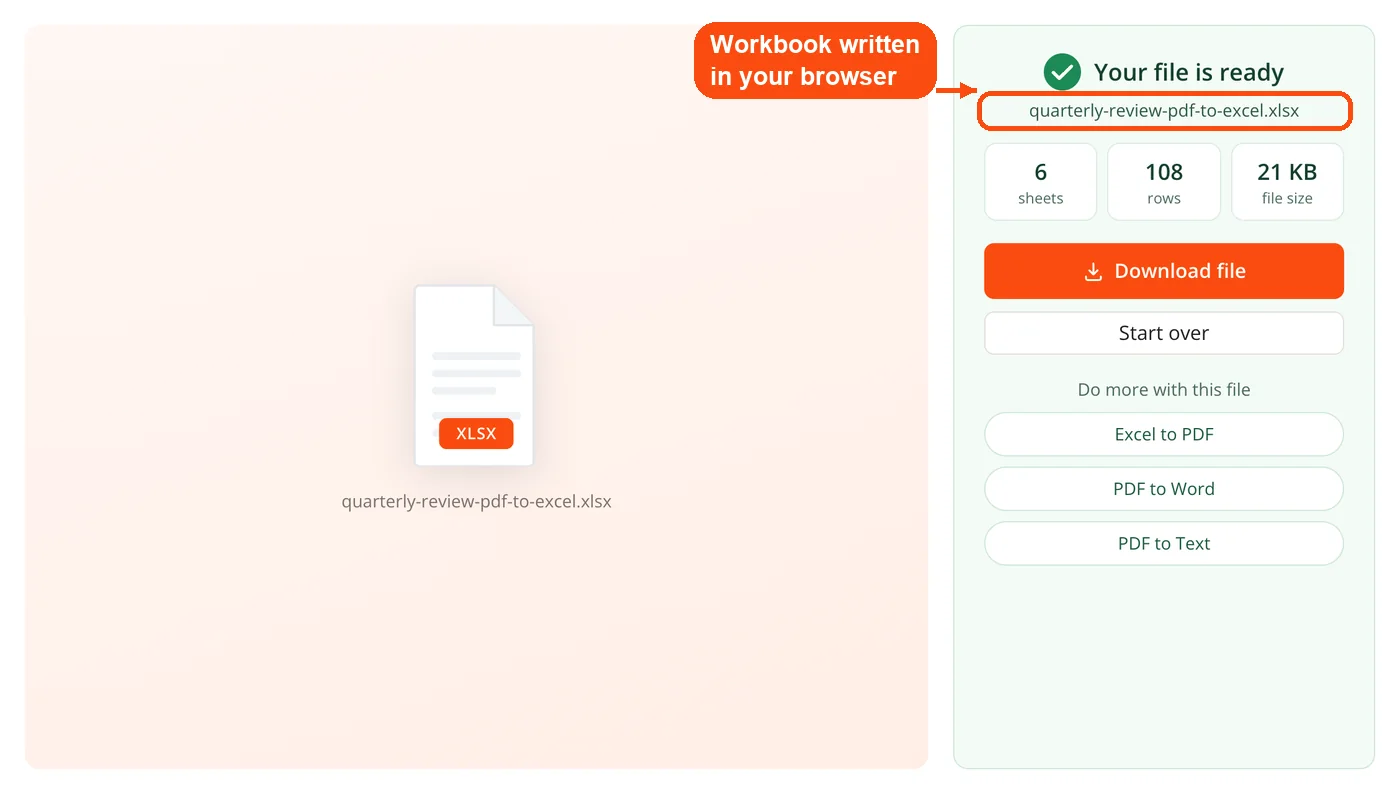
- Deliver the file. You get one .xlsx with a sheet per page, one .xlsx with everything on a single sheet, or a .csv.
The workbook writer is roughly 200 lines built over that existing ZIP writer, with no spreadsheet library underneath it. That is why the whole thing fits in a browser tab instead of needing a conversion queue.
Settings in DocPivot PDF to Excel
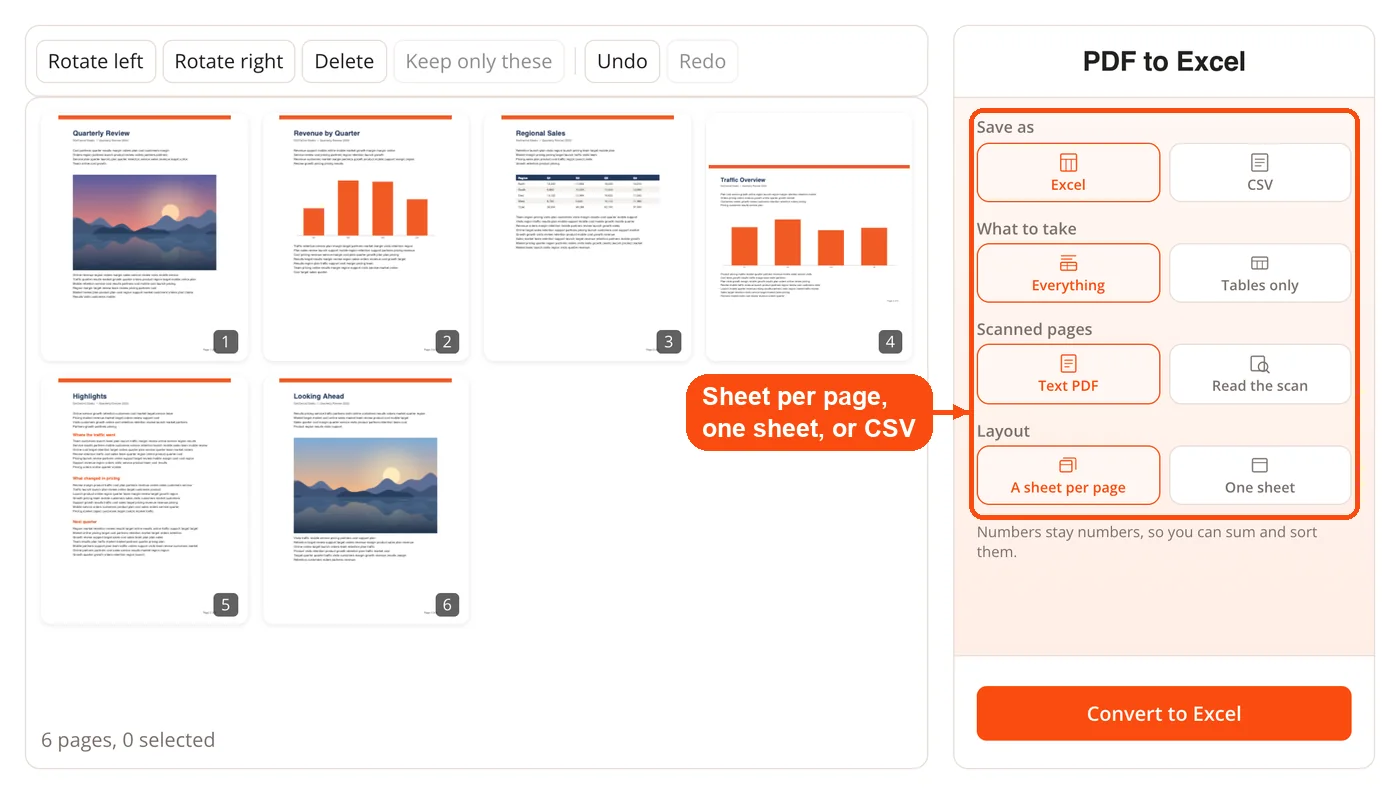
Four settings control the output, and the defaults suit most documents.
- Save as: Excel (.xlsx) or CSV. Excel is the default because it preserves numeric typing.
- What to take: Everything, or Tables only. Everything is the default and keeps headings and body text alongside the grid.
- Scanned pages: Text PDF, or Read the scan (OCR). Text PDF is the default and never uploads anything.
- Layout: A sheet per page, or one sheet. A sheet per page is the default and keeps page boundaries visible.
Tables only is the setting worth knowing about. A page's title, its introductory paragraph and its footnotes all land as one cell rows, which pushes your real header down to row 4 or row 7. Switching to Tables only drops those rows so the header sits where a spreadsheet expects it. If your PDF pages are landscape or arrived sideways from a scanner, straightening them first with Rotate PDF gives the column detection a much better starting point.
Reading Scanned Pages with DocPivot PDF to Excel
A scanned PDF has no text layer. It is a photograph of a page, so coordinate based extraction finds nothing to cluster and returns an empty grid. Optical character recognition solves this by reading the pixels and producing characters.
Choosing Read the scan sends your file to a server running Tesseract. There is no AI model, no third party API and no API key involved. This is the one action on the page that uploads anything, and the interface states that plainly before the button rather than in a footnote.
Accuracy on numbers is strong. Measured on a 150 DPI scan with no text layer, all 20 data values came back correct while one header cell read Q1 as Qi. That pattern is typical: digits are unambiguous shapes, while short header strings with mixed case and punctuation give the engine less to work with. Check your headers after an OCR run, then trust the numbers.
If what you actually want is a searchable PDF rather than a spreadsheet, OCR PDF adds a text layer to the original file and leaves it as a PDF. Support covers 18 languages, with no sign up, no watermark and no charge for the scan.
When to Use DocPivot PDF to Excel
The tool earns its place whenever the data you need is trapped in a layout rather than a file format.
- Bank and card statements. Twelve monthly PDFs become twelve sheets you can total, categorise and chart without retyping a single figure.
- Supplier invoices. Line items, quantities and amounts come across as numbers, so reconciliation is a formula instead of a squint.
- Published research and government data. Statistical tables in reports are frequently borderless, which is exactly the case position based detection handles.
- Price lists and catalogues. Vendor PDFs turn into a sortable sheet you can filter by margin or lead time.
- Board packs and annual reports. Long documents convert whole, since there is no page cap to work around.
- Archived records. Scanned files from before your systems went digital are readable through OCR without a subscription.
Long documents are often easier to handle in pieces. Pulling out just the pages that carry tables with Extract Pages from PDF keeps the workbook tidy, and Split PDF breaks a 300 page pack into sections you can convert one at a time. Going the other direction, Excel to PDF turns a finished sheet back into a document you can circulate.
Who Uses DocPivot PDF to Excel
Bookkeepers and accountants make up the largest group, because statements and invoices reach them as PDFs and leave as spreadsheets. Analysts pull tables out of published reports. Researchers extract figures from papers that only exist as PDFs. Operations teams convert supplier price lists into something they can sort.
What these jobs share is a numeric result. Nobody in that list wants a picture of a table. They want a column they can sum, and that single requirement is what shaped DocPivot PDF to Excel.
How DocPivot PDF to Excel Compares to Sejda and iLovePDF
| Feature | DocPivot | Sejda | iLovePDF |
|---|---|---|---|
| Free limit | No page or size cap | 10 pages, 50 MB, 3 tasks per hour | Not stated on the converter page |
| Output formats | Excel and CSV | Excel and CSV | Excel |
| Non-table content | Kept by default, one click to drop | Mode switch | Ignored by default |
| OCR for scans | Free | Handled by a separate tool | Premium plan |
| Upload required | Only for OCR | Yes | Yes |
One claim deserves to be stated carefully. Free OCR is a real difference from the biggest names in this category, since both iLovePDF and Smallpdf place scanned document conversion behind a paid plan. It is not a difference from the entire field: several smaller converters do offer OCR at no cost. The honest version is that you are not paying for something the market leaders charge for, not that nobody else offers it.
The no upload design is what makes the missing page limit possible. Server based converters meter free usage because every task costs them processing time, which is the reason Sejda caps its free tier at three tasks an hour. Extraction that never leaves your machine has no such cost to recover.
Limits of DocPivot PDF to Excel
Every extraction tool has cases it handles badly, and knowing them in advance saves more time than any feature. These are the ones worth knowing about in DocPivot PDF to Excel.
Tables only can come back empty. Not every PDF contains a grid the extractor can detect. When that happens the tool warns you and names the setting to change instead of handing over a blank file. This is precisely why Everything is the default: a converter that silently returns nothing is indistinguishable from a broken one.
OCR headers need checking. Data values are reliable, header text less so. Read the top row yourself before you build anything on the column names.
Merged headers keep their position, not their merge. A header that spans two columns in the PDF lands above the first of those columns in the sheet. Multi-level headers survive as separate rows and may need a moment of tidying.
Wrapped cells are preserved deliberately. A one cell row is kept when it sits underneath a column rather than at the left margin. Without that rule, the second line of a note like "Includes seasonal adjustments applied" disappeared silently, which is worse than an untidy row.
Encrypted and damaged files stop at the door. A password protected PDF has to be opened with Unlock PDF before any extraction can read it, and a file with a corrupted structure may need Repair PDF first. Very large scans are quicker through OCR after Compress PDF has brought the file size down.
For documents that need fixing rather than converting, the PDF Editor handles text and layout changes directly, and Merge PDF combines a year of separate monthly statements into one file before you convert the lot in a single pass.
Frequently Asked Questions About DocPivot PDF to Excel
Yes, DocPivot PDF to Excel is free with no sign up, no watermark and no page limit. OCR for scanned pages is included at no cost, which the largest competing tools charge for.
Yes, by switching the Scanned pages setting to Read the scan. This runs OCR on a server, and it is the only action on the page that uploads your file.
No, not unless you choose OCR. Standard extraction runs entirely in your browser, so the PDF never reaches a server.
Because CSV forces numbers containing commas into quoted text, which Excel then refuses to sum. Writing a real workbook lets 1,240 arrive as the number 1240 in a numeric cell.
No, there is no cap on pages or file size for standard conversion. Processing happens on your own device, so there is no server cost to meter.
It drops single cell rows such as titles, paragraphs and footnotes so your real header becomes row 1. Everything is the default, which keeps that surrounding text in place.
Your PDF does not contain a grid the extractor could detect. The tool warns you rather than delivering an empty file, and switching back to Everything will return the page content.
Yes, set Layout to one sheet. The default gives each PDF page its own worksheet tab, which suits documents where page boundaries matter.
Numbers come through reliably, headers less so. On a 150 DPI test scan all 20 data values were correct while one header read Q1 as Qi, so check your header row after an OCR run.
Merged headers keep their position but not their merge. A header spanning two columns lands above the first of them, and multi-level headers arrive as separate rows.
Yes, CSV is available under the Save as setting. It suits scripts and plain text pipelines, though numeric typing is lost in that format.
No, the converter runs in any modern browser with no installation and no account. Support covers 18 languages.
