A PNG to SVG converter traces a raster image into mathematical vector paths that stay sharp at any size. Most free tools carrying that label do something far simpler: they wrap the original PNG inside an SVG container, producing a file with an .svg extension and none of the benefits. The DocPivot PNG to SVG Converter is a real tracer. It reads the pixels, groups them into flat color regions, fits curves to the region boundaries, and writes out grouped, editable paths in full color with the transparency of the source left intact.
What This PNG to SVG Converter Does
The converter turns a PNG into a genuine SVG built from editable vector shapes. Each region of flat color in the source becomes its own path with its own outline, its own fill value, and its own id attribute. The output opens in Adobe Illustrator, Inkscape, and Figma as layered artwork you can recolor, reshape, animate with CSS, or export at any dimension. Converting in the opposite direction, from a finished vector back to a raster file, is a separate job handled by the SVG to PNG converter.
PNG is the starting point because it is the format logos and icons actually arrive in. Design handoffs, brand kits, app store assets, and email attachments all default to PNG, and PNG carries an alpha channel. That alpha channel is the part most competing tracers damage. A logo that arrives with a clean transparent background frequently comes back from a free tracer with a white rectangle behind it, or with soft edge pixels smeared into a halo that only becomes visible once the artwork sits on a colored header.
Two clarifications about scope are worth making before you upload anything. The tool does not invent detail that is missing from the source, so a low resolution PNG traces into a low fidelity vector. It is also not an image optimizer. If your goal is a smaller raster file rather than a scalable one, the image compressor or a format change through PNG to WebP will serve you better than tracing.
How PNG to SVG Conversion Works
Tracing in DocPivot runs as a five stage pipeline, entirely inside your browser tab. Understanding the stages helps you predict what the controls will change.
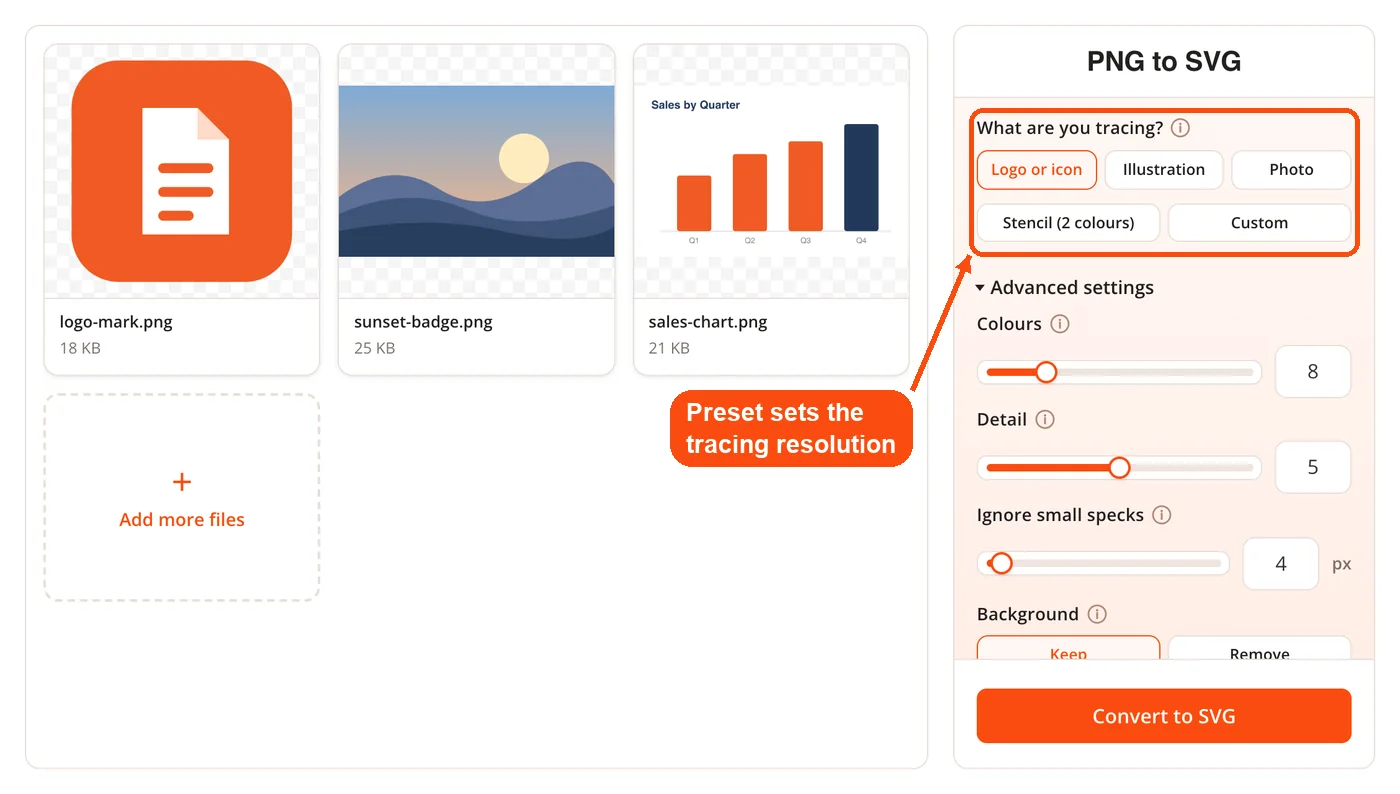
- Scale the work surface. Tracing cost is measured per pixel, so a large image is traced at a reduced size and the paths are scaled back up afterward. Scaling vectors is free and lossless, so nothing is lost. The preset sets the working resolution: 2400 pixels for Logo and Stencil, 2000 for Illustration, 1000 for Photo.
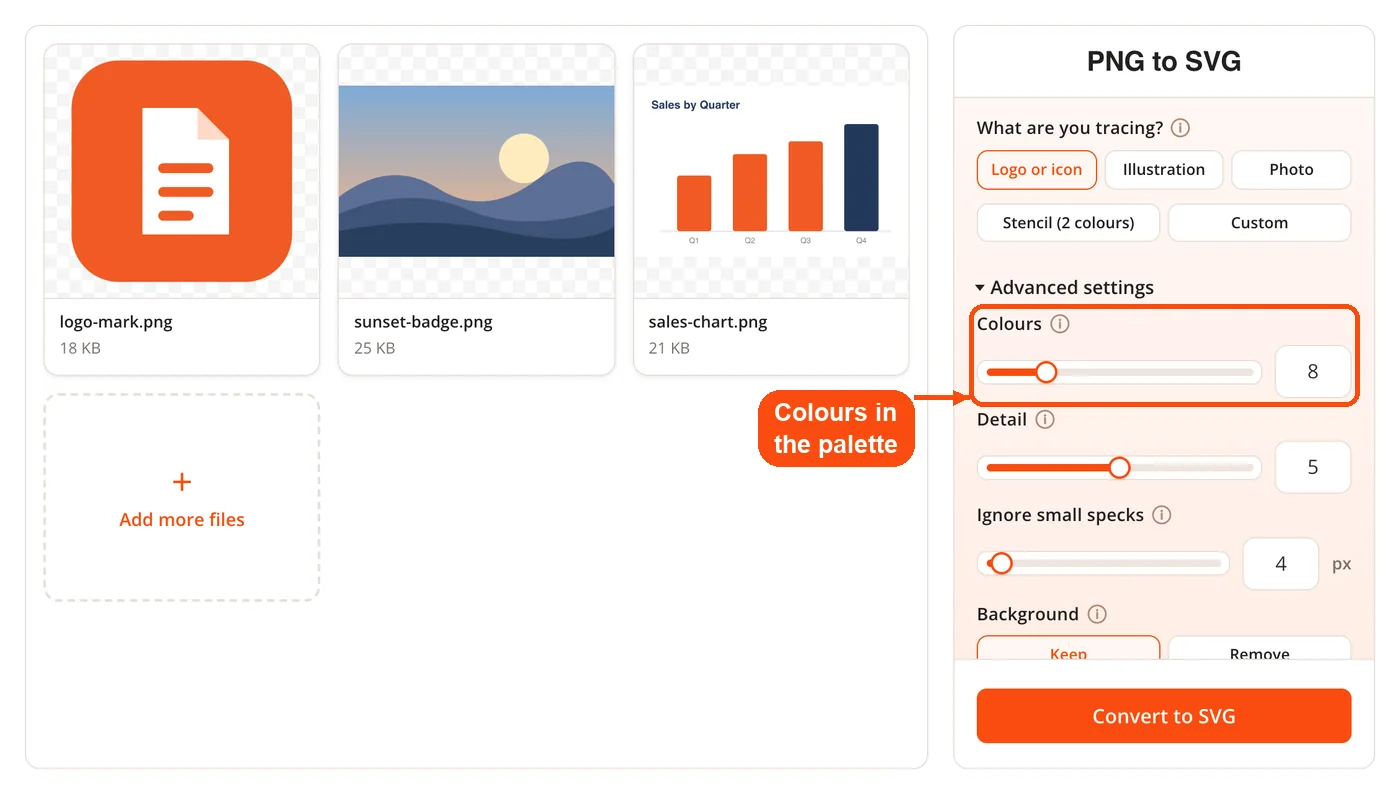
- Reduce to a palette. A k-means color quantization pass with farthest-point seeding collapses the image into flat regions. The seeding is deterministic, so the same PNG with the same settings always produces the same palette and the same SVG. Transparent pixels are excluded from the palette entirely, which is how the alpha channel survives.
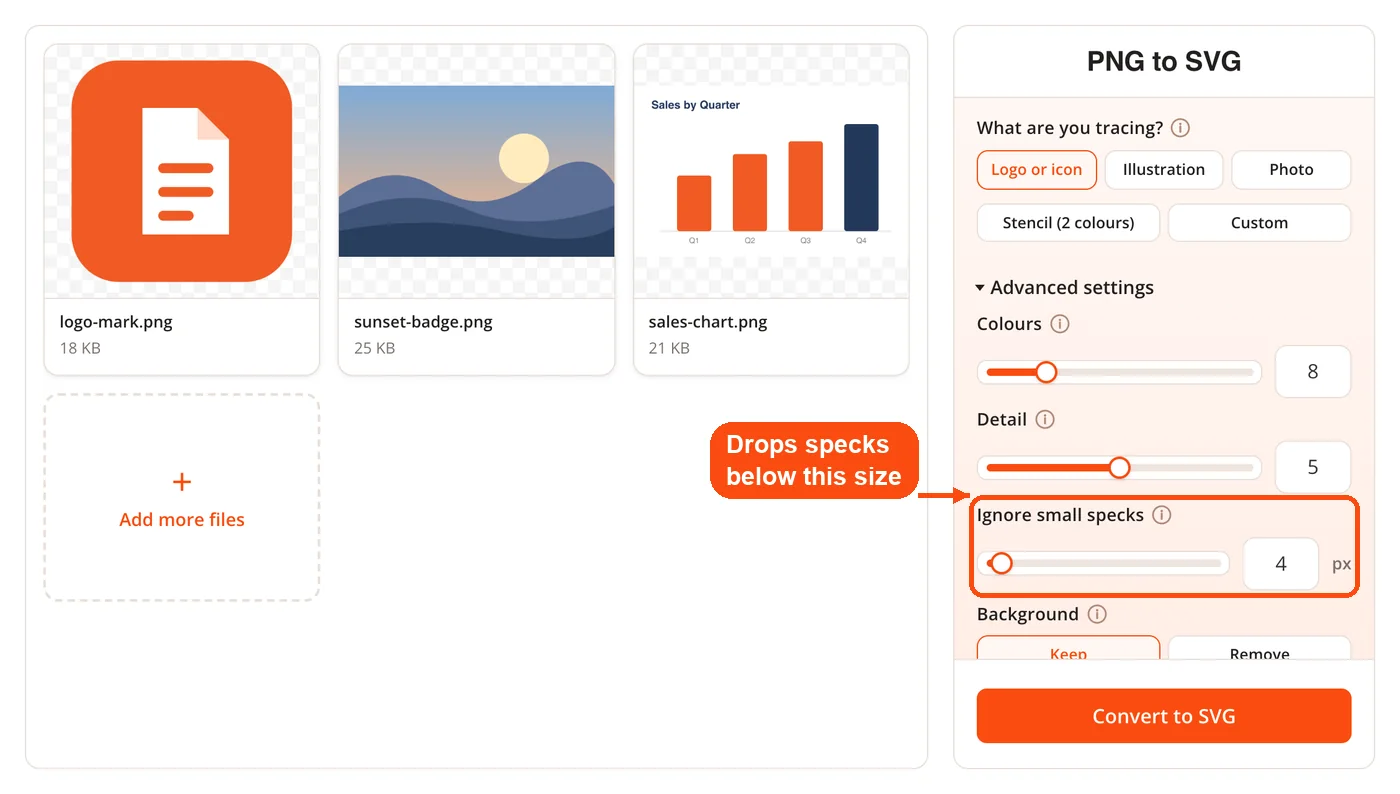
- Find region boundaries. The boundary edges of each color are collected and stitched into closed loops. Regions falling below the despeckle threshold are dropped by area, which removes the stray single-pixel islands that anti-aliasing leaves behind.
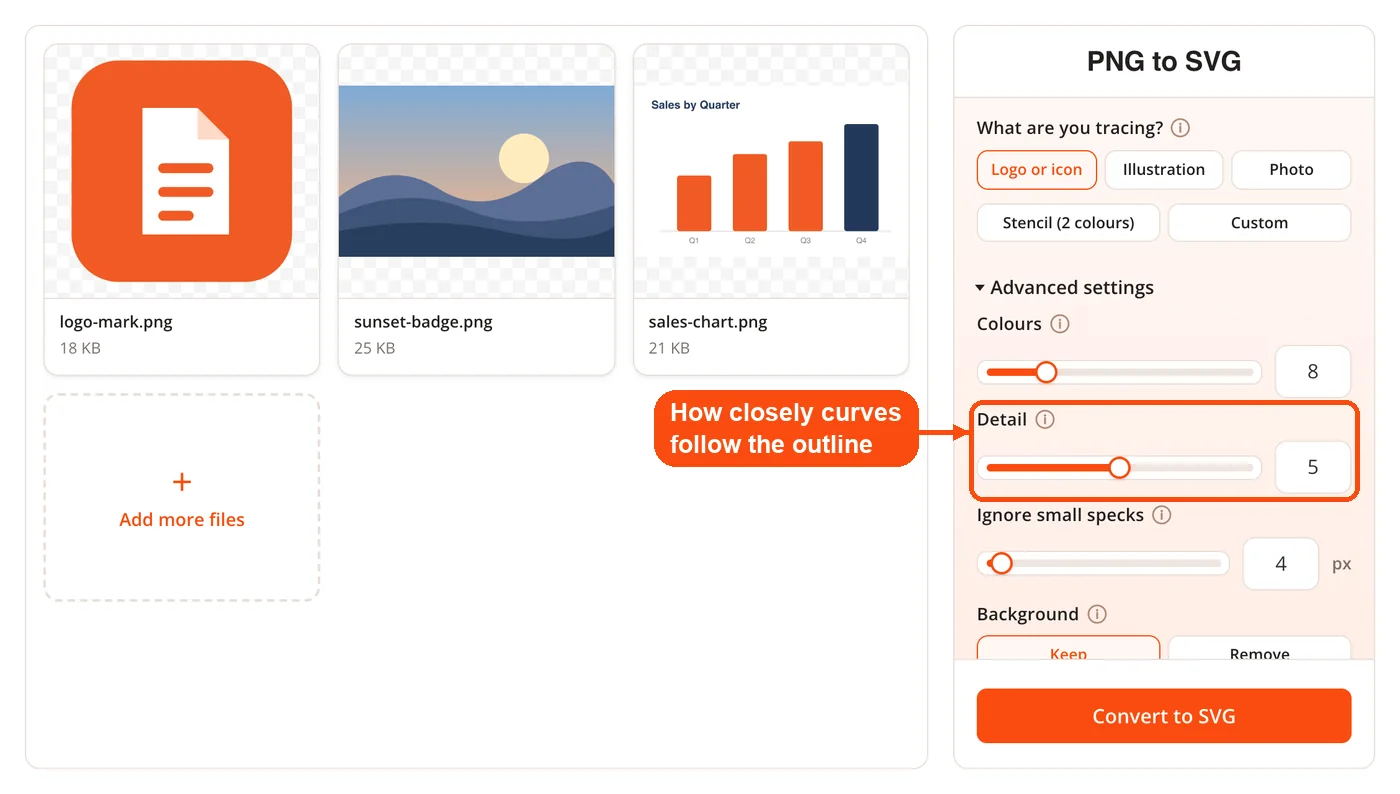
- Simplify and fit curves. Ramer-Douglas-Peucker reduces each loop to its meaningful points, corners are detected at a 45 degree change in direction, and the runs between corners are fitted with least-squares cubic Bezier curves using Schneider's algorithm with Newton reparameterization. One detail here came out of testing rather than theory: corners are taken from the simplified outline, but the curves themselves are fitted to the original outline, because fitting to the simplified version measurably worsened accuracy.
- Emit the file. Colors are written in order of total area, largest first, so smaller details usually land on top of larger fills, and holes are cut into their parent shapes. Paths are grouped one group per color, one path per shape, each carrying an id.
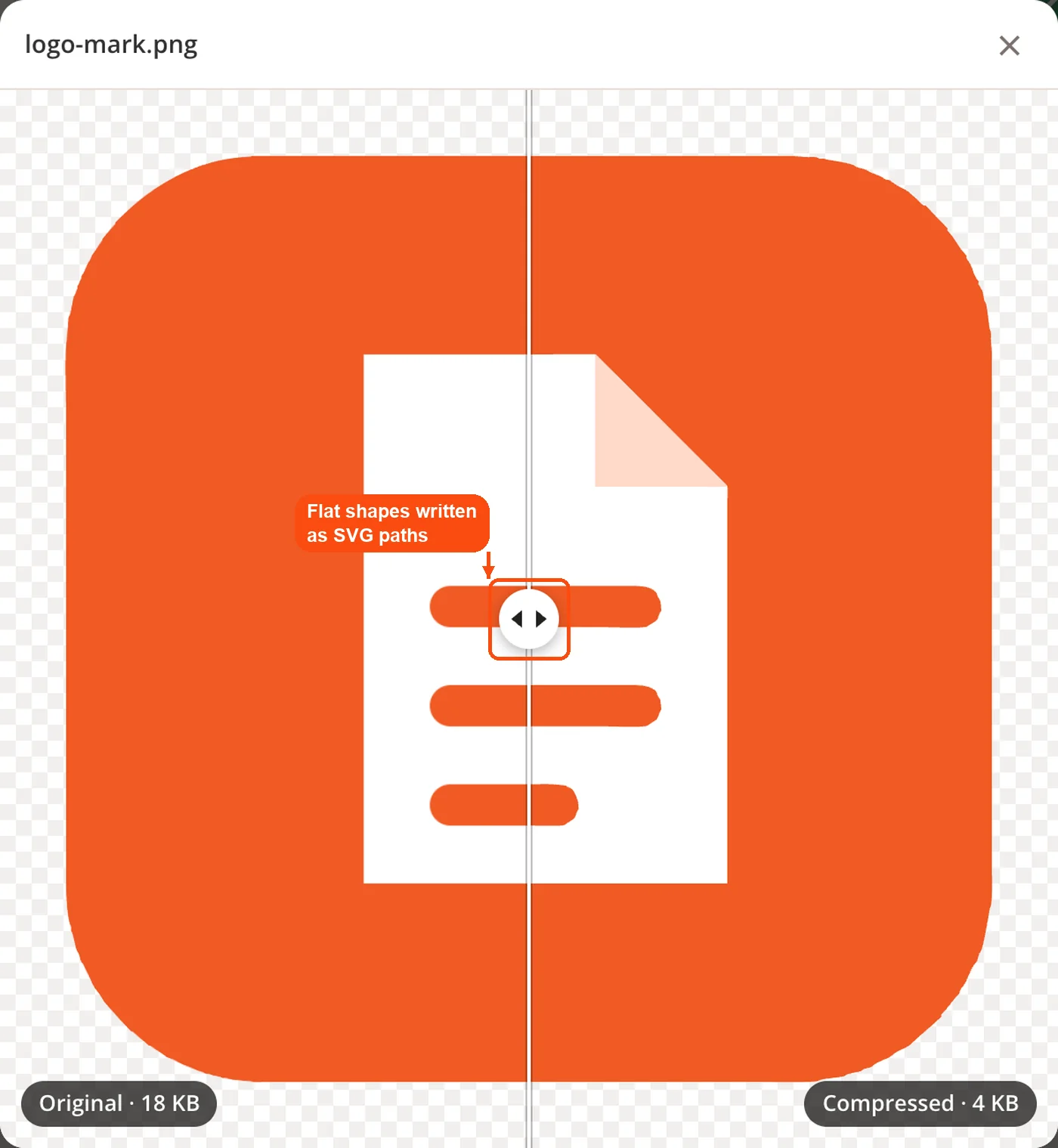
That final grouping is why the file behaves properly in an editor. Opening the result gives you named layers organized by color rather than one undifferentiated mass of geometry, so changing a single brand color is a one-click operation instead of a selection exercise.
Presets and Controls in the DocPivot PNG to SVG Converter
The default view is deliberately small: a preset chip and a button. Four presets cover the artwork types people actually bring to a tracer.
| Preset | Colors | Detail | Despeckle | Working resolution |
|---|---|---|---|---|
| Logo | 8 | 5 | 4 | 2400 px |
| Clipart | 16 | 5 | 8 | 2000 px |
| Photo | 12 | 2 | 64 | 1000 px |
| Stencil | 2 | 5 | 16 | 2400 px |
Logo is the right starting point for the large majority of files, since flat brand marks are what most people are tracing. Stencil drops to two colors and suits cut files for Cricut and Silhouette workflows, where the machine needs a single silhouette rather than a color breakdown. Photo exists mainly to demonstrate why photographs are a poor fit, and it lowers detail and raises despeckle heavily to keep the path count from exploding.
The dials sit in a collapsed Advanced panel. Colors accepts a value from 2 to 32 and sets how many entries the quantizer keeps. Detail runs from 0 to 10 and governs how aggressively the simplification stage discards points, so higher values follow the original outline more closely at the cost of a larger file. Despeckle sets the minimum region area that survives. Background can be kept or removed, which is the setting to reach for when a logo arrived with a flat white rectangle baked in rather than real transparency.
If the source needs tidying before tracing, handle that first. Trimming dead space with the crop image tool or setting sensible dimensions with the image resizer gives the quantizer less irrelevant area to spend palette entries on.
Who Uses the DocPivot PNG to SVG Converter and Why
Four groups account for most tracing work, and their reasons differ.
- Brand and marketing teams receive a logo as a PNG from a client or a former agency, cannot locate the original Illustrator file, and need something that survives being placed on a billboard as well as a favicon.
- Web developers want an inline SVG they can style with CSS, swap colors on in dark mode, and serve without a second network request. A traced logo also feeds directly into the favicon generator for the icon set a site needs.
- Print and signage operators need vector geometry because a raster image sent to a large format printer or a vinyl cutter fails at the size involved. Handing the traced result to the SVG to PDF converter produces the print-ready file most shops ask for.
- Craft and cutting machine users convert clipart and lettering into the cut paths Cricut Design Space and Silhouette Studio expect, which is exactly what the Stencil preset targets.
A common follow-on task is producing raster versions at fixed sizes from the vector you now own, whether that is a social avatar through PNG to JPG or a set of export sizes from the vector itself. Owning the vector first is what makes every later export cheap.
How the DocPivot PNG to SVG Converter Compares on the Same Test File
The figures below come from one internal test run on 21 August 2026 using a single 500 by 220 pixel transparent PNG logo. They describe that file only. Results shift with artwork type, and free tier terms change, so treat the table as a snapshot rather than a standing guarantee.
| Service | Result on the test logo |
|---|---|
| CloudConvert | Does not offer raster to SVG conversion at all. Its PNG converter listed no SVG output target when checked again in September 2026. |
| Convertio | Bitonal output. One black fill, brand color lost. 10,019 bytes across 61 paths. |
| FreeConvert | Color retained, but 102,857 bytes across 964 paths, and alpha coverage inflated from 32 percent to 42 percent. |
| Vectorizer.AI | Good output quality, but the download is behind a paid plan starting at 9.99 US dollars per month. |
| DocPivot | 7,240 bytes across 8 paths, brand color retained, alpha coverage 32 percent, matching the source exactly. |
Three differences carried real weight on that file. Color survived where a bitonal tracer discarded it. Alpha coverage came back identical to the source rather than ten points heavier, which is the difference between a clean edge and a visible halo. And the DocPivot file came out roughly fourteen times smaller than the highest-volume free competitor while using eight paths instead of 964, which is the difference between a file a designer can work with and one that stalls an editor.
One point deserves an honest correction to how converters in this category are often marketed. Free access, no signup, no daily cap, and browser-side processing are widely available now. Several free tracers offer unlimited conversions and their own color, precision, and despeckle controls. Those properties are capabilities here, not advantages, and choosing between tools should come down to what the output file actually contains.
Where the DocPivot PNG to SVG Converter Is Not the Right Tool
Tracing has firm limits, and knowing them saves a wasted download.
- Photographs. Continuous tone images have no flat regions to find, so quantization forces a posterized result with banded edges. The interface states this rather than letting you discover it after downloading. If you want a photograph to look like a photograph, keep it in a raster format and route it through the image converter instead.
- Gradients, glows, and soft shadows. These become stepped bands of flat color. A logo with a subtle gradient will trace, but the gradient will read as three or four discrete stripes.
- Text. Lettering in a PNG traces into outline shapes, not editable type. The result is visually correct and completely uneditable as text, so a rewording means starting over in a real font.
- Complex illustration. On detailed artwork, a paid engine such as Vectorizer.AI produces cleaner results than any free tracer, including this one. If you trace complex work regularly and the output quality determines whether you get paid, that subscription is defensible.
- Any case where the original vector still exists. Tracing is a reconstruction. An .ai, .eps, or .svg from the designer is always better than the best possible trace of an export.
Privacy and File Handling in the DocPivot PNG to SVG Converter
Palette quantization, contour stitching, and curve fitting all run in your browser, using quantization and fitting code written in-house for DocPivot rather than a hosted tracing API. There is no upload, no API key, and no server round trip, which means an unreleased logo or an unannounced product mark never leaves the machine it is sitting on. For teams under a client confidentiality agreement, that removes the awkward question of whose servers held the artwork and for how long.
Local processing does have a practical consequence: very large source images consume your own device memory and processing time rather than someone else's, which is part of why working resolution is capped per preset. The same in-browser approach applies across related conversions such as SVG to JPG, SVG to WebP, and WebP to PNG, so an entire logo workflow can stay on one device. Files arriving from an iPhone are worth normalizing through HEIC to PNG before tracing, since a PNG with real transparency gives the quantizer a cleaner starting point than a flattened camera format.
Frequently Asked Questions About the DocPivot PNG to SVG Converter
Drop one or more PNG files on the page, pick what you are tracing (Logo or icon suits most files), and press Convert to SVG. The trace runs in your browser, and each SVG is saved when you click Download.
It produces real vector paths. Many free tools labeled as PNG to SVG converters embed the original bitmap inside an SVG wrapper, which yields a file that still pixelates when enlarged. The output here consists of traced path geometry with fill values, which is why it can be edited and scaled without limit.
Yes. Transparent pixels are excluded from the color palette entirely, so they are never assigned a fill and never traced into a shape. On the internal test logo, alpha coverage in the output matched the 32 percent measured in the source.
Yes. The tracer works in full color, with the palette size controlled by the Colors setting between 2 and 32. This is worth checking against alternatives, since some free tracers default to a black and white result that discards brand color entirely.
You can, but the result will look posterized rather than photographic. Photographs lack the flat color regions tracing depends on, so the output becomes banded and the path count grows quickly. Logos, icons, line art, and flat illustrations are the artwork types that trace well.
Start with Logo for brand marks, icons, and flat graphics, which covers most files. Use Clipart for illustrations with more color variety, Stencil for single-color cut files, and Photo only when you specifically want a posterized effect.
Match the count to the artwork rather than raising it for safety. A two-color wordmark needs two, and pushing that to sixteen produces extra paths for anti-aliased edge pixels rather than extra fidelity. The Colors setting accepts 2 through 32.
No. Tracing runs entirely in your browser, with no upload and no API call to an external service. The image data stays on your device throughout the process.
Yes. The output is plain SVG with paths grouped one group per color and an id on every path, so it arrives as organized, selectable layers rather than a single flattened object.
Because despeckling drops sub-threshold regions and curve fitting replaces long point sequences with Bezier segments. On the internal test logo this produced 8 paths where one free competitor produced 964. Fewer paths means a smaller file and artwork that is practical to edit by hand.
No. Lettering traces into outline shapes that look correct but cannot be retyped or restyled with a font. Recreating editable type requires setting the text again in a design tool using the matching typeface.
Despeckle sets a minimum area below which a traced region is discarded. Raising it removes the isolated specks that anti-aliased edges and image compression artifacts leave behind, at the cost of dropping genuinely small details such as fine serifs or thin registration marks.
Yes. Palette seeding is deterministic, so identical settings on an identical file produce an identical palette and an identical output. This also keeps the live preview stable while you adjust the sliders.
