A WebP to SVG converter turns a raster WebP image into scalable vector paths that stay sharp at any size and in any medium. DocPivot performs that conversion entirely inside your browser, tracing color regions into real cubic Bezier curves instead of wrapping the original pixels inside an SVG shell. The tool exists because WebP is now the format modern sites actually serve their graphics in, and it is also one of the formats free vectorizers are most likely to reject at the upload box. If you have a logo, icon, badge or flat illustration saved as WebP, this is the shortest path to an editable vector.
What This WebP to SVG Converter Does
The tool traces a WebP image into grouped SVG paths with color and transparency preserved. It decodes the WebP natively in the browser, reduces the image to a controlled palette, finds the boundary of every color region, and fits smooth curves to those boundaries. The result is a plain SVG file containing one group per color and one path per shape, each with its own id, ready to open in a vector editor.
A genuine vectorizer produces geometry, so zooming to 4000 percent shows crisp edges and nodes you can select and drag. A converter that base64 encodes your bitmap into an SVG wrapper produces a file larger than the original that still pixelates the moment you scale it. If your goal is a smaller raster rather than a vector, a straight conversion through WebP to PNG is the honest choice, and it is a different job entirely.
Who uses this tool
DocPivot built this for web developers rebuilding brand assets from a live site, designers handed a WebP export with no source artwork, sellers preparing files for cutting machines, and marketers who need a logo that scales from a favicon to a trade show banner. The common thread is a source file that arrived as WebP because that is what the web hands you, and a destination that demands vector geometry.
Why WebP Is the Format Most Tracers Refuse
WebP dominates the graphics served by modern websites, yet several prominent free converters still accept only JPEG and PNG. The Adobe Express free SVG quick action states its own limit plainly on the tool page: files must be JPEG, JPG or PNG and up to 40MB. WebP is not on that list, so anyone who saves a graphic from a site and drops it straight in gets stopped before conversion starts.
The workaround people usually reach for is a detour. You open the WebP, export it as PNG, then feed the PNG to the tracer. That detour costs a step, adds a temporary file to your desktop, and risks the transparency being flattened onto a white rectangle during the export. Skipping it matters more than it sounds, because the alpha channel is often the reason the graphic was worth vectorizing in the first place. Tools like WebP to JPG and the general Image Converter exist for raster to raster work, but they cannot give you paths.
There is a second gap worth naming. Potrace, the open source engine behind the bitmap trace in Inkscape and behind a large share of free online tracers, is bitonal by design. It produces a black and white silhouette, which is excellent for stencils and cut files and useless for a three color logo. Full color tracers do exist, and the best known of them lets you preview for free but requires a paid subscription before you can download the production file.
Key Benefits of DocPivot WebP to SVG Converter
- No format detour. You convert WebP to SVG directly, so there is no intermediate PNG export and no chance of losing the alpha channel on the way.
- Transparency survives intact. Transparent pixels are excluded from the palette step, so the SVG carries the same cutout the WebP had.
- Full color output. Up to 32 colors are traced as separate groups rather than collapsed into a single black silhouette.
- Editable geometry. Every shape is a real path with an id, so you can recolor, delete or reshape individual regions.
- Nothing leaves your device. Decoding, tracing and export all run locally, which suits client work under a confidentiality agreement.
- Free at the download. The SVG downloads without a subscription gate, which is the point where several strong vectorizers stop being free.
- Resolution independence at last. One traced file replaces the set of sized exports you would otherwise maintain with Image Resizer.
Core Features of DocPivot WebP to SVG Converter
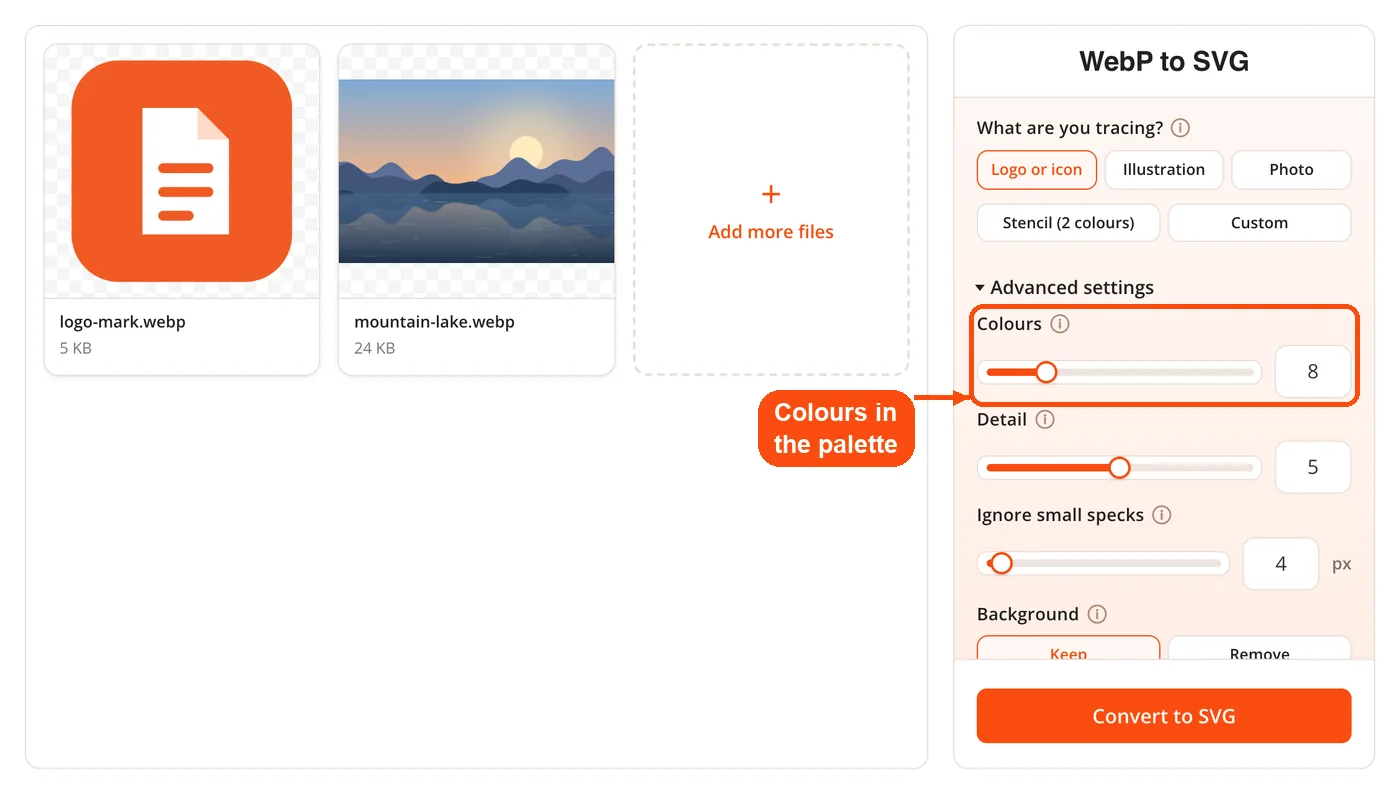
- Color count control. Set the palette anywhere from 2 to 32 colors to balance fidelity against file size.
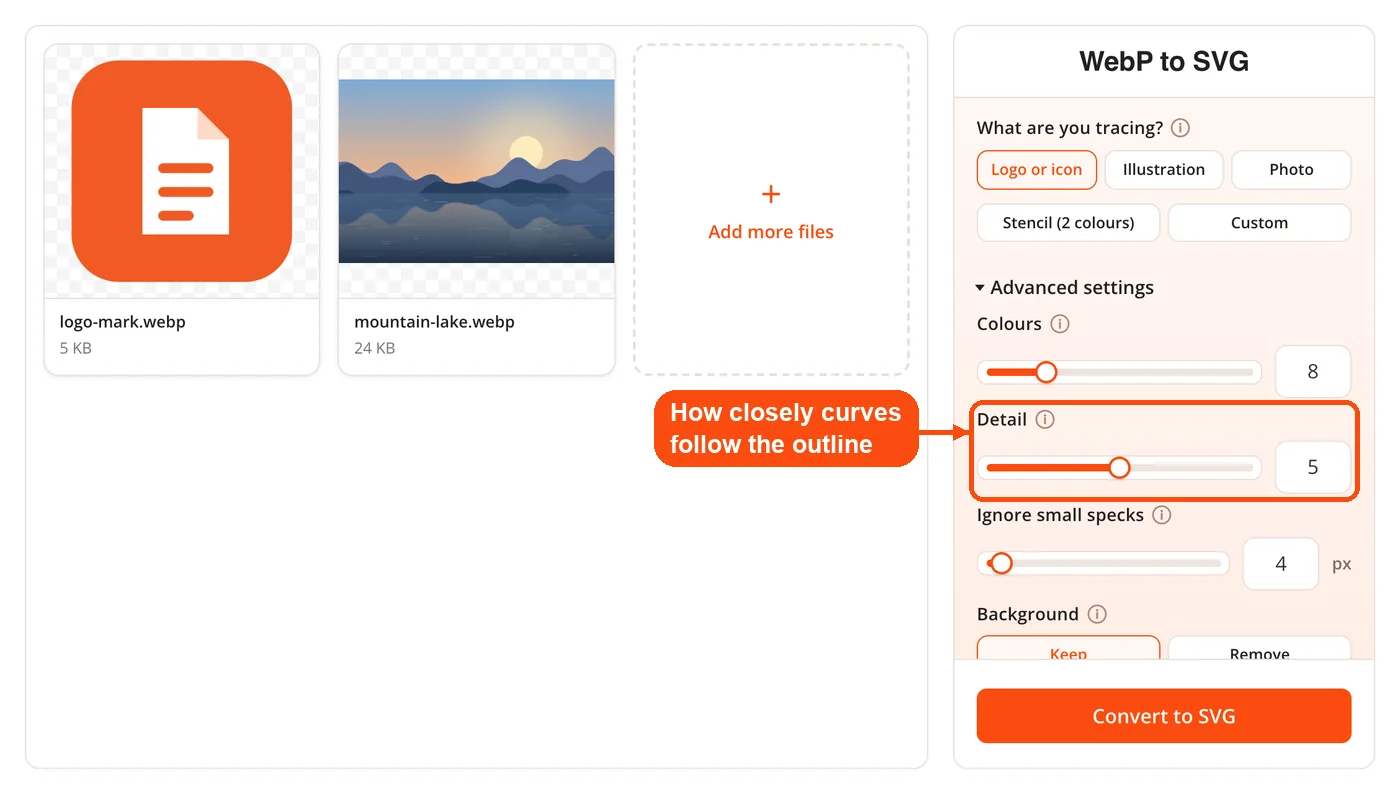
- Detail slider. A 0 to 10 range governs how aggressively outlines are simplified before curve fitting.
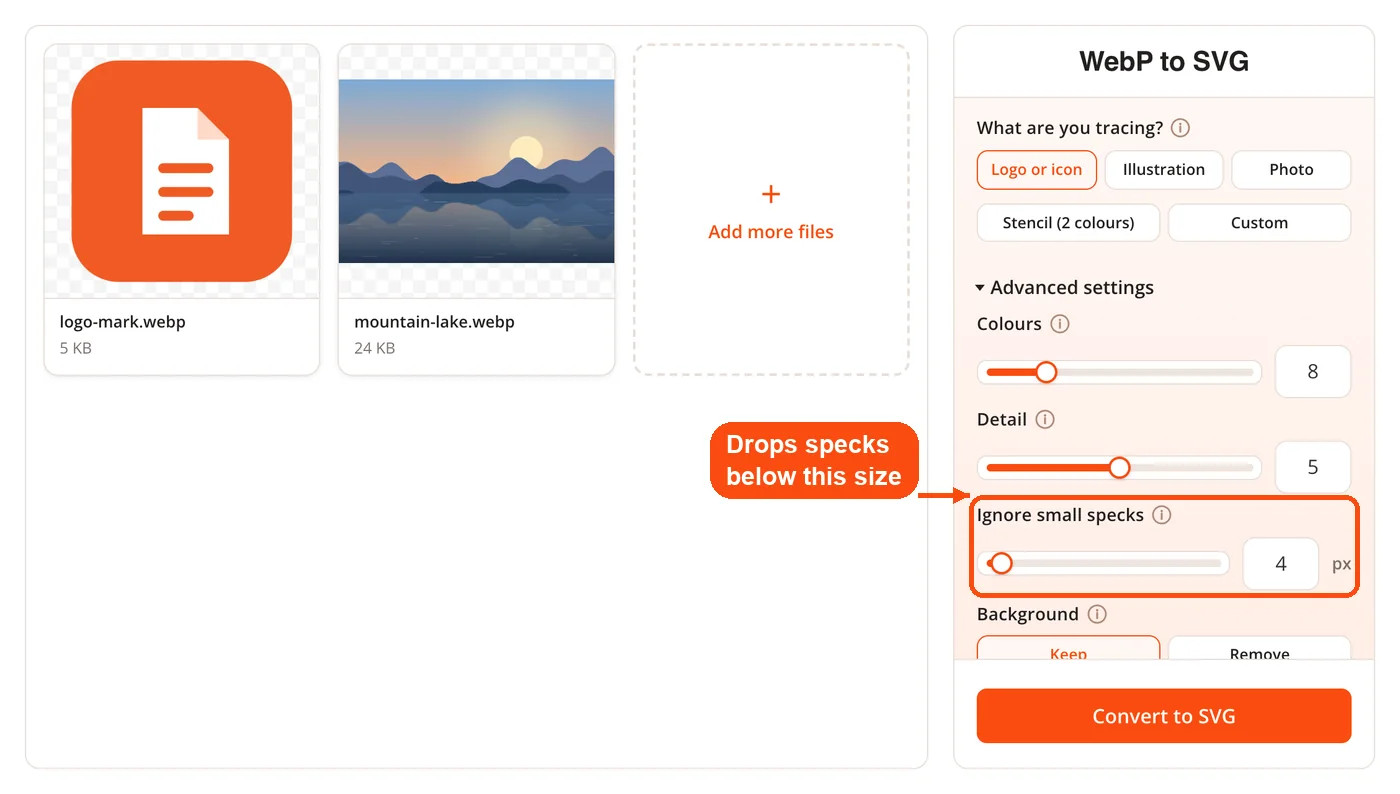
- Despeckle threshold. Regions below the chosen area are dropped, which clears the compression noise that lossy WebP carries.
- Background handling. Keep the background as a traced shape or remove it to preserve a clean cutout.
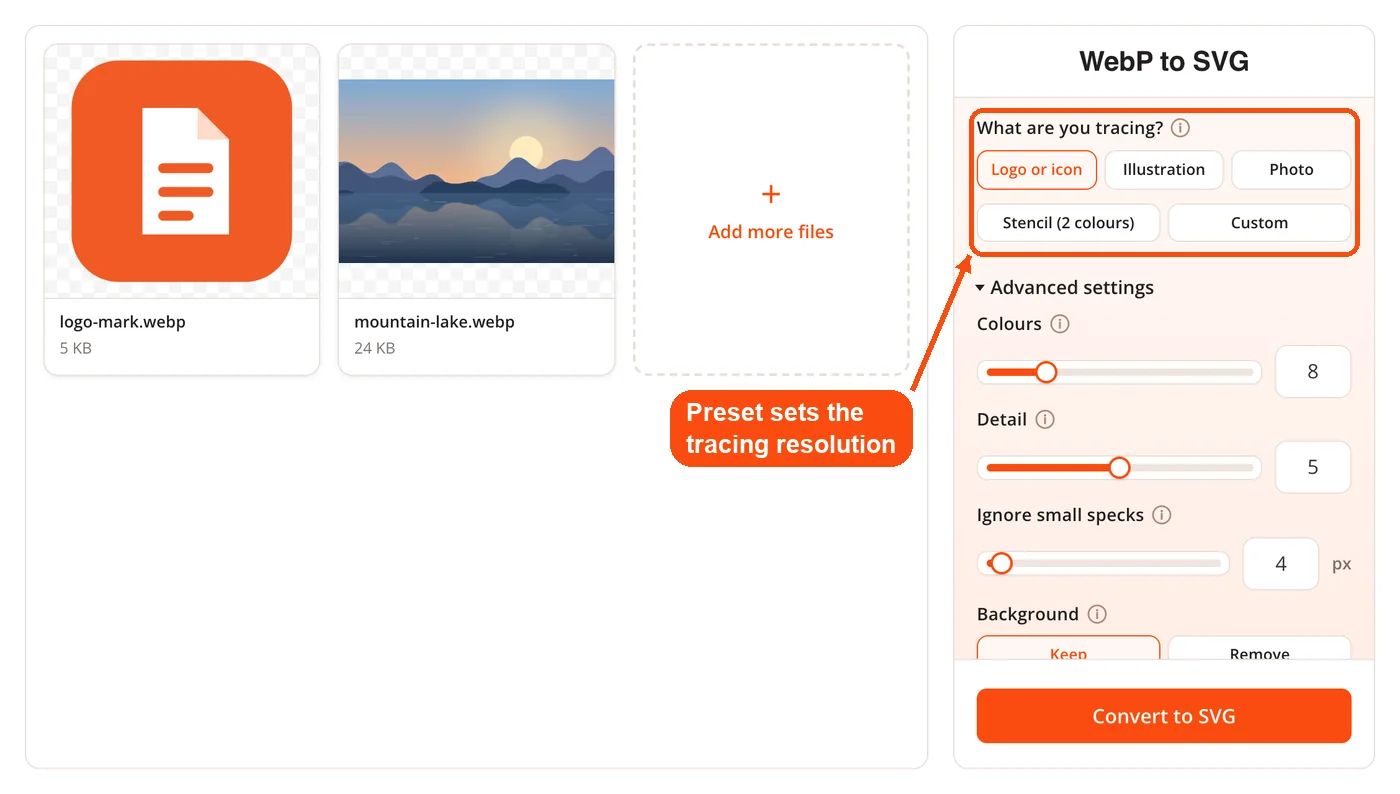
- Four task presets. Logo, Clipart, Photo and Stencil each set colors, detail, despeckle and working resolution together.
- Lossless and lossy support. Both WebP encodings are handled, with despeckle doing the heavy lifting on lossy sources.
- Animated WebP handling. An animated file is traced from its first frame rather than being rejected at upload.
- Grouped, identified output. One group per color and one path per shape, so layers arrive organized in your editor.
- Largest shape first ordering. Shapes are emitted by descending area so holes and inner details stack on top correctly.
- Editor ready SVG. Plain grouped markup that opens in Illustrator, Inkscape and Figma without a conversion step.
How WebP to SVG Conversion Works
- Scale the work surface. A large image is traced at a working resolution set by the preset, from 1000 pixels for Photo up to 2400 for Logo, then the paths are scaled back up at no cost, because vector data carries no resolution penalty.
- Reduce to a palette. A k-means quantization pass with deterministic farthest point seeding flattens the image into solid regions, and transparent pixels are held out so the alpha channel reaches the SVG.
- Find region boundaries. Per color boundary edges are stitched into closed loops, and regions under the despeckle threshold are discarded by area.
- Simplify and fit curves. Ramer Douglas Peucker simplification runs first, then 45 degree corner detection, then least squares cubic Bezier fitting through Schneider's algorithm with Newton reparameterization, fitted against the original outline rather than the simplified one.
- Emit the SVG. Colors are written in order of total area, largest first, one group per color with an id on every path. The file is saved when you click Download.
Preset Reference for DocPivot WebP to SVG Converter
Every DocPivot preset is a starting point rather than a fixed rule, and each value stays adjustable after you apply one. Choose by the type of artwork you are tracing, not by the file size.
| Preset | Colors | Detail | Despeckle | Working resolution | Best for |
|---|---|---|---|---|---|
| Logo | 8 | 5 | 4 | 2400 px | Wordmarks, icons, flat brand assets |
| Clipart | 16 | 5 | 8 | 2000 px | Illustrations and multi color graphics |
| Photo | 12 | 2 | 64 | 1000 px | Posterized, stylized results from photos |
| Stencil | 2 | 5 | 16 | 2400 px | Cut files, silhouettes, single color output |
Stencil is the preset to reach for when a cutting machine or a screen printer needs one clean shape. If the source has heavy color variation, converting it through Grayscale Image first often gives the two color pass something cleaner to work with.
When to Use DocPivot WebP to SVG Converter
Reach for this tool whenever a flat graphic needs to survive scaling, editing or a production process that rejects raster files. Vector output pays for itself the moment an asset has more than one destination.
- Rebuilding a lost logo. The only surviving copy is the WebP on the live site and the original artwork is gone.
- Print and large format. A banner, vehicle wrap or exhibition panel needs geometry, not a 600 pixel raster.
- Cutting and engraving. Vinyl cutters, laser engravers and embroidery software read paths rather than pixels.
- Icon systems. One traced file serves every size in a design system instead of a folder of exports.
- Recoloring artwork. Separate paths per color make a brand refresh a fill change rather than a redraw.
- Web performance. A simple traced icon often ships smaller than its raster equivalent even after Image Compressor has done its work.
- Editable handoff. A client, printer or developer asked for source artwork and only a WebP exists.
Skip the trace when the source is a photograph you need to look photographic, or when the destination only ever displays the graphic at one fixed size. In those cases a well compressed raster is the better answer.
Use Cases and Workflows
Restoring a brand mark from a live site
Context: An agency inherits a client whose only logo file is the WebP served by their WordPress theme.
- Save the WebP asset from the site and load it into the tool.
- Apply the Logo preset and reduce colors to match the brand palette.
- Open the SVG in Illustrator and align paths to the brand color values.
Result: A reusable vector master that supports print, signage and screen from one file.
Preparing a cut file for merchandise
Context: An Etsy seller needs a single color silhouette for a vinyl cutter from a WebP clipart download.
- Apply the Stencil preset to force a two color trace.
- Raise despeckle until stray fragments disappear from the preview.
- Export and import the SVG into the cutting software.
Result: A clean single path outline that the cutter follows without manual node cleanup.
Building an icon set for a component library
Context: A front end developer receives UI glyphs as WebP exports and needs inline SVG for a React component library.
- Trace each glyph with the Logo preset at low color counts.
- Use the path ids to target fills with CSS custom properties.
- Generate matching browser assets with Favicon Generator.
Result: Icons that recolor with the theme and stay sharp on every display density.
Producing a print ready proof
Context: A small studio needs to send a vector proof to a commercial printer that will not accept raster artwork.
- Trace the approved WebP graphic with the Clipart preset.
- Check edges at high zoom and adjust the detail slider if corners look soft.
- Convert the finished vector through SVG to PDF for submission.
Result: A print file the vendor accepts on the first pass, with no resolution queries.
How to Tell a Real Vector From an Embedded Bitmap
A converted SVG is only useful if it contains geometry, and three checks settle the question in under a minute. Many services labeled as SVG converters simply place the original raster inside an SVG image element, which produces a valid file that behaves exactly like the bitmap it came from and weighs roughly a third more because of base64 encoding.
- Open the file in a text editor. Real vector output is full of path elements with d attributes. An embedded bitmap shows a single image element with a long base64 string.
- Zoom to 4000 percent. Traced geometry stays crisp at any magnification, while an embedded raster blurs the way the original does.
- Click a shape in a vector editor. Individual regions should select, recolor and move independently.
If the file passes all three, it will behave correctly everywhere a vector is expected, including when you rasterize it later through SVG to PNG at whatever size a specific placement needs.
Honest Limitations of DocPivot WebP to SVG Converter
Tracing is a lossy interpretation, not a recovery of the original vector file, and DocPivot works best on the artwork it was designed for. Flat graphics with defined edges trace cleanly. Photographs do not, and no tracer solves that, because a photograph has no flat regions to find. The Photo preset produces a posterized, stylized result rather than a faithful reproduction, and the interface says so before you run it.
Three further constraints are worth knowing before you start. Gradients become bands of solid color rather than smooth transitions, because the palette step flattens them by design. Animated WebP is traced from its first frame only, so if you need every frame vectorized, a service that outputs animated SVG will serve you better. Fine text below roughly 12 pixels in the source often traces as blobs, and retyping it as live text in your editor gives a better result than any slider setting. When the trace is not the right answer, raster conversions such as SVG to JPG or PNG to WebP handle the job with less compromise.
Frequently Asked Questions
Yes, WebP loads directly with no intermediate export. The browser decodes WebP natively, so no separate decoder ships with the page. This removes the step that several well known free converters force on you.
Yes, transparency is preserved exactly. Transparent pixels are excluded from the color quantization step, so the alpha channel reaches the SVG instead of being flattened onto a white background.
The output is real vector geometry made of cubic Bezier paths. Open the file in a text editor and you will see path elements with coordinate data rather than a base64 image string. Every shape can be selected and edited individually.
Animated WebP is accepted and traced from its first frame. The tool does not reject the file the way some converters do, but it also does not produce an animated SVG. For frame by frame vector animation you need a service built specifically for that.
You can, but the result will be posterized rather than photographic. The Photo preset uses 12 colors and a low detail setting for a stylized poster effect. Photographs have no flat regions to follow, so this limit applies to every vectorizer.
Between 2 and 32 colors, set by you or by the preset. Logo uses 8, Clipart uses 16, Photo uses 12 and Stencil uses 2. Fewer colors mean fewer paths and a smaller file.
No, everything runs locally in your browser. There is no upload, no API key and no server round trip, which makes the tool usable for confidential client artwork. DocPivot never receives the image.
Start with Logo, which traces 8 colors at a 2400 pixel working resolution. Reduce the color count if your mark uses fewer colors than that, since a tighter palette produces cleaner paths.
Yes, the output is plain grouped SVG with standard path elements. Groups arrive organized by color and each path carries an id, so layer structure survives the import.
Speckling usually comes from compression artifacts in a lossy WebP source. Raise the despeckle value to drop small regions by area, and lower the color count so near identical shades merge.
Lower the color count first, then reduce the detail slider to simplify the outlines. Both changes cut the number of paths and the number of nodes per path, which is what actually drives SVG file size.
There is no account requirement and no download paywall. Because the work happens on your own device rather than on a shared server, the practical limit is your browser and the size of the image you load.
Yes, and that is a common final step for web delivery. Once the vector master exists you can export it at any dimension, including through SVG to WebP when you need a modern raster for production. You can also start from a fresh crop using Crop Image before tracing.
