A JPG to SVG converter traces the shapes inside a compressed raster image and rebuilds them as editable vector paths that scale to any size without blurring. The DocPivot JPG to SVG Converter performs that trace in full color, inside your browser, and discards JPEG compression noise by area before any curve is fitted. That ordering matters more than it sounds. A tracer that skips the cleanup step reads compression artifacts as real edges and returns several hundred junk shapes clustered around every boundary in the picture.
What This JPG to SVG Converter Does
The tool converts a JPG or JPEG into a genuine vector file made of cubic Bezier paths, not a raster image wrapped in SVG packaging. Every shape in the output is a real path with its own id, grouped one group per color, so the result opens as editable layers in Illustrator, Inkscape, and Figma rather than as a single flat object you cannot take apart.
JPG presents a problem no other input format carries. Lossy compression works by dividing the picture into eight by eight pixel blocks and discarding frequency detail, which leaves ringing around sharp edges and faint block boundaries across flat areas. Those artifacts are invisible at normal viewing size and very visible to a tracer, which treats each one as a region worth outlining. Feeding a PNG or a lossless source into the same pipeline produces far fewer stray shapes, which is why a JPG needs handling a general purpose tracer does not give it.
Two preparation steps make a large difference before you trace anything. Bringing an oversized photograph down to a sensible working size with an image resizer reduces the artifact count the tracer has to filter, and running a source through an image compressor first is the opposite of helpful, since additional compression adds exactly the noise the tracer is trying to remove.
Why the DocPivot JPG to SVG Converter Removes Noise Before Fitting Curves
Artifact removal has to happen before curve fitting because curve fitting is expensive and irreversible. Once a tracer has spent effort fitting a smooth Bezier through a ring of compression noise, that path exists in the file and carries the same weight as a path describing an actual logo edge. Nothing downstream can tell the two apart. Filtering by region area beforehand means the noise never reaches the fitting stage at all.
The despeckle threshold controls this directly. It sets the minimum pixel area a closed region must occupy to survive into the output. Set it too low on a compressed source and you keep the ringing. Set it too high on line art and you lose thin strokes and small counters inside letterforms. The correct value depends entirely on how heavily the source was compressed and how fine the real detail is, which is why the control is exposed rather than fixed.
Color quantization plays a related role. JPEG compression shifts neighboring pixels that were originally identical into slightly different values, so a flat blue field arrives as several hundred near-blue variants. The tool collapses these with k-means quantization using deterministic farthest-point seeding, then merges palette entries that end up nearly identical. Without that merge step, compression banding across a gradient becomes a stack of separate color layers, each one a distinct group of paths in the file.
Sources already sitting in a lossless format behave better throughout. Converting PNG to JPG before tracing introduces artifacts that were not there, while going the other direction with a JPG to PNG conversion does not recover detail the compression already discarded.
How to Convert JPG to SVG
Five steps turn a JPG into an editable SVG.
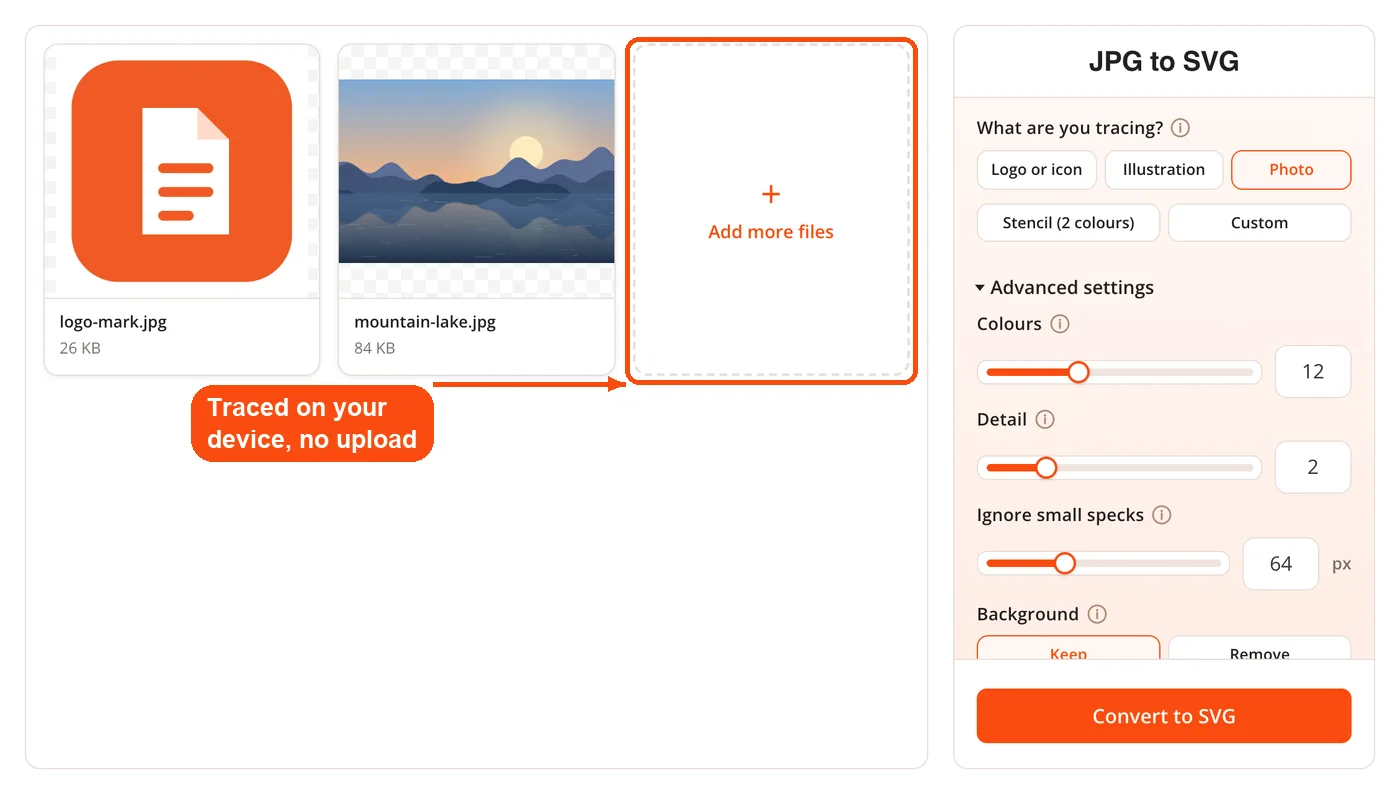
- Add your images. Drop one or more JPGs on the page or choose them from your device. They are traced in your browser, so nothing is uploaded.
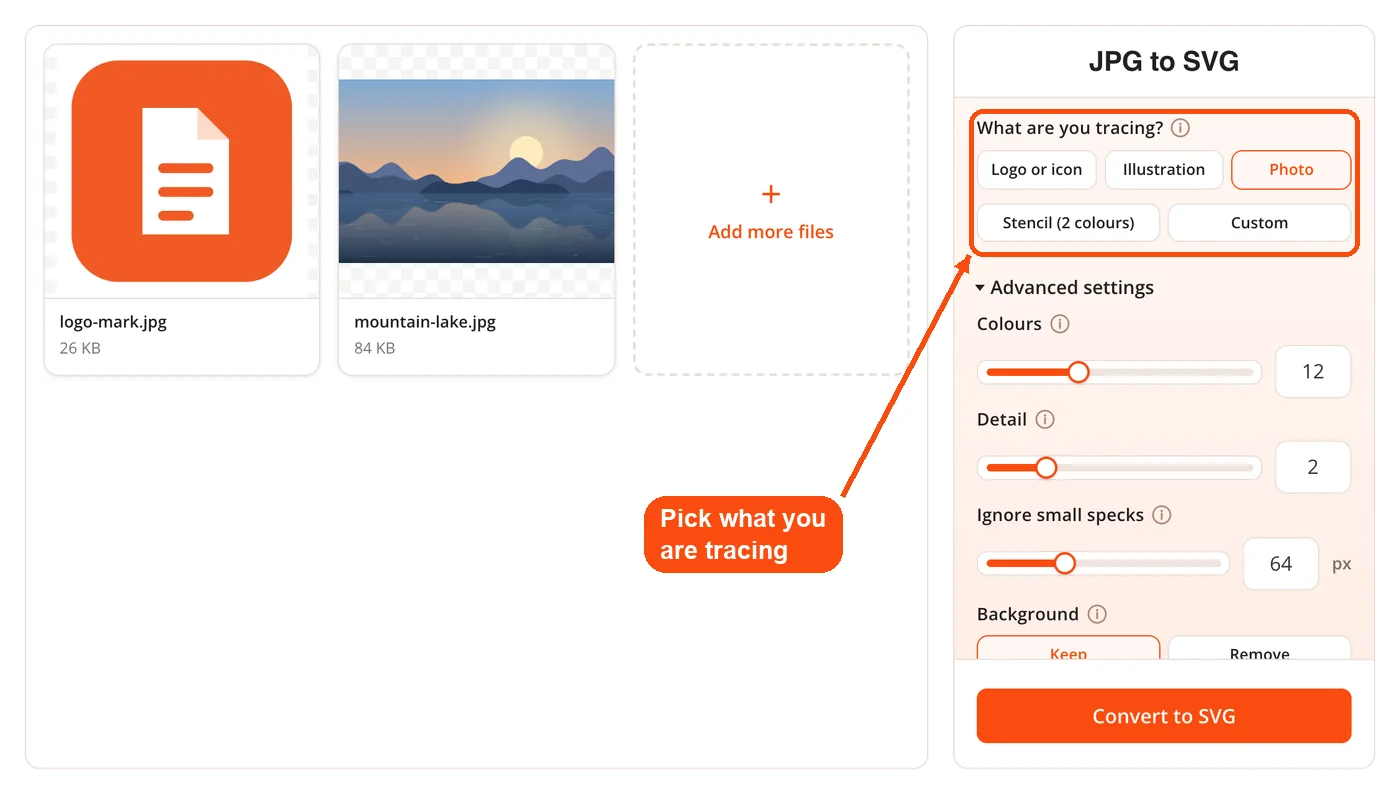
- Say what you are tracing. Pick Logo or icon, Illustration, Photo, Stencil (2 colours) or Custom. Each preset sets the colours, detail and speck size to suit that kind of picture.
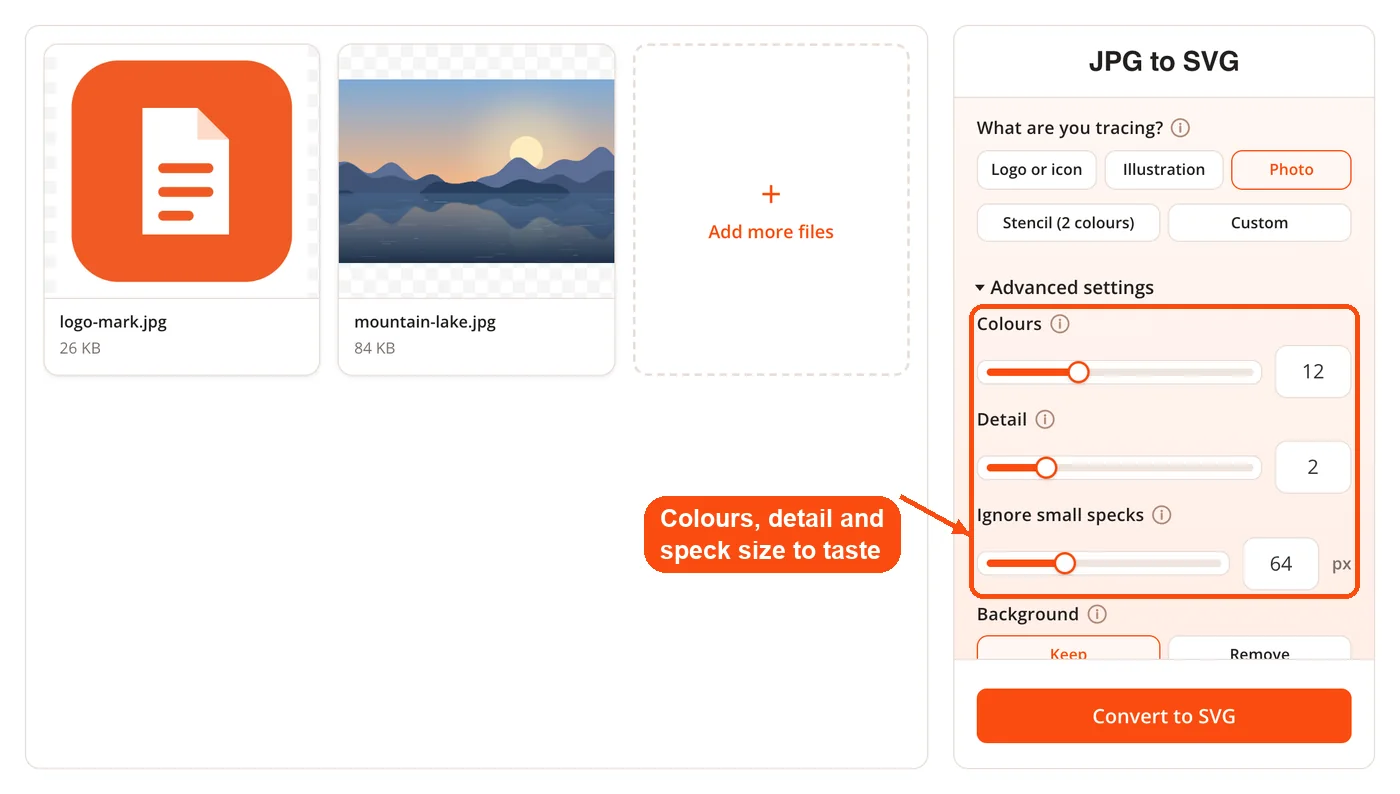
- Fine-tune if you need to. Under Advanced settings, Colours sets how many colours the picture is reduced to, Detail sets how closely the outlines follow the edges, and Ignore small specks drops tiny shapes left by JPEG noise.
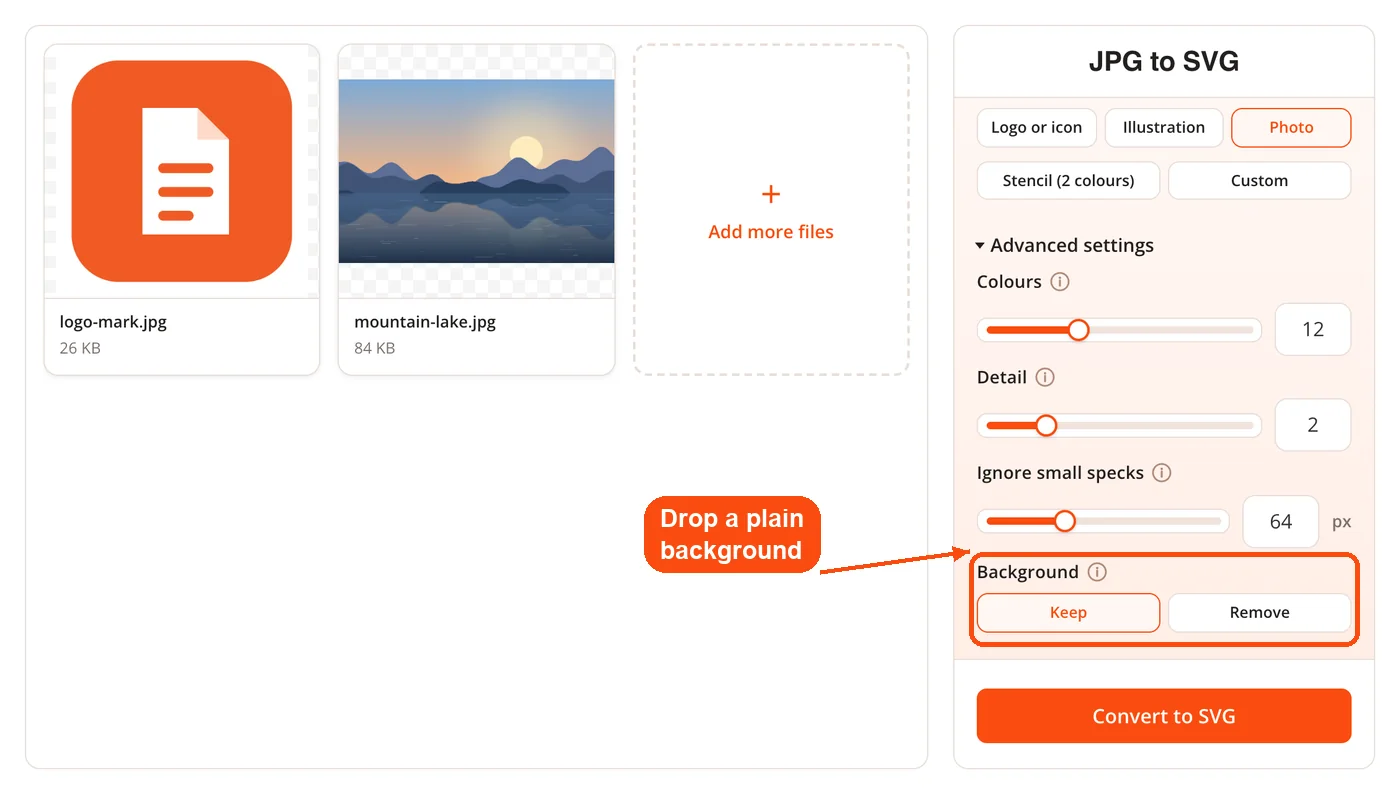
- Keep or remove the background. Remove clears a plain background that touches the edges, so a logo comes out on transparency.
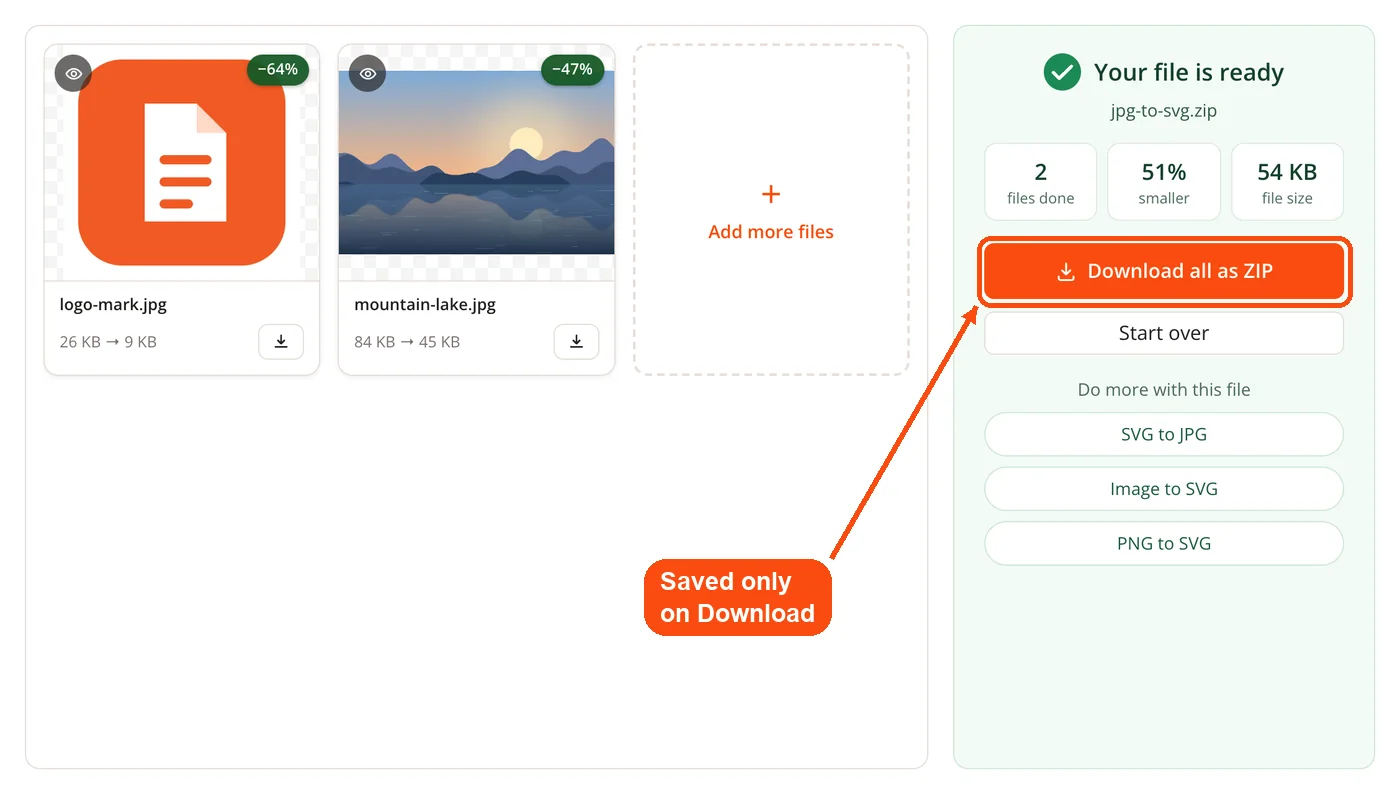
- Convert and download. Press Convert to SVG. Each card shows its result, and several files come as one ZIP when you click Download.
How the DocPivot JPG to SVG Converter Works
The pipeline runs five stages, each feeding the next, entirely on your own machine.
Stage one, scale the work surface. The image is traced at a reduced resolution and the resulting paths are scaled back up afterward. Scaling vectors is lossless and computationally free, so this costs nothing in output quality while cutting the work substantially. Working resolution runs from 200 to 4000 pixels depending on the preset.
Stage two, reduce to a palette. K-means quantization with deterministic seeding collapses the near-identical neighboring pixels that compression produced into genuinely flat regions. Near-identical palette entries then merge with each other.
Stage three, find region boundaries. Boundary edges are collected per color and stitched into closed loops. Any region falling below the despeckle threshold is discarded here. This is the stage that removes JPEG ringing and block artifacts.
Stage four, simplify and fit. Ramer-Douglas-Peucker simplification reduces the point count, corner detection at 45 degrees preserves hard angles, and least-squares cubic Bezier fitting by Schneider's algorithm with Newton reparameterization produces the final curves. The fit is measured against the original outline rather than the simplified one, so simplification speeds the process without degrading accuracy.
Stage five, emit. Shapes are written largest first so that holes and interior detail sit above the forms containing them. Paths are grouped one group per color with an id on each, which is what makes the file editable rather than merely viewable.
Because every stage runs in the browser, no file leaves your device. There is no upload, no API key, and no server round trip, so client artwork under a nondisclosure agreement never touches infrastructure you do not control. The same local approach applies across DocPivot tools such as the image converter and crop image.
Presets Built Into the DocPivot JPG to SVG Converter
Four presets cover the common source types, with values chosen by measurement rather than guesswork.
| Preset | Colors | Detail | Despeckle | Working resolution |
|---|---|---|---|---|
| Logo | 8 | 5 | 4 | 2400 px |
| Clipart | 16 | 5 | 8 | 2000 px |
| Photo | 12 | 2 | 64 | 1000 px |
| Stencil | 2 | 5 | 16 | 2400 px |
The Photo preset carries a despeckle value sixteen times higher than Logo. That gap is deliberate. A photographic JPG is almost entirely artifact at the pixel level, so the threshold has to be aggressive enough to discard the noise while accepting that genuine fine detail goes with it. Photo also drops detail to 2 and working resolution to 1000 pixels, both of which favor a smaller file over a faithful one.
Logo and Stencil share the highest working resolution because flat artwork has crisp boundaries worth resolving precisely. Stencil reduces to two colors for cutting machines and screen printing, where the output feeds a plotter that reads paths rather than fills. A traced logo pairs naturally with a favicon generator when the same mark needs to work at sixteen pixels square.
Controls and Limits in the DocPivot JPG to SVG Converter
Four controls are exposed. Colors accepts 2 to 32 and sets the palette size after quantization. Detail runs 0 to 10 and governs how closely paths follow the traced outline. Despeckle sets the minimum region area in pixels. Background can be kept or removed, which matters for logos destined for placement over other artwork.
Flat artwork traces well. Logos, icons, clipart, scanned line drawings, and high-contrast graphics all contain genuinely flat regions with defined boundaries, which is what the algorithm is built to find. Converting a grayscale scan or a two-tone mark produces output that is often smaller than the source raster and infinitely scalable.
Photographs do not trace well, and DocPivot states this on the tool rather than letting you discover it after downloading. A photograph contains no flat regions at all, only continuous gradients, so tracing produces a posterized approximation rather than a reproduction. The output is also frequently larger than the input. Measured on an 800 by 600 pixel JPEG, a 24 color setting produced 546 KB while the 12 color setting shipped in the Photo preset produced 284 KB with only marginally more error. Both figures exceed what the original JPEG occupied.
Converting a photograph to JPG to WebP reduces file size far more effectively than any vector route, and a grayscale image pass before tracing helps considerably when the goal is a single-color stencil.
Where the DocPivot JPG to SVG Converter Falls Short
Two limitations deserve naming plainly, because both are places where another tool does the job better.
FreeConvert exposes a deeper control surface for tracing than this tool does. Its advanced settings include color precision, gradient step, curve fitting mode with spline, polygon, and pixel options, corner threshold, segment length, and splice threshold, alongside its own speckle filter. If you want granular control over how corners are cut and how gradient layers are separated, that is more adjustment than the four controls here provide. The tradeoff is that FreeConvert requires an upload and holds converted files for eight hours.
Vectorizer.AI produces better results on complex and noisy sources. Its tracing handles symmetry, corner cleanliness, and a wider range of curve types than a classical pipeline attempts, and it exports to PDF, EPS, and DXF as well as SVG. Preview is free, but downloading a production file requires a subscription starting at 9.99 US dollars per month. If fidelity on a difficult source matters more than cost, that is the better tool, and saying otherwise would not survive a side-by-side test.
How the DocPivot JPG to SVG Converter Compares With Other Tracers
Competitor details below were verified on September 6, 2026, and should be rechecked if this page is published significantly later.
| Capability | DocPivot | Convertio | FreeConvert | Vectorizer.AI |
|---|---|---|---|---|
| Color output | Yes | Not documented on the tool page | Yes, color or black and white | Yes |
| Speckle control exposed | Yes, despeckle by area | None exposed | Yes, filter speckle | Not exposed to the user |
| Cost to download output | Free | Free for basic conversions | Free | From 9.99 US dollars per month |
| Upload required | No | Yes, processed in the cloud | Yes, files held eight hours | Yes |
| States that photos trace poorly | Yes | Yes | No | Not stated |
Two claims commonly made in this category do not hold up and are worth retiring. Full color tracing is not a differentiator, because FreeConvert, Kittl, Img2Go, and several others all offer it at no cost. A tunable speckle threshold is not a differentiator either, since FreeConvert and Img2Go both expose one.
What genuinely separates DocPivot here is narrower. Downloads are free where the highest quality option in the category paywalls the export step. Processing stays on your machine where all three named alternatives upload. Preset values were tuned by measurement and published rather than chosen arbitrarily. Reversing the process later is straightforward with SVG to PNG or SVG to JPG.
Who Uses the DocPivot JPG to SVG Converter
Print and signage operators. A customer supplies a logo as a compressed JPG pulled from a website, and the press needs vector paths to output at any size. Tracing with despeckle set for the compression level produces usable paths without the manual node cleanup a noisy trace demands.
Cutting machine users. Vinyl cutters, laser engravers, and craft plotters read paths, not pixels. The Stencil preset reduces artwork to two colors and clean closed loops, which is the shape a cutter expects. Exporting through SVG to PDF suits equipment that prefers PDF input.
Web developers replacing raster assets. An icon shipped as a JPG looks soft on high density displays and cannot be recolored with CSS. Tracing it yields a path-based file that stays sharp at any pixel ratio, and SVG to WebP provides a raster fallback where needed.
Designers rebuilding legacy brand assets. Older brand books frequently survive only as flattened JPGs after the original vector files were lost. A trace recovers editable geometry that can be corrected by hand, which is faster than redrawing a mark from scratch.
Frequently Asked Questions About the DocPivot JPG to SVG Converter
Yes, conversion and download are both free with no account required. There is no watermark on the output and no cap on how many files you convert.
No. Quantization, contour stitching, and curve fitting all run in your browser, so the image never leaves your device.
No, and this is the honest answer rather than the convenient one. Photographs contain continuous gradients rather than flat regions, so the result is a posterized approximation that is usually larger than the original JPG.
Vector files store geometry, and a detailed source generates thousands of coordinate pairs. Raising the despeckle value and lowering the color count both reduce output size considerably.
Yes. Output is plain SVG with paths grouped by color and an id on each path, so every shape is individually selectable in Illustrator, Inkscape, Affinity Designer, and Figma.
It discards any closed region smaller than the threshold in pixel area before curve fitting begins. Higher values remove compression noise, and very high values also remove genuine fine detail.
Start with the preset matching your source type, then adjust. Logos usually resolve correctly at 8 colors or fewer, while detailed clipart may need 16.
The despeckle value is set too low for how heavily the source was compressed. Raise it in steps and retrace until the stray shapes disappear.
No. Compression permanently removes information, and no tracer can reconstruct it. Tracing produces smooth paths from what remains, which looks cleaner without being more accurate.
No. Upscaling multiplies existing artifacts rather than adding real detail, and the tracer works from a scaled working surface regardless.
Yes, background keep or remove is one of the four exposed controls. Removing it is standard practice for logos intended to sit over other artwork.
