
Your website takes 5 seconds to load. You’ve Googled “how to speed up my site” and found 30 articles listing the same tips in random order. Compress images. Enable caching. Use a CDN. Sure. But which fix actually saves the most time?
That’s the part nobody tells you. I’ve optimized page speed across 50+ client sites, and the gap between fixes that shave off 2 seconds and fixes that save 0.05 seconds is enormous. Doing them in the wrong order wastes weeks.
This guide ranks all 15 fixes by measurable impact. Not alphabetically. Not randomly. By how many seconds each one typically saves, so you start where it matters most. First step: figure out what’s actually slowing your site down.
Find Your Bottleneck First
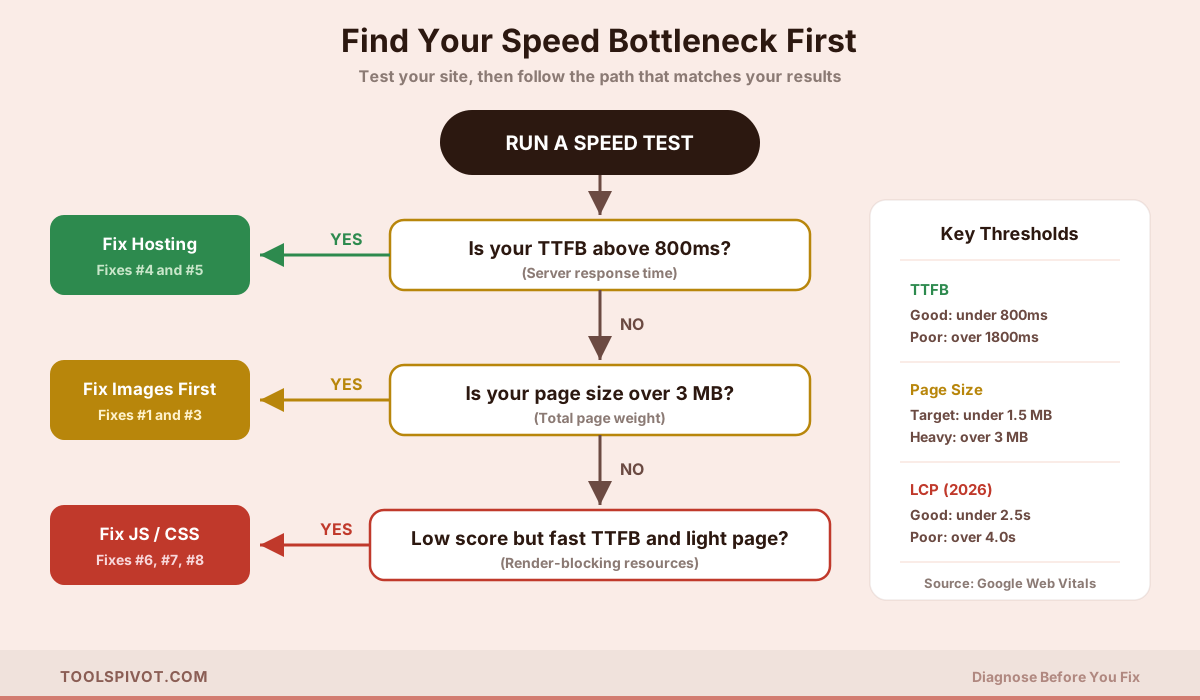
Skipping the diagnostic step is the most expensive mistake in speed optimization. You could spend a weekend minifying JavaScript when your real problem is a 2-second server response time.
Before touching anything, run your site through the Page Speed Checker and note three things: your total load time, your page size, and your server response time (TTFB).
Those three numbers tell you exactly where to focus.
If your TTFB is above 800 milliseconds, start with hosting and server fixes (Fixes #4 and #5). No amount of front-end optimization can compensate for a server that takes over a second just to start responding. Google’s own performance research confirms that TTFB above 800ms makes it nearly impossible to achieve good LCP scores.
If your page size is over 3 MB, your problem is almost certainly images. Jump to Fix #1 first. You can check your total page weight with the Page Size Checker to see exactly what’s eating up bandwidth.
If your TTFB is fast and your page is lightweight, but your performance score is still low, the culprit is usually render-blocking JavaScript and CSS. Start with Fixes #6 through #8.
The Impact Tier System
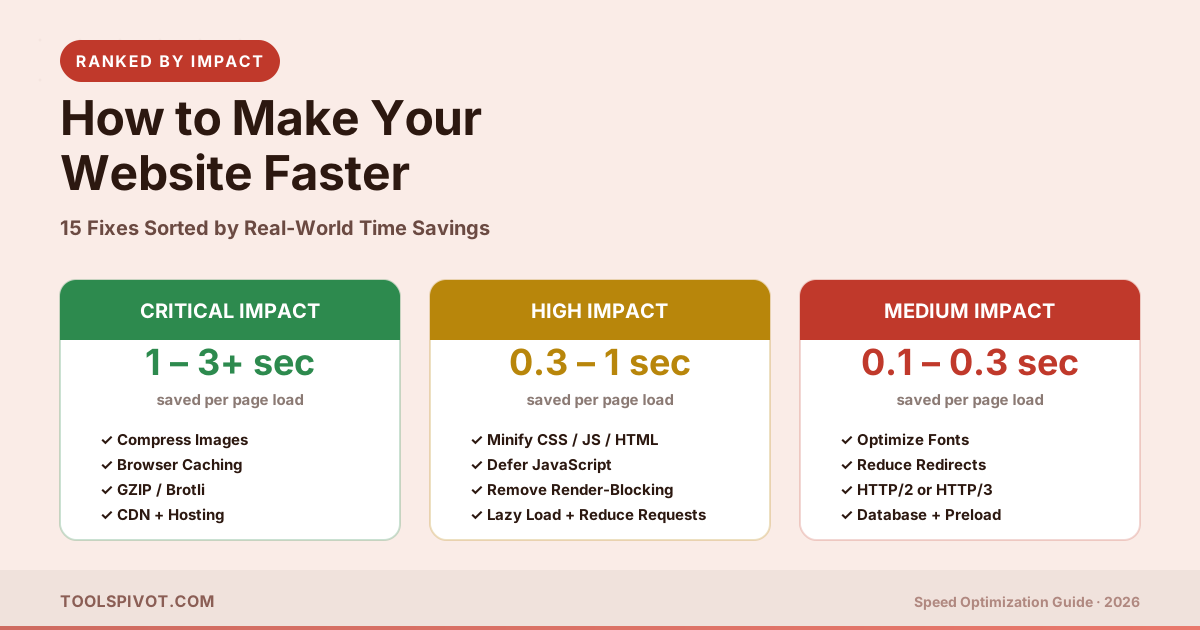
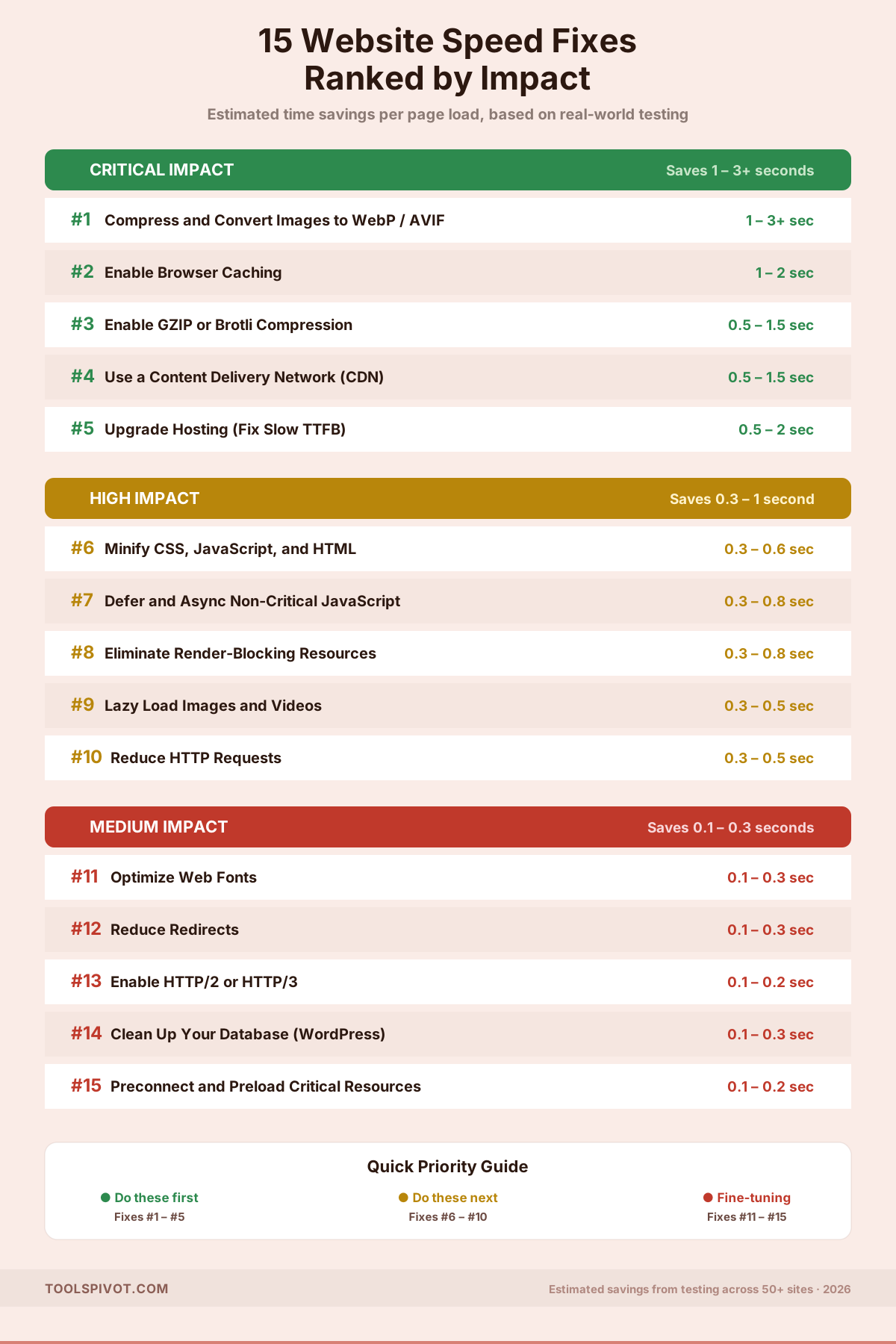
Not all speed fixes are created equal. I’ve grouped all 15 into three tiers based on typical time savings across real-world sites.
Think of it like fixing a leaky pipe system. You start with the pipe that’s gushing water onto the floor, not the faucet that drips once an hour.
| Tier | Typical Savings | Fixes |
|---|---|---|
| Critical Impact | 1 to 3+ seconds | Image optimization, browser caching, text compression, CDN, hosting upgrade |
| High Impact | 0.3 to 1 second | Code minification, JS deferral, render-blocking removal, lazy loading, HTTP request reduction |
| Medium Impact | 0.1 to 0.3 seconds | Font optimization, redirect cleanup, HTTP/2-3, database cleanup, resource preloading |
The critical tier alone handles roughly 70 to 80% of speed problems on most websites. If you’re short on time, do these five and stop. You’ll see the biggest improvement you’re going to get.
Critical Impact Fixes (1 to 3+ Seconds Saved)
Fix #1: Compress and Convert Images to WebP or AVIF
This is the single most impactful fix for the majority of websites. Period.
Images account for 60 to 70% of total page weight on the average website, according to HTTP Archive data. A single uncompressed hero image can weigh 3 MB. That’s more than some entire web pages should weigh.
Here’s what to do, in order.
Convert to modern formats first. WebP delivers 25 to 35% smaller files than JPEG at the same visual quality, according to Google’s own benchmarks. AVIF goes even further, cutting file size by up to 50% compared to JPEG. Use WebP as your default and AVIF where browser support allows.
Then compress. Even after format conversion, most images carry unnecessary metadata and quality overhead. You can compress them with the Image Compressor before uploading. Aim for quality settings between 75 and 85. Most people can’t see the difference below that threshold.
Platform-specific shortcuts:
WordPress users should install ShortPixel or Imagify. Both auto-convert uploads to WebP and compress on the fly. Shopify handles basic image optimization automatically, but large product catalogs still benefit from pre-compression before upload. Custom HTML sites can use Squoosh (browser-based) or the cwebp command-line tool for batch conversion.
In our experience, image optimization alone cuts total page load time by 30 to 40% on sites that haven’t done it before. One client’s Shopify store dropped from 4.8 MB to 1.1 MB just by converting product photos to WebP and setting quality to 80. Load time went from 6.2 seconds to 2.4.
Fix #2: Enable Browser Caching
When a visitor returns to your site without browser caching, their browser downloads every file from scratch. Every CSS file, every image, every script. That’s absurd for files that haven’t changed since the last visit.
Proper caching tells the browser: “Store these files locally. Don’t re-download them for X amount of time.”
The result? Repeat visits load 50% faster or more. And since returning visitors typically make up 30 to 50% of your traffic, this adds up fast.
How to implement it:
Add Cache-Control headers to your server configuration. For static assets (images, CSS, JS), set a long expiry: Cache-Control: public, max-age=31536000 gives browsers permission to cache for one year.
For WordPress, WP Rocket and LiteSpeed Cache handle this automatically. Neither requires you to touch server config files.
On Nginx, add a location block for static files with the appropriate expires directive. On Apache, use mod_expires in your .htaccess file.
One thing most guides miss: don’t cache your HTML pages for long periods. HTML should use short cache durations or no-cache ETag validation so content updates appear immediately. Static assets are different because their filenames change with each version (cache busting).
Fix #3: Enable GZIP or Brotli Compression
Text compression is one of those fixes that sounds technical but takes about 5 minutes to implement. And it typically reduces the transfer size of HTML, CSS, and JavaScript files by 60 to 70%.
GZIP has been the standard for years. Brotli, developed by Google, compresses slightly better (5 to 15% smaller output) and is now supported by over 97% of browsers globally.
Check if it’s already on. Many hosting providers enable GZIP by default. You can verify GZIP is enabled using the compression checker before spending time on this fix. If the test shows compression is active, skip ahead.
If it’s not enabled:
On Apache, add these lines to your .htaccess file:
AddOutputFilterByType DEFLATE text/html text/css application/javascript application/json
On Nginx, enable gzip in your server block:
gzip on;
gzip_types text/plain text/css application/json application/javascript;
If your host doesn’t support server-level configuration, using a CDN like Cloudflare automatically enables Brotli compression for all text-based resources. You don’t need to configure anything on the origin server.
Fix #4: Use a Content Delivery Network (CDN)
A CDN is like opening regional warehouses instead of shipping everything from one central location. Without one, a visitor in Tokyo loads your files from a server in Texas. With one, they load from a server in Tokyo.
That geographic difference can cut Time to First Byte by 60 to 80% for international visitors. Even for domestic traffic, CDN edge caching reduces server load and speeds up delivery.
The easiest option: Cloudflare’s free tier. It takes about 15 minutes to set up. You change your domain’s nameservers to Cloudflare’s, and it automatically caches your static assets on edge servers in 300+ locations worldwide. You also get free SSL and Brotli compression as a bonus.
Other solid options include Bunny.net (faster for media-heavy sites, pay-per-use pricing) and Fastly (better for custom caching rules).
When a CDN doesn’t help much: If 90%+ of your traffic comes from one city and your server is already in that city, the latency improvement will be minimal. But even then, CDN caching still reduces server load during traffic spikes.
Fix #5: Upgrade Your Hosting (Fix Slow TTFB)
This is the fix people avoid because it costs money and involves migration. But if your Time to First Byte consistently exceeds 800 milliseconds, nothing else on this list will get you where you need to be.
TTFB is how long your server takes to start sending data back to the browser. Think of it as the starting gun in a race. If the gun fires 2 seconds late, every runner finishes 2 seconds late, regardless of how fast they run.
You can verify your server is responding properly to check baseline performance.
The hosting tiers, simplified:
Shared hosting ($3 to $10/month) puts your site on a server with hundreds of other sites. When one of them gets a traffic spike, everyone slows down. TTFB on shared hosting commonly ranges from 800ms to 2 seconds.
Managed hosting ($25 to $50/month) gives you isolated resources and server-level caching. WP Engine, Kinsta, and Cloudways are the most reliable options for WordPress. Typical TTFB: 150 to 400ms.
In our experience, switching from shared to managed hosting drops TTFB from 1.2 seconds to under 300ms. That’s a night-and-day difference that instantly improves every performance metric downstream.
The honest take: If your site makes money, shared hosting is costing you more in lost conversions than managed hosting costs in monthly fees. If it’s a hobby blog, shared is fine. Match the hosting to the stakes.
High Impact Fixes (0.3 to 1 Second Saved)
Fix #6: Minify CSS, JavaScript, and HTML
Minification strips unnecessary characters from your code. Whitespace, comments, line breaks, and formatting that humans need for readability but browsers don’t.
The savings per file are modest, maybe a 10 to 30% reduction. But when you have 15 CSS files and 20 JavaScript files loading on every page, it adds up to a meaningful improvement.
You can run your scripts through the JS Minifier for JavaScript, the CSS Minifier for stylesheets, and the HTML Compressor for your page markup.
WordPress users can handle this automatically with Autoptimize (free) or WP Rocket (paid, more reliable). Both aggregate and minify files without manual intervention.
Fair warning: minification occasionally breaks things. Test your site after enabling it. If a dropdown menu stops working or styles look wrong, exclude that specific file from minification rather than disabling the entire feature.
Fix #7: Defer and Async Non-Critical JavaScript
This is the fix that separates a 60 PageSpeed score from a 90.
By default, when a browser encounters a JavaScript file in your HTML, it stops everything to download and execute that script before rendering anything else. If you have five third-party scripts, analytics, chat widgets, ad pixels, and cookie consent, the browser pauses five times before showing your page.
The fix: add defer or async to non-critical script tags.
defer downloads the script in the background and executes it after HTML parsing completes. Use this for most scripts.
async downloads in the background and executes immediately when ready. Use this only for scripts that don’t depend on other scripts (like analytics).
The most common mistake: deferring your main stylesheet or critical above-the-fold JavaScript. Those need to load normally, or your page will flash unstyled content for a split second. Only defer scripts that the user doesn’t need immediately.
This fix directly improves Interaction to Next Paint (INP), which Google elevated to a primary ranking signal in its March 2026 core update. Sites with INP above 200ms are now seeing measurable position drops.
Fix #8: Eliminate Render-Blocking Resources
This is closely related to Fix #7 but goes a step further. Render-blocking resources are CSS and JavaScript files that prevent the browser from displaying anything until they’re fully downloaded and processed.
How to find them: Run a Lighthouse audit in Chrome DevTools (F12, go to Lighthouse tab, run a Performance audit). Look for the “Eliminate render-blocking resources” recommendation. It lists every file that’s blocking your initial render and estimates the potential savings.
How to fix them:
For CSS: Extract the critical CSS (styles needed for above-the-fold content) and inline it directly in the <head>. Load the rest asynchronously. Tools like Critical (npm package) can automate this extraction.
For JavaScript: Move scripts to the bottom of the <body> tag or add defer attributes (see Fix #7).
In our testing, eliminating render-blocking resources typically improves LCP by 0.3 to 0.8 seconds, which is enough to push a borderline score from “Needs Improvement” into “Good” territory.
Fix #9: Lazy Load Images and Videos
Lazy loading tells the browser: don’t download images that are below the fold until the user scrolls down to them. This means the initial page load only processes images that are actually visible.
Implementation is simple. Add loading="lazy" to your image tags:
<img src="product-photo.webp" loading="lazy" alt="Product photo" width="800" height="600">
Most modern browsers support this natively. No JavaScript library needed.
The most common mistake I see? Site owners are lazy-loading their hero image. That’s the largest visible element on the page, the one Google measures for LCP. Lazy-loading tells the browser “don’t load this yet,” which makes your LCP score worse, not better.
The rule: Never lazy-load images that appear above the fold on initial page load. Lazy-load everything else.
For videos, the best approach is to use a lightweight placeholder thumbnail and only load the full video player when the user clicks play. Embedding a YouTube or Vimeo iframe on page load adds 500KB to 1MB of resources, even if nobody watches it.
Fix #10: Reduce HTTP Requests
Every file your page loads, every image, script, stylesheet, font, and tracker, requires a separate HTTP request. Each request involves DNS lookup, connection, and transfer time.
A typical WordPress site makes 80 to 120 HTTP requests per page load. Cutting that to 40 to 60 can save 0.3 to 0.5 seconds.
Where to cut:
Remove plugins you’re not actively using. Every WordPress plugin loads its own CSS and JavaScript, even on pages where it’s not needed. I’ve seen sites with 35 active plugins where 12 were completely unnecessary.
Combine CSS files where possible. If you have 8 separate stylesheets, merging them into 2 or 3 reduces connection overhead significantly.
Remove third-party scripts you forgot about. That social share counter from 2021? The heatmap tracker you stopped checking? The font library you loaded but never used? Delete them.
Inline small CSS (under 1KB) directly into the HTML instead of loading it as a separate file. The overhead of the HTTP request outweighs the benefit of a separate file at that size.
Medium Impact Fixes (0.1 to 0.3 Seconds Saved)
These fixes won’t transform a slow site into a fast one. But if you’ve already done the critical and high-impact work, these squeeze out the last bit of performance.
Fix #11: Optimize Web Fonts
Custom fonts look great. They also add 100 to 400KB of page weight, depending on how many families, weights, and subsets you’re loading.
Quick wins: Use font-display: swap in your @font-face declaration. This tells the browser to show text immediately using a fallback system font, then swap in the custom font once it loads. Users see content faster, even if the font changes slightly after a moment.
Limit yourself to 2 font families maximum. Each family with 4 weights (regular, bold, italic, bold-italic) is 4 separate files. Two families with 4 weights each means 8 font files.
Subset your fonts to include only the character sets you actually use. A full Google Font file includes Latin, Cyrillic, Greek, and Vietnamese characters. If your site is English-only, you’re downloading characters you’ll never display.
Fix #12: Reduce Redirects
Every redirect adds a full round-trip to the server. One redirect might cost 100 to 300ms. A redirect chain (page A redirects to page B, which redirects to page C) doubles or triples that.
The most common culprit: HTTP to HTTPS redirects stacked with www to non-www redirects. That’s two consecutive redirects before the user even reaches your page.
Fix redirect chains by pointing everything directly to the final destination. If your canonical URL is https://example.com/page Make sure links point there directly, not through http://www.example.com/page which chains through two redirects to get there.
You can scan for broken links dragging down crawl performance to catch redirect chains and dead URLs at the same time.
Fix #13: Enable HTTP/2 or HTTP/3
HTTP/1.1 loads files one at a time per connection. HTTP/2 loads multiple files simultaneously over a single connection. HTTP/3 goes further with the QUIC protocol, reducing connection setup time and handling packet loss better on mobile networks.
Most modern hosting providers and CDNs support HTTP/2 by default. HTTP/3 adoption is growing fast, and Cloudflare enables it automatically for all plans.
How to check: Use KeyCDN’s HTTP/2 test tool or LiteSpeed’s HTTP/3 checker. If you’re still on HTTP/1.1, talk to your host. This should be a one-click upgrade.
The individual time savings are small (0.1 to 0.2 seconds typically). But HTTP/2 eliminates the old practice of domain sharding and file concatenation, which simplifies your optimization workflow going forward.
Fix #14: Clean Up Your Database (WordPress)
This is WordPress-specific, but it matters more than most people think.
WordPress stores post revisions, auto-drafts, trashed comments, expired transients, and orphaned metadata in its database. Over time, a 2-year-old site can accumulate tens of thousands of unnecessary rows. Database queries slow down, and server response time creeps upward.
Install WP-Optimize (free) and run a one-click cleanup. It removes post revisions older than 15 days, clears expired transients, optimizes database tables, and deletes spam/trashed comments.
Schedule it to run weekly. Five minutes of automated maintenance prevents months of gradual slowdown.
Fix #15: Preconnect and Preload Critical Resources
When your page loads a resource from a third-party domain (Google Fonts, a CDN, an analytics service), the browser must first resolve the DNS, establish a TCP connection, and negotiate TLS encryption. That handshake can take 100 to 300ms.
rel="preconnect" tells the browser to start that handshake early, before it actually needs the resource:
<link rel="preconnect" href="https://fonts.googleapis.com">
rel="preload" goes further, downloading a specific critical resource as early as possible:
<link rel="preload" href="/fonts/main-font.woff2" as="font" type="font/woff2" crossorigin>
Use preconnect for third-party domains you know you’ll need. Use preload for specific files critical to above-the-fold rendering (your main font file, your hero image, your critical CSS).
Don’t overdo it. Preloading more than 3 to 5 resources creates a bandwidth competition where everything tries to load first, and nothing wins. Be surgical.
When to Stop Optimizing
Here’s the part nobody else will tell you.
Once your site loads in under 2 seconds and passes all three Core Web Vitals thresholds (LCP under 2.5 seconds, INP under 200ms, CLS under 0.1), further speed optimization delivers diminishing returns for rankings.
Google has been clear about this: improvements beyond the “Good” threshold don’t provide additional ranking benefit. You won’t jump from position 5 to position 1 by shaving another 200ms off an already-fast page.
I’ve watched clients spend weeks chasing a perfect Lighthouse score of 100 when their real score was already 88. That’s like polishing a car engine that’s already running perfectly. It looks impressive in a screenshot, but it won’t get you anywhere faster.
At that point, your time is better spent on content quality, backlink building, and user experience improvements. Speed is a foundation. Once the foundation is solid, build the house.
The exception: e-commerce sites with high traffic volume. When you’re processing thousands of daily transactions, every 100ms matters for conversion rates. Amazon’s research found that every 100ms of added latency cost them 1% in sales. At Amazon’s scale, that’s billions. At most sites, it’s a rounding error.
Start With Your Biggest Leak
You’ve got the full list, ranked by impact. Now do this:
Test your site right now. Note your load time, page size, and TTFB. Use those numbers to identify which tier of fixes will help you most.
Then run a mobile-friendly test to check how your speed translates to mobile performance, since over 60% of web traffic now comes from mobile devices and Google uses mobile-first indexing.
Once speed is solid, pair speed fixes with a full SEO audit to make sure you’re not leaving other ranking signals on the table.
Work the critical tier first. Don’t jump to medium-impact fixes until you’ve exhausted the big wins. And remember: three targeted fixes beat fifteen random ones every time.
One client’s Shopify store went from a 6.2-second load time to 1.8 seconds by doing just Fixes #1, #2, and #4. Three changes. That’s it.
FAQ
Does page speed actually affect Google rankings?
Yes. Google has confirmed that Core Web Vitals, including LCP, INP, and CLS, are ranking signals within its page experience system. Speed alone won’t outrank great content, but Google uses it as a tiebreaker when two pages answer the same query equally well. The March 2026 core update tightened these thresholds further, making speed harder to ignore.
What is a good page speed score?
Google PageSpeed Insights rates 90 and above as “Good,” 50 to 89 as “Needs Improvement,” and below 50 as “Poor.” In practice, most websites score between 40 and 70 on mobile. Scoring above 80 puts you ahead of the majority. Don’t obsess over a perfect 100. Once you’re in the “Good” range, focus on content and backlinks instead.
How often should I test my website speed?
Test after every significant change: plugin installs, theme updates, new content batches, or hosting migrations. For routine monitoring, monthly checks on your top 5 pages are enough.
If you’re actively optimizing, test before and after each change to measure the actual impact. Speed can regress silently when new scripts or plugins are added.
Can I fix a slow website without technical skills?
Most of the critical-impact fixes don’t require coding. Image compression tools, caching plugins, and CDN setup can all be done through visual interfaces.
WordPress plugins like WP Rocket and ShortPixel handle Fixes #1, #2, #3, and #6 with minimal configuration. Server-level changes (Fix #5, Fix #13) may need your hosting provider’s support.
What’s the fastest single fix for most websites?
Image optimization. On sites that haven’t compressed their images, converting to WebP and compressing typically cuts page weight by 40 to 60% and removes 1 to 3 seconds from load time. It’s the highest-impact, lowest-effort fix available, and it takes less than an hour for most sites.