About Internet Speed Test
An internet speed test measures your download speed, upload speed, ping, and jitter directly in your browser, then explains what those numbers mean for real activities. ToolsPivot's version runs against our own test servers instead of pulling data from a third party, so the result reflects the actual path between your device and us. There is no app to install, no account to create, and no ads between you and your result. Press Go for a full connection report, plus your IP, provider, and location, in under 30 seconds.
Test My Internet Speed: Download, Upload, Ping and Jitter
To check internet speed, the tool runs four measurements in sequence and turns them into plain-English guidance. It first times a burst of tiny requests to read ping and jitter, then pulls random data across six parallel streams for download, and finally sends a block of random data back for upload. A live dial fills as each stage runs. Built by ToolsPivot as part of a wider network toolkit, the test also looks up your IP address, ISP, and city so you can see which connection you measured.
The problem a good speed test solves is context. A single "90 Mbps" figure tells you almost nothing on its own: it feels generous for one person streaming a movie and painfully tight for a household of four gaming, video calling, and streaming 4K at once. This test grades four everyday activities against your result, so you know whether your connection can do the job, not just what the raw number says.
Check Internet Speed on Wi-Fi, Mobile Data, or Ethernet
The test measures whichever connection your browser is using at that moment, so the same page works as a WiFi internet speed test, a check of mobile data on your phone, or a wired test from a laptop plugged into the router. Each run gives you the full internet speed test download and upload figures in Mbps, alongside ping and jitter. If you are using it as an internet speed test for gaming, read the gaming verdict: it is graded on your ping and download speed together, not download alone.
Key Benefits
See all four metrics at once: Download, upload, ping, and jitter appear on one screen, so every run is an internet speed test and ping check in one. Netflix's Fast.com shows download first and hides upload and latency behind a "Show more info" click, so you never see the full picture at once.
Catch ISP shortfalls you can prove: The FCC defines broadband as 100 Mbps down and 20 Mbps up. If your plan promises 300 Mbps and you keep measuring 90, repeated results give you something concrete to bring to your provider.
Know which connection you tested: Every run shows your IP, ISP, and location under the result, so a laptop on café Wi-Fi is never confused with a phone on cellular. Cross-check the details any time with a dedicated IP address lookup.
Find where the slowdown lives: Run the test on Wi-Fi, then on Ethernet. If wired speed matches your plan but wireless drops, the bottleneck is your router or signal, not your ISP.
Private by default: The random data used to measure your speed is never saved, and no login or API key is required. Recent results stay in your own browser.
Free with no test limits: Run it fifty times a day if you want. No daily cap, no premium tier, and nothing locked behind an upsell.
Core Features
Download speed: Six parallel streams pull incompressible random data to find how fast your connection receives it, the number behind streaming, page loads, and download times.
Upload speed: Three parallel streams push random data outward to measure how fast you send, which governs video call quality, cloud backups, and posting to platforms like YouTube.
Ping (latency): The test times the round trip of tiny requests and reports the fastest in milliseconds. To time latency to one specific site, use the online ping tool.
Jitter: Jitter tracks how much your ping wobbles between samples, and high jitter is what makes calls break up and games "rubber-band" even when average speed looks fine.
IP, ISP, and location: A keyless lookup reads your public IP, provider, and city beneath the result, with no sign-in and no third-party account.
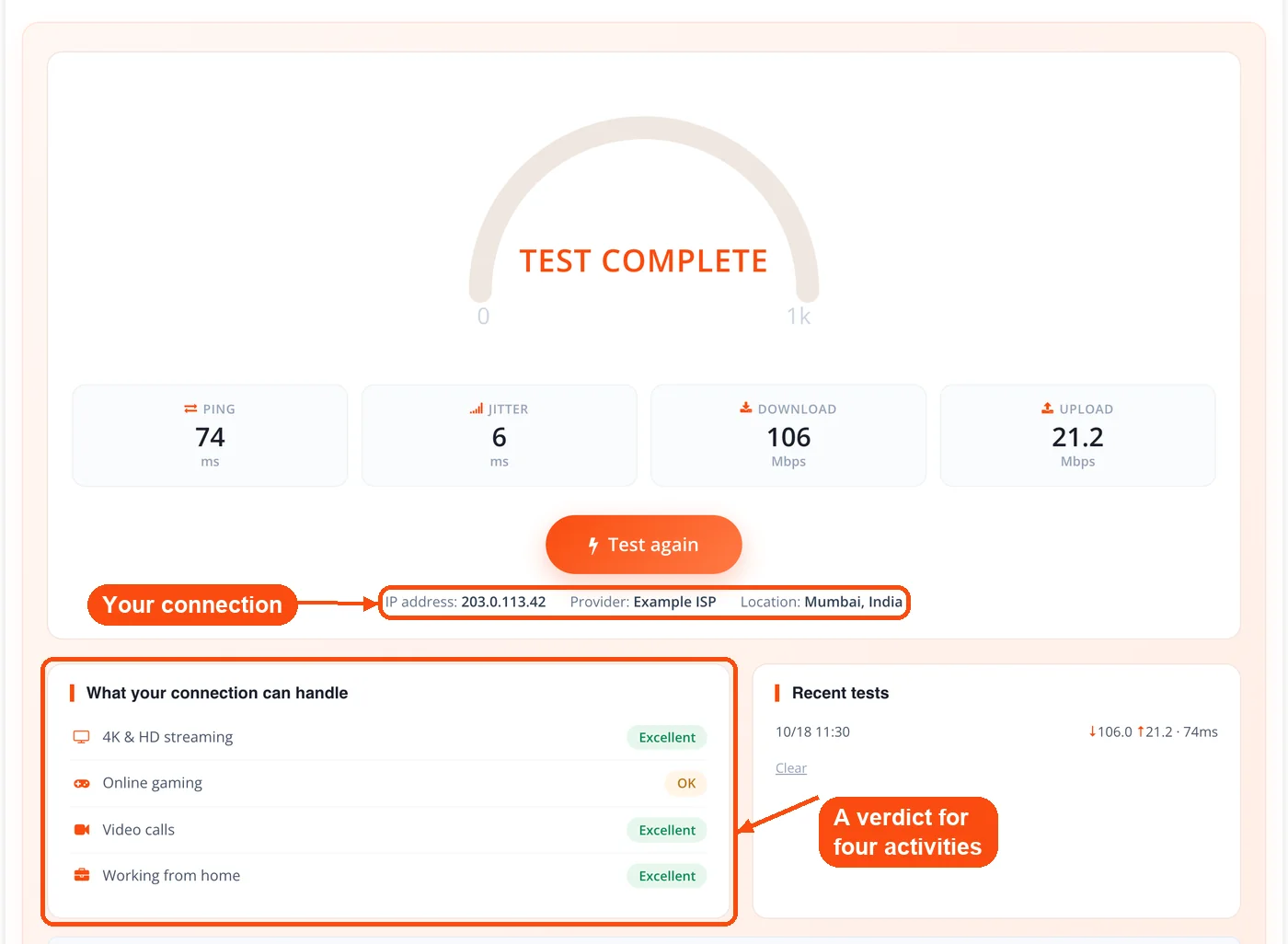
Activity guidance: The tool grades four common tasks (4K streaming, gaming, video calls, and working from home) against your numbers, giving a verdict in words.
Saved test history: Recent runs stay in your browser so you can compare morning against evening, or Wi-Fi against wired, without writing anything down.
Runs anywhere, in 18 languages: Plain JavaScript with no plugins works the same on Chrome, Firefox, Safari, Edge, and mobile browsers, and the interface is translated for 18 languages, not English only.
How ToolsPivot's Internet Speed Test Works
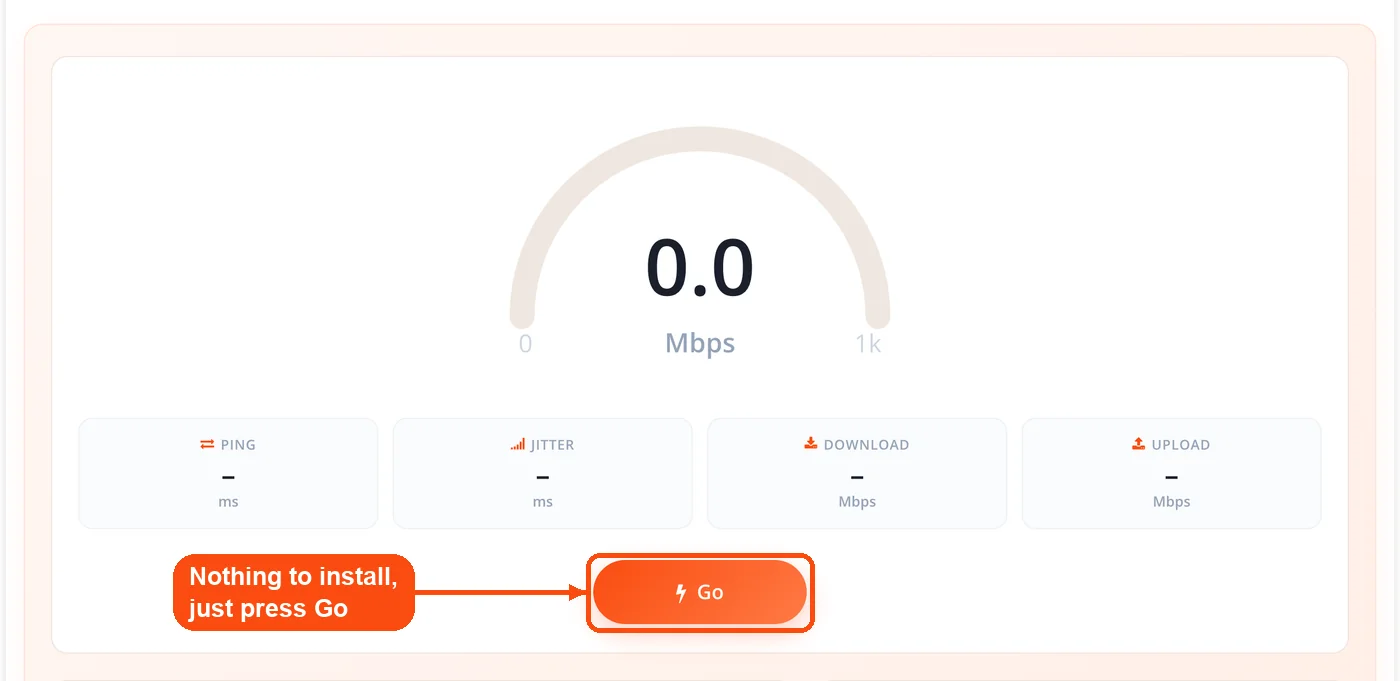
Press Go: Open the page in any modern browser on phone, tablet, laptop, or desktop and press Go. Nothing to install and nothing to configure.
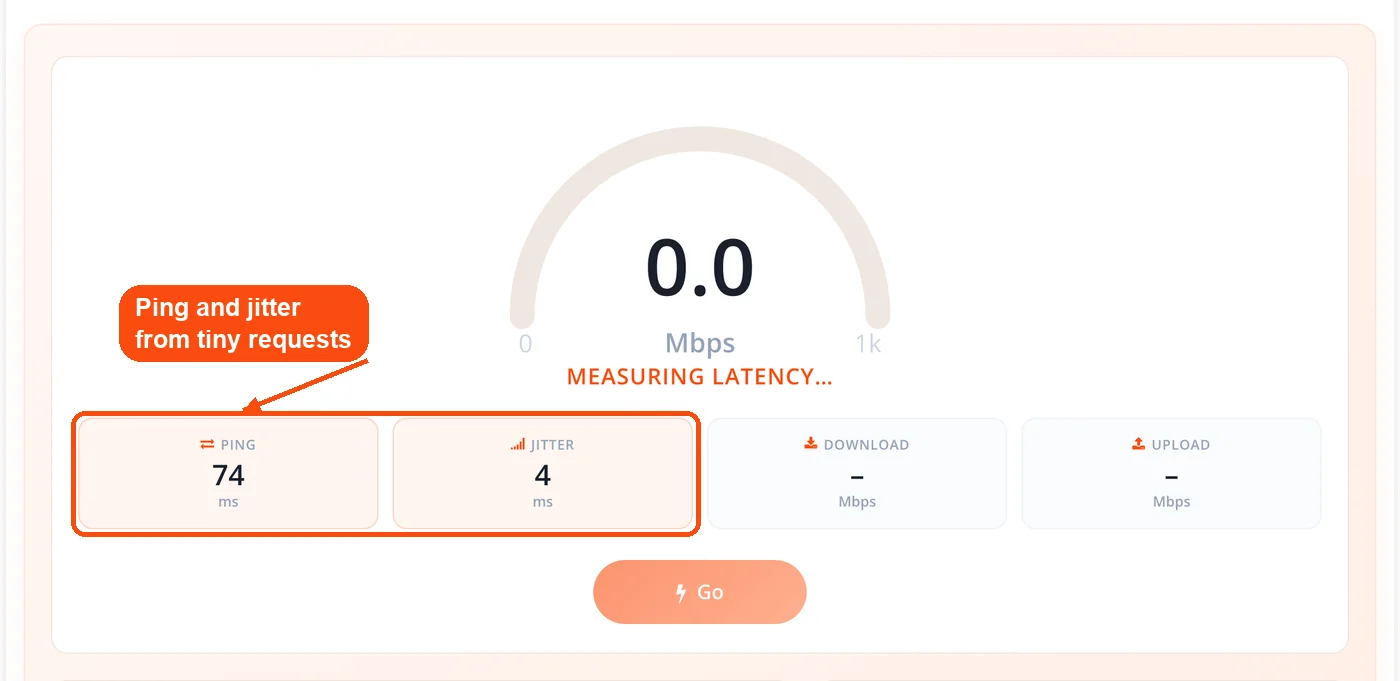
Latency runs first: The test fires a short series of tiny requests to read your ping and jitter, discarding the first sample so a fresh connection does not skew the number.
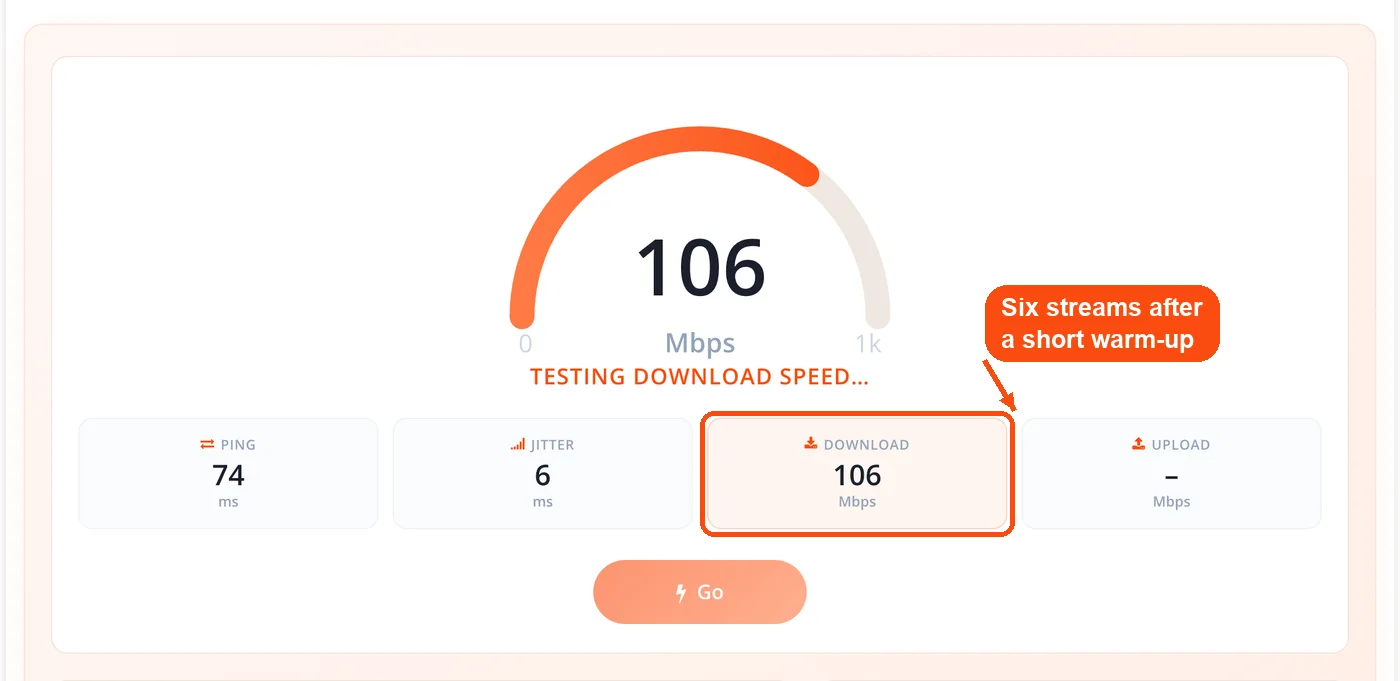
Download is measured: Six parallel streams pull random data for a few seconds after a brief warm-up, and the total received divided by the time gives your download speed in Mbps.
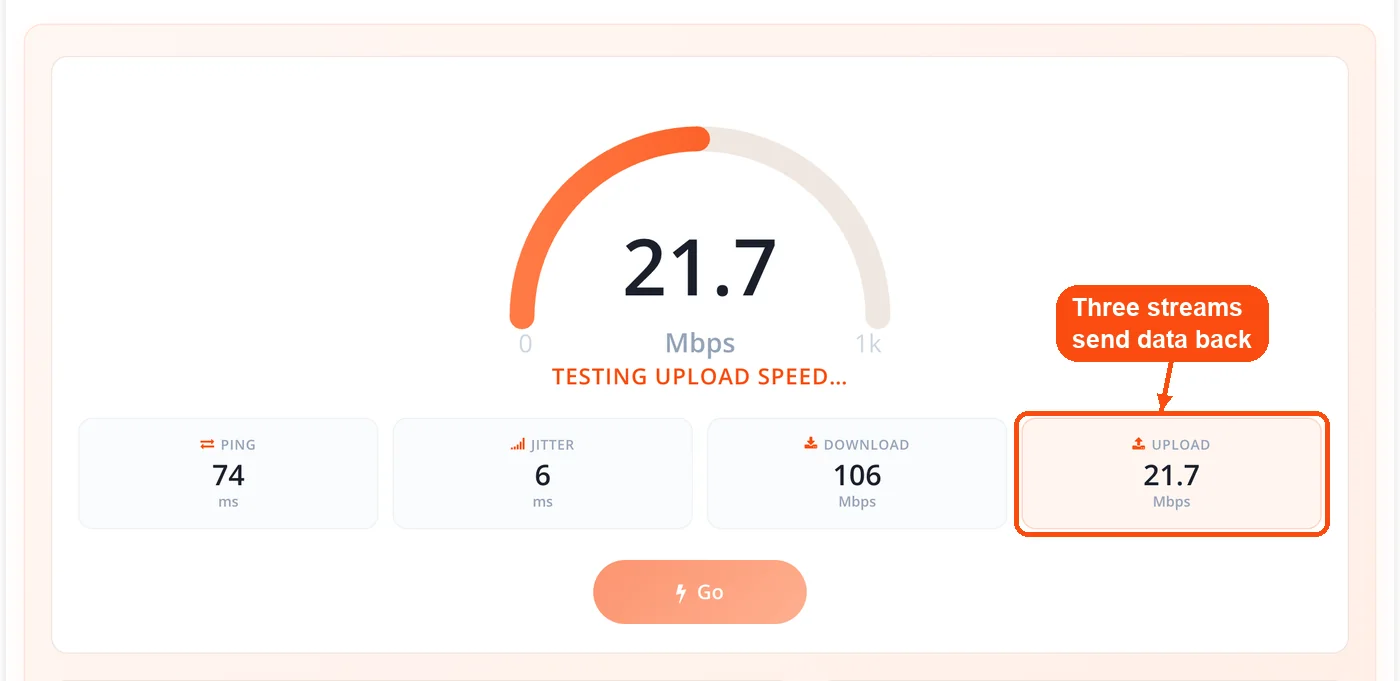
Upload is measured: Three parallel streams send random data back the same way, reporting your upload speed in Mbps.
Read your report: The dial settles, your IP, provider, and location appear, four activities get a plain-English verdict, and the run is saved. Nothing is stored on our servers.
When to Use an Internet Speed Test
Run a speed test whenever your connection feels slow, after you change equipment, or when you want evidence for a call with your ISP. It is most useful at the moment something feels wrong, since speed changes minute to minute. These are the situations where a quick test pays off:
After a plan or upgrade: Confirm the provider delivers the speed you pay for.
When video calls stutter: High jitter or weak upload usually explains choppy Zoom and Teams calls better than raw download speed does.
Before a gaming session: Check ping and jitter first, since a low, steady ping matters more than download numbers for competitive play.
When a website loads slowly: Test your own connection first. If it is fine, the slowdown likely sits on that site's server, which you can confirm with a server status check.
Across different times of day: Congestion peaks in the evening, so a morning and an evening result together tell the real story.
On each device you own: A newer phone and an older laptop on the same network can read very differently, pointing straight at aging hardware.
One edge case worth remembering: this test measures your overall connection, not the speed to one destination. If a single app is slow while your test looks healthy, the issue is on the far end, not your line.
Common Use Cases
Disputing your ISP bill
Context: Your plan advertises 500 Mbps but streaming buffers every evening. Process:
- Plug into the router with an Ethernet cable to remove Wi-Fi variables.
- Run the test three times each at morning, afternoon, and evening.
- Save the results from your browser history as your record.
Result: You walk into the support call with dated numbers, not a vague complaint.
Diagnosing a slow website you own
Context: Visitors say your site is slow, and you are not sure whose problem it is. Process:
- Confirm your own connection is healthy with a quick test.
- Check the page itself with the page speed checker.
- See whether heavy assets are the cause with the page size checker.
Result: You separate a visitor-side connection problem from a server-side one.
What Is a Good Internet Speed Test Result?
The raw Mbps figure is only useful once you know what "good" looks like for you. If you are unsure how to read internet speed test results, take each number in turn. Download speed controls page loads, streaming, and how fast files land, and Netflix recommends about 5 Mbps per stream for HD and 25 Mbps for 4K, so multiply that by your screens and 100 Mbps becomes a sensible floor. Upload speed is the number people forget: it governs call quality and cloud backups, and residential cable usually runs upload far slower than download while fiber often matches both ways. If your calls look bad but download is high, upload is the first place to look.
Ping under 20 ms is excellent for competitive gaming on Steam, PlayStation Network, or Xbox Live, 20 to 50 ms is fine for casual play and calls, and above 100 ms you feel real lag. If ping spikes far higher than usual, a routing problem may sit between you and common servers, which a DNS lookup can help reveal. Jitter below 30 ms means a stable line: if ping is how long the trip takes, jitter is how bumpy the road is, and high jitter makes voice calls cut out even when average speed looks fine.
How Much Speed Do You Actually Need?
The FCC raised its broadband benchmark to 100 Mbps down and 20 Mbps up, but that is a floor, not a target. Most guides suggest 50 to 100 Mbps per active person in the home. The table below is a practical starting point for matching a plan to how you use it.
| Activity | Minimum Download | Recommended |
|---|---|---|
| Email and web browsing | 5 Mbps | 10+ Mbps |
| HD video streaming (per device) | 5 Mbps | 10 Mbps |
| 4K streaming (per device) | 25 Mbps | 35 Mbps |
| Video conferencing (Zoom, Teams) | 3 Mbps up/down | 5+ Mbps up/down |
| Online gaming | 25 Mbps + low ping | 50+ Mbps + under 30 ms ping |
| Working from home (cloud apps) | 25 Mbps | 50+ Mbps |
| Large file uploads/downloads | 50 Mbps | 100+ Mbps |
| Smart home (cameras, IoT) | 5 Mbps/device | 10 Mbps/device |
A household of four with moderate use should aim for at least 200 Mbps, while gamers, remote workers, and heavy uploaders sharing a line should target 300 Mbps or more. Site owners have a second reason to care: server response time affects rankings, which you can check with the website SEO checker.
Getting Accurate Results
A speed test captures your connection at one moment, so a few habits make the reading more honest. Use a wired connection when you can, since Wi-Fi adds interference and distance that a cable removes. For a Wi-Fi speed test, run it once next to the router and once where you usually sit, so you can see how much the signal loses on the way. Close streaming apps and pause cloud sync like Google Drive and OneDrive, since background traffic eats into the result. Turn off your VPN for the first run, then test at more than one time of day and average a few runs.
One point is specific to this test: it measures the path between your device and our server, so a tool using a server physically closer to you may read slightly higher. That is expected. If you want to confirm which device and browser you are testing from, the browser detection tool shows exactly what your connection reports.
Troubleshooting Slow Results
Disappointing numbers usually have a cause you can find before blaming the ISP. Older Wi-Fi 4 (802.11n) routers cap around 150 Mbps on the 2.4 GHz band, so a 500 Mbps plan cannot get through them, while a Cat5 cable maxes at 100 Mbps where Cat5e handles gigabit, so an old cable from a drawer can be your whole problem. Switching to the 5 GHz band within about 30 feet of the router also clears the congestion that crowds apartments. If a slow site is the real complaint rather than your connection, resolve its host with the domain to IP tool and rule out redirect waste with a broken link check before assuming the fault is on your end.
How It Compares to Ookla and Fast.com
Speedtest by Ookla is the most recognized name in the category, with a native app and a large server network, though the app requests permissions and shows banner ads. Fast.com by Netflix is clean and ad-free, but it opens on download only and tucks upload and latency behind a "Show more info" button. ToolsPivot aims for the middle: no app to install, no ads, and all four metrics on screen from the first run.
The honest trade-off is server distance. Ookla and Fast.com route to large, geographically spread networks, so on a very fast line they can occasionally read higher than a single-endpoint test. What you gain here is a result that reflects one clear path, guidance on what your connection can do, your IP and provider on the same screen, and a saved history, all without a download or a login.
Honest Limitations
No speed test is perfect, and being clear about the edges is part of trusting the number. This test measures the connection between your device and our server specifically, so a tool using a closer server may show a slightly different figure. Browser-based tests also depend on your device and browser, and on very fast multi-gigabit fiber the browser itself can become the ceiling before your line does.
The result reflects one moment, and Wi-Fi signal, other devices, VPNs, and time of day all shift it. It measures your overall connection, not the speed to one website, so a slow site with a healthy test usually points to that site's server. For a site you suspect has a deeper problem, check it with the SSL certificate checker or a WHOIS lookup to see the full domain picture.
Frequently Asked Questions
Yes, it is completely free with no limits. You can run as many tests as you want with no account and no daily cap, and every run includes all four metrics: download, upload, ping, and jitter.
Press Go at the top of this page and the test shows your current download and upload speed in Mbps, plus ping and jitter, in under 30 seconds. Your IP address, provider and city appear under the result, so you know which connection was measured. Run it a few times across the day for a fair picture.
Ping, also called latency, is the time in milliseconds a tiny request takes to reach the test server and come back. Jitter is how much that time changes from one sample to the next. Ping under 20 ms is excellent for gaming, and jitter below 30 ms means a stable line for calls.
Latency is the delay before data starts moving: the time a tiny request takes to reach the test server and come back, measured in milliseconds. This test reports it as your ping, taking the fastest of ten round trips after discarding the first one. Latency is separate from bandwidth, so a fast plan can still feel slow in games and calls if latency is high.
The test transfers random data between your device and a server in both directions and times it. It measures how fast data downloads and uploads, how long a tiny request takes to make a round trip (your ping), and how much that round trip varies (your jitter).
ISPs advertise "up to" speeds, meaning the best case under ideal conditions. Wi-Fi interference, router limits, evening congestion, and the number of devices sharing your line all pull the real number down. Testing over Ethernet with other devices disconnected gets you closest to your plan's maximum.
Netflix recommends about 5 Mbps per stream for HD and 25 Mbps for 4K. A household streaming on several screens at once wants around 100 Mbps for headroom, since each stream draws its own bandwidth.
Mbps (megabits per second) measures internet speed, while MBps (megabytes per second) measures file transfer size. One byte is eight bits, so a 100 Mbps connection downloads at about 12.5 MBps. Speed tests report Mbps because that is how ISPs sell plans.
Significantly. Wi-Fi adds overhead from interference, distance, and sharing with other devices, while an Ethernet cable reads much closer to your plan's advertised maximum, so testing both ways shows where your bottleneck sits.
Under 20 ms is ideal for competitive titles and 20 to 50 ms works well for casual multiplayer, while above 100 ms puts you at a real disadvantage. A wired connection almost always gives lower, steadier ping than Wi-Fi.
Yes. The test runs in mobile browsers on both iOS and Android with no app. For the most accurate reading, stand close to your Wi-Fi router or test on cellular in a strong-signal area, and close background apps first.
No. The random data used to measure your speed is never saved, and your recent results stay only in your own browser. There is no login and no personal data collected.
Not directly. A speed test measures your overall connection, not the path to one destination. If a single site loads slowly while your test looks normal, the bottleneck is usually on that site's server, which a hosting performance check can help diagnose.
