Add Page Numbers to PDF is a free browser tool that writes page numbers onto an existing PDF without uploading the file anywhere. DocPivot built it around the two complaints people raise most often about page numbering: a count that keeps including the cover, and numbers that print on top of text already on the page. You choose the wording, position, font, color and page range, and every thumbnail shows the exact result before you export.
What DocPivot Add Page Numbers to PDF Does
The tool opens your PDF on your own device and draws a page label onto each page you select. It uses pdf.js to render the thumbnails and pdf-lib to hold and write the document, so no part of the file travels to a server. Every label is real vector text: it stays sharp at any print size, and readers can search for it and copy it in Adobe Acrobat, macOS Preview, Chrome or any other PDF viewer.
Who Uses It
The people who need page numbers most are the ones who assemble documents from several sources. A graduate student combining chapter files with Merge PDF, a paralegal building a court bundle, and an office manager exporting monthly reports through Word to PDF all end up with the same thing: a file that has no numbers, or numbers that restart in every section.
The Problem It Solves
Most numbering tools count every sheet, so a document with a cover and a contents page shows "Page 3" on its first body page and a total that does not match what is printed. This tool numbers only the pages you choose, in order and with no gaps, and takes the total from the last number it actually prints. When an existing footer is in the way, you can move the number further from the edge, put a white box behind it, or shrink the page content slightly so the number sits in clear space. If your scan produced empty sheets, clear them first with Remove Blank Pages so they do not take a number.
Key Benefits of DocPivot Add Page Numbers to PDF
- Your file stays private: The PDF is processed by your browser and never leaves your device, which matters for contracts, HR records and unpublished manuscripts.
- Totals that match the page: "Page 1 of 9" means nine numbers were printed, even when the cover and title page carry none.
- Numbers never cover text: Make room, the white box and an adjustable distance from the edge give you three separate ways to keep the label readable.
- The preview equals the file: The thumbnails and the exporter call the same function, so they cannot disagree about which pages are numbered or what each label says.
- No added file weight: Latin labels use the standard PDF fonts Helvetica, Times and Courier, which add nothing to the file size.
- Labels in your language: The "Page 1" styles write the word from your interface language, so a Spanish visitor gets "Página 1" on the page.
- No account, no cap: There is no sign-up, no watermark and no daily limit, and the only ceiling on file size is your device memory.
Core Features of DocPivot Add Page Numbers to PDF
- Five number styles: Choose 1, 1 / 10, Page 1, Page 1 of 10, or write your own custom text for formats the presets do not cover.
- Custom text placeholders: Up to 60 characters, where {n} prints the page number, {p} the last number, {file} the file name and {ext} its extension.
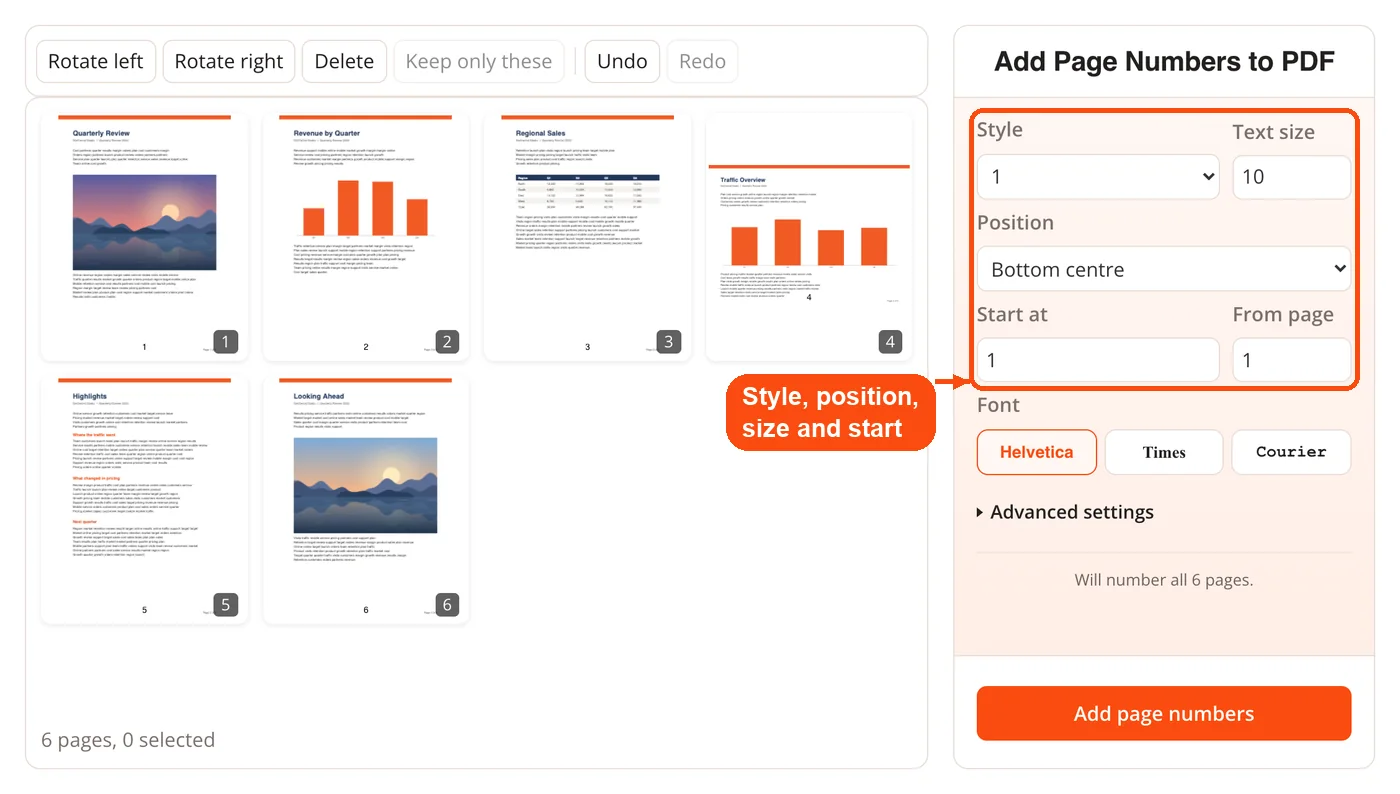
- Six positions: Top or bottom, combined with left, center or right. Bottom center is the default.
- Start at and From page: Set the first number printed and the first sheet that receives it, which is how you leave a cover or title page blank.
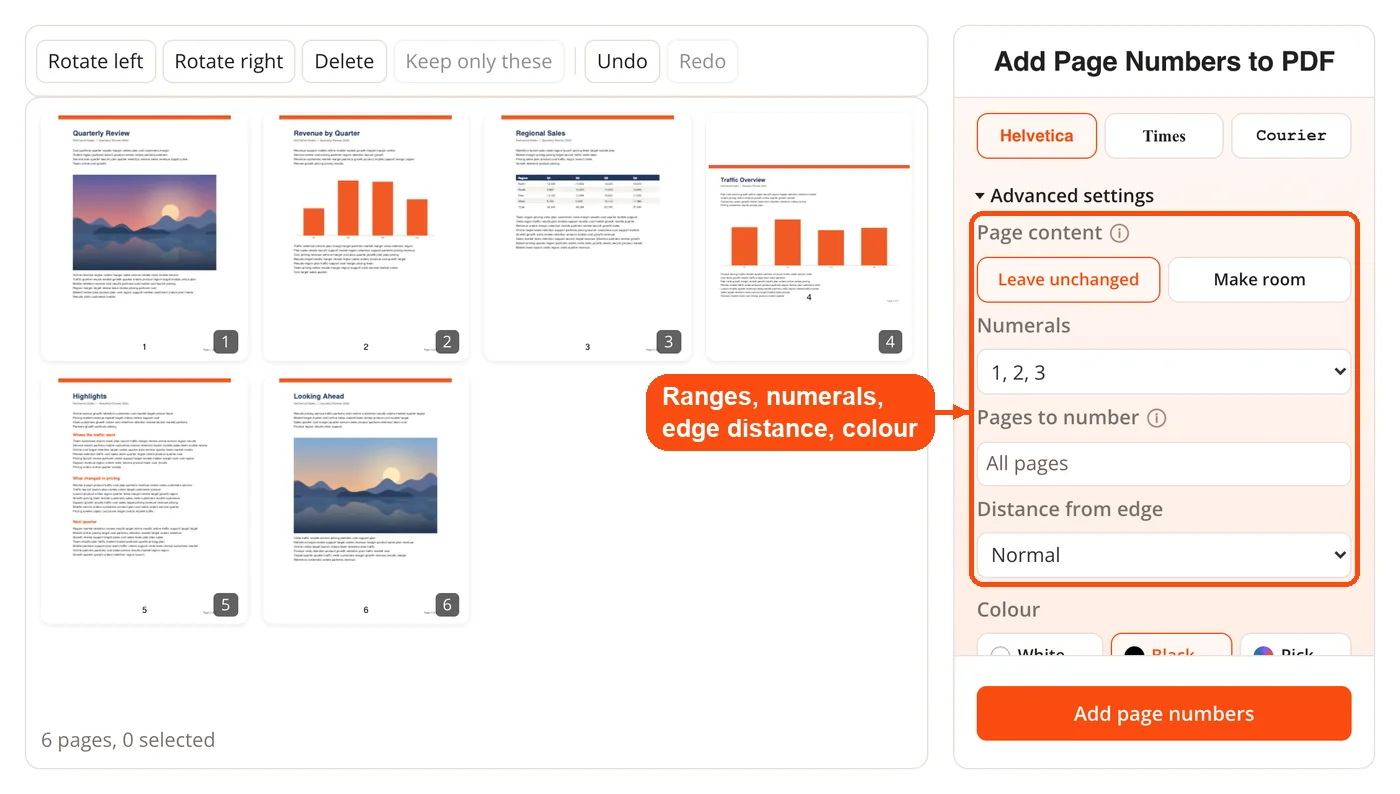
- Page ranges: Type 3-20, 1-4, 8 or an open-ended 15- to number part of a document. Text that is not a valid range is refused, not half-read.
- Roman numerals: Lowercase (i, ii, iii) or uppercase (I, II, III) for every value from 1 to 3999.
- Distance from edge: Narrow (16 pt), Normal (28 pt), Wide (48 pt), or a custom value from 0 to 100 mm set separately for each axis.
- Font, size and color: Helvetica, Times or Courier from 6 to 48 pt, in black, white or any shade from the color picker.
- White box behind the number: A white rectangle, padded by about a third of the text size, hides photos, dark bands and old footer lines.
- Swap sides on facing pages: Left and right positions alternate on every second sheet, keeping the number on the outer edge of a printed booklet.
- Page tidy-up first: Rotate, delete or select pages inside the tool before numbering. For bigger reshuffles, sort the document in Organize PDF and bring the result back.
- Correct placement on trimmed pages: Cropped and rotated pages are measured as the reader sees them, so files trimmed with Crop PDF still get the number at the visible bottom edge.
How DocPivot Add Page Numbers to PDF Works
- Open your PDF. Drop the file onto the page. It loads in your browser and the page thumbnails appear.
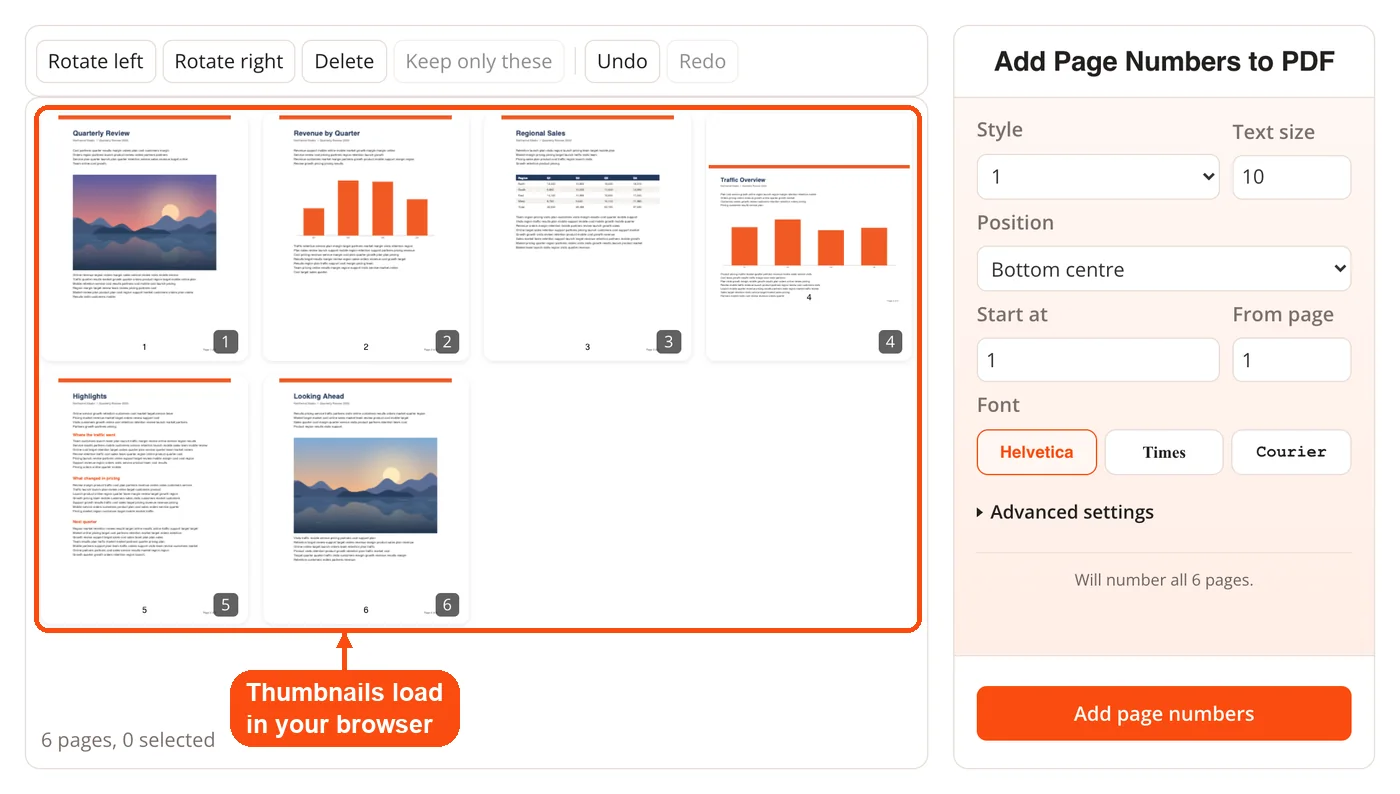
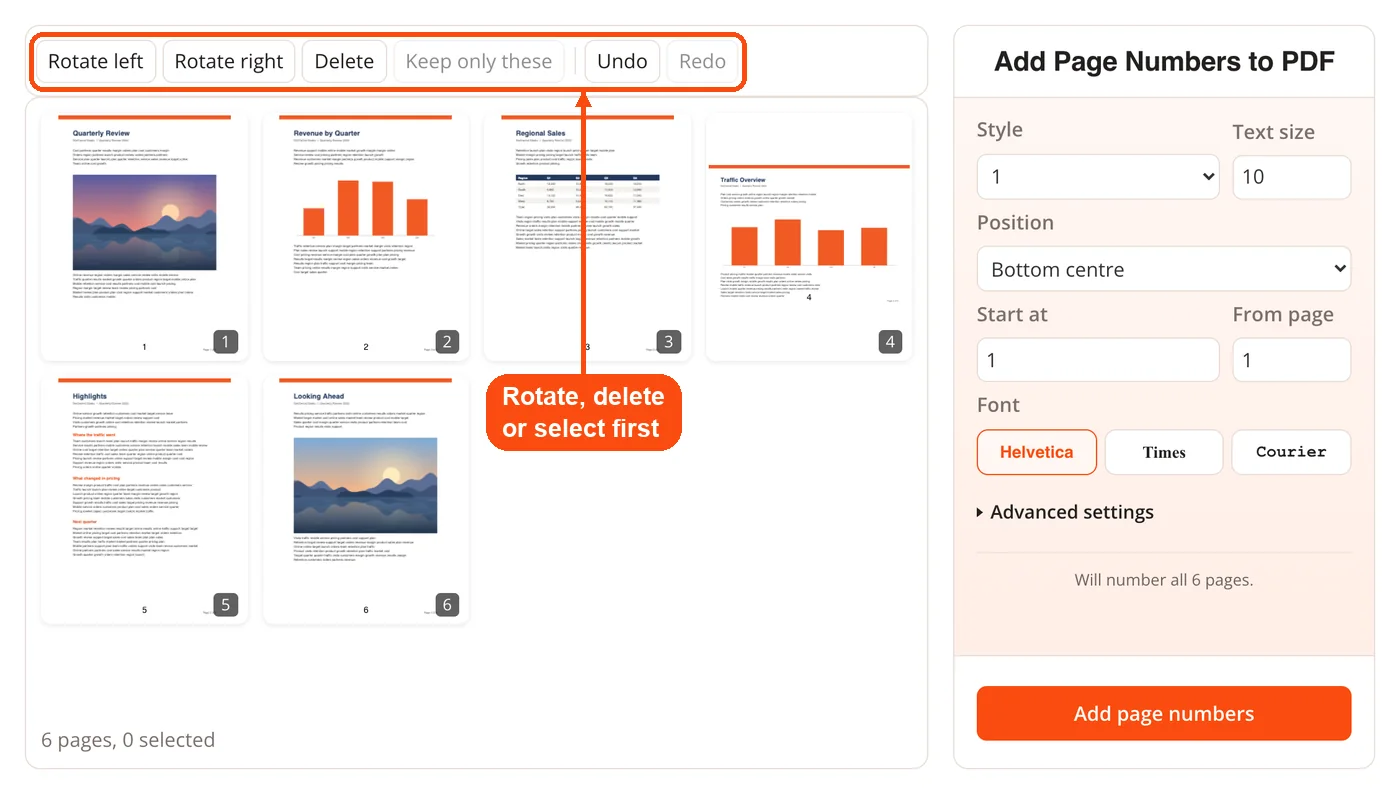
- Tidy the pages if needed. Rotate, delete or select pages. The numbers follow the pages as they stand when you export, not the original file.
- Pick style, position and font. Choose a number style, a position and a text size, then set Start at and From page.
- Open Advanced settings. Set page ranges, roman numerals, distance from the edge, color, the white box, Make room and facing pages.
- Check the live preview. Each thumbnail shows its exact label, and a line above the button confirms the count, for example "Will number 5 of 6 pages."
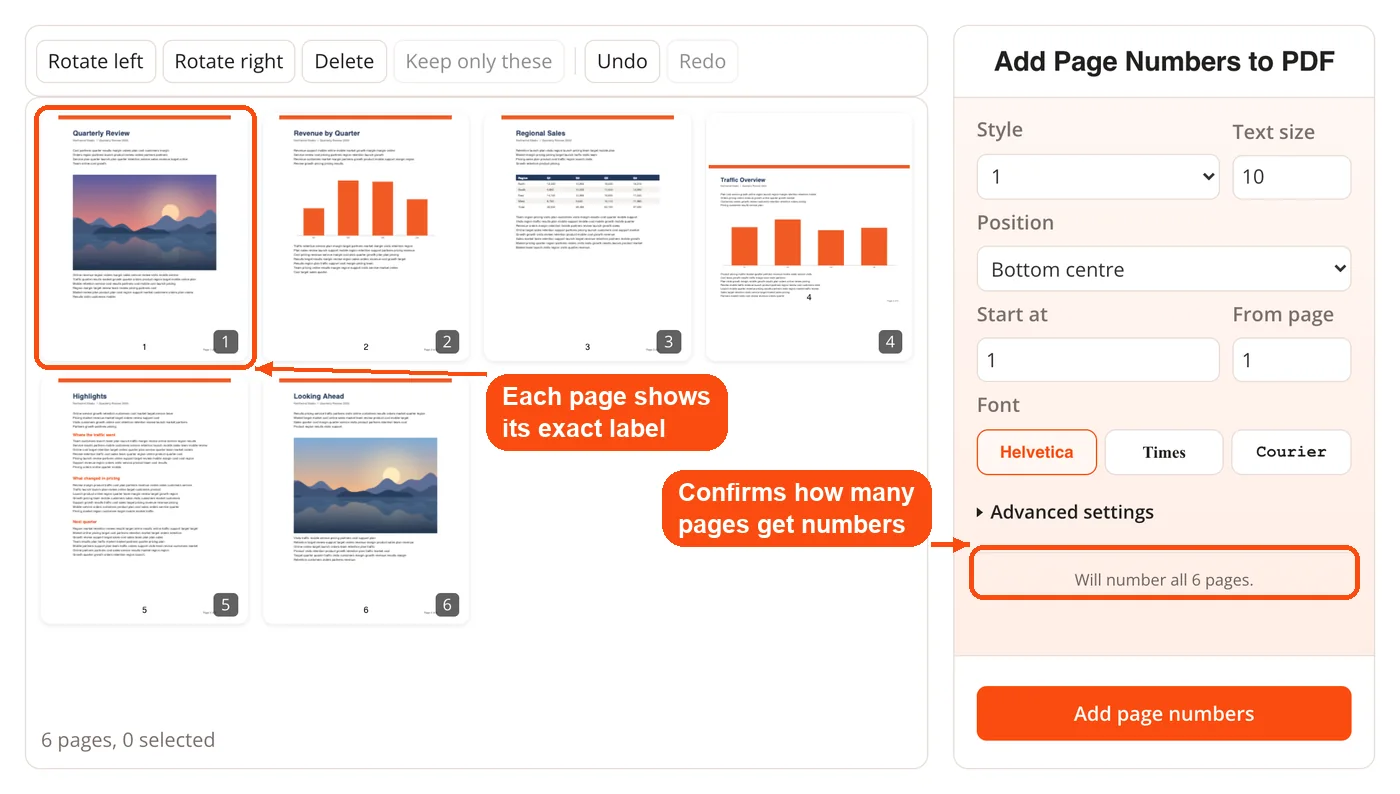
- Press Add page numbers. One press builds the file. Nothing is saved to your device until you press Download.
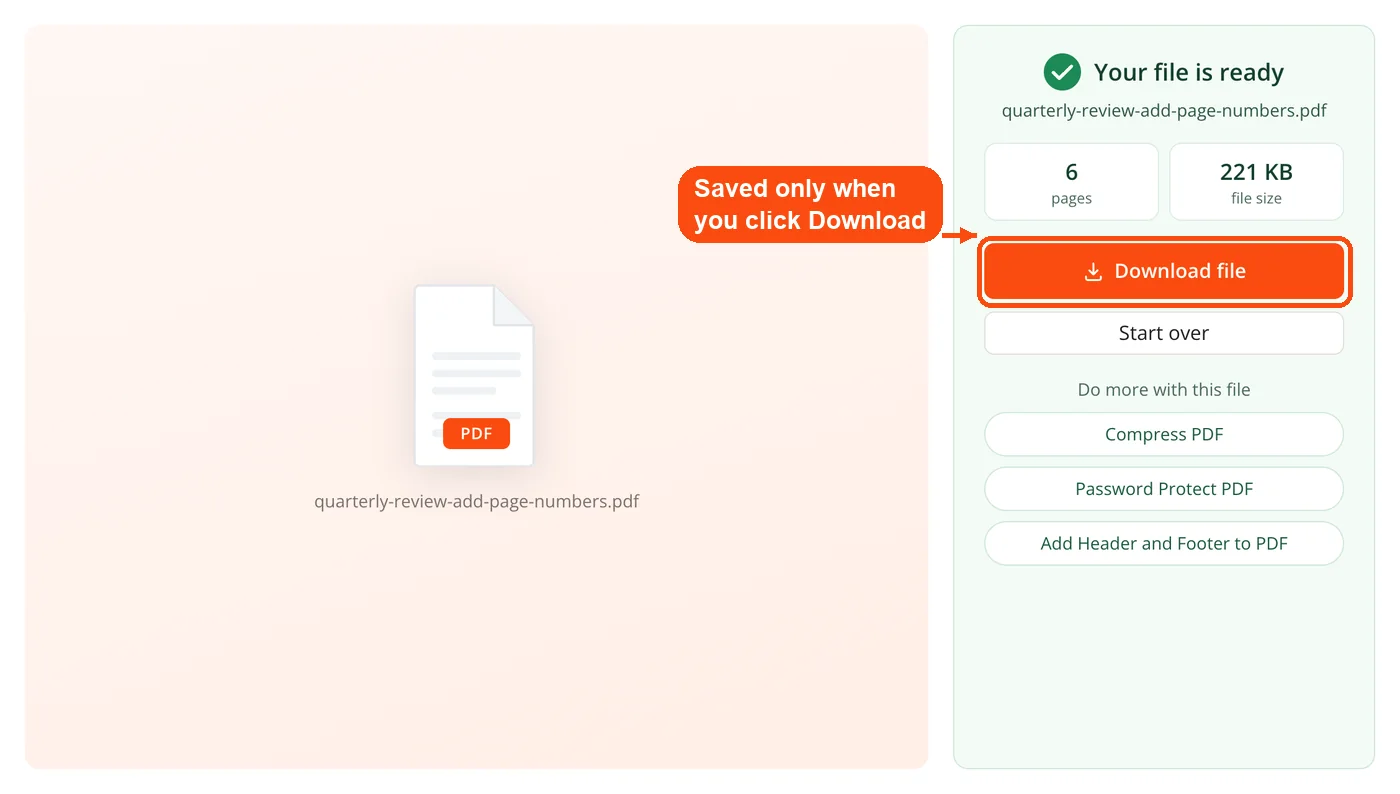
The button stays disabled when the settings cannot produce a result, and a short sentence explains why. The three cases are custom text with no place for the number, a page range that is not a valid range, and a selection that leaves no pages to number. DocPivot runs numbering as the very last step of the export, which is why the total always reflects the final page count.
When to Use DocPivot Add Page Numbers to PDF
This tool is most useful when a PDF is finished but its pages carry no numbers, or carry numbers that no longer match the document. That usually happens after merging, deleting or reordering pages.
- After merging separate files: One continuous sequence replaces the restarted or missing numbers that each source file brought with it.
- Academic submissions: Theses and dissertations often need roman front matter and arabic body pages that start again at 1.
- Legal and exhibit bundles: Custom text such as "Exhibit A-{n}" lets everyone in a hearing cite the same page.
- Printed booklets and zines: Facing-page mode keeps numbers on the outer edge, where readers look when flipping pages.
- Scanned or image-heavy pages: The white box keeps a number readable on top of photos, charts and dark backgrounds.
- Files with an existing footer: Make room shrinks the content slightly so the new number has its own clear band.
A booklet printed on both sides also needs the right page count before numbering, so add any missing verso with Insert Blank Page in PDF first. If your PDF already carries page numbers you want to replace, this tool cannot remove them; see the limitations section below.
DocPivot Add Page Numbers to PDF Use Cases
Thesis With Roman Front Matter
Context: A graduate student needs i to v on the preface pages and 1 onward on the body, with no number on the title page.
Process:
- First pass: set Pages to number to 2-6 and choose lowercase roman numerals.
- Second pass on the new file: set Pages to number to 7- with numerals 1, 2, 3.
- Check both sequences on the thumbnails.
Result: The title page stays blank, the preface runs i to v, and chapter one starts cleanly at 1.
Court Bundle With Exhibit Labels
Context: A paralegal must label a 48-page exhibit so counsel and the court can cite pages precisely.
Process:
- Remove personal data with Redact PDF before adding any labels.
- Choose Custom text and enter Exhibit A-{n} of {p}.
- Place it bottom right, turn on the white box, and export.
Result: Every page reads "Exhibit A-1 of 48" through "Exhibit A-48 of 48," clear of any letterhead or stamp.
Printed Booklet or Zine
Context: A small publisher prints a 24-page booklet and wants numbers on the outer corners of every spread.
Process:
- Choose bottom right and turn on Swap sides on facing pages.
- Set both From page and Start at to 3, so the covers stay clean and each number matches its printed position.
- Arrange the numbered file for printing with Multiple Pages Per Sheet PDF.
Result: The numbers alternate sides on every spread and sit on the outer edge once the booklet is folded.
Scanned Field Report
Context: An inspector scans a 30-page site report full of photos that run close to the bottom edge.
Process:
- Make the scan searchable with OCR PDF so the text can be found later.
- Choose Page 1 of 10, bottom center, Wide distance.
- Turn on the white box so numbers stay readable on photos.
Result: Each page carries a legible "Page 7 of 30" without any photo detail being hidden behind text.
How DocPivot Add Page Numbers to PDF Counts Skipped Pages
The count follows the numbered pages, not the physical sheets. Pages inside your range, from your From page onward, are numbered in order with no gaps. The total used by {p} and the "of 10" styles is the last number actually printed: the Start at value plus the number of numbered pages, minus 1.
| Setting on a 10-page PDF | Sheet 3 shows | Sheet 10 shows | Total printed |
|---|---|---|---|
| From page 1, start at 1 | Page 3 of 10 | Page 10 of 10 | 10 |
| From page 3, start at 1 | Page 1 of 8 | Page 8 of 8 | 8 |
| From page 3, start at 5 | Page 5 of 12 | Page 12 of 12 | 12 |
A document with a skipped cover therefore never says "Page 1 of 10" when only nine numbers exist. Roman numerals cover every value from 1 to 3999. Larger values fall back to ordinary digits.
DocPivot Add Page Numbers to PDF Make Room Option Explained
Make room shrinks the content of every page just enough to free a band for the number. The band equals the distance from the edge plus the height of the text, and the text height counts about 35% more when the white box is on. The content is scaled by the page height minus the band, divided by the page height. For a 10 pt number at Normal distance on an A4 page, that comes to 95.5%, and the tool never shrinks a page below half size.
Three details keep the result safe to send. Nothing is re-rendered, because the page's existing drawing instructions are wrapped in a single scale-and-move transform, so text stays selectable and images keep their resolution. Every link rectangle moves with the content, so clicking a word still opens the same target. Every page shrinks, numbered or not, because a document where only some pages shrank would look like a printing fault.
DocPivot Add Page Numbers to PDF Compared With iLovePDF, Sejda, PDF24 and Smallpdf
We tested each service on its own page with the same PDF in September 2026. The table lists features that differ, including the ones where rivals offer more.
| Feature | DocPivot | iLovePDF | Sejda (web) | PDF24 | Smallpdf |
|---|---|---|---|---|---|
| Where the file is processed | In your browser | Uploaded | Uploaded | Uploaded | Uploaded |
| Number positions | 6 | 9 | 6 | 9 plus an angle | 6 |
| Roman numerals | Lower and upper | No | Upper | No | No |
| Shrink content to make room | Yes | No | Yes | No | No |
| White box behind the number | Yes | No | No | No | No |
| Facing pages | Yes | Yes | No | No | No |
| Live numbers on thumbnails | Yes | Position only | Not tested | No | Not tested |
iLovePDF and PDF24 offer more positions, PDF24 adds a transparency setting and a rotation angle, and Sejda can target odd or even pages, which this tool does not. The upload services state that files are deleted after processing, within one hour for PDF24 and Smallpdf and within two hours for iLovePDF.
DocPivot Add Page Numbers to PDF Limitations
The tool handles one PDF at a time. Continuous numbering across several separate files is not offered, so merge them first and then number the combined file. PDF24 and Smallpdf can process multiple files in one run, which is faster if you number many unrelated documents.
Each run applies one numbering style. Roman front matter followed by arabic body pages takes two passes, using Pages to number each time. The tool also adds numbers without replacing old ones: existing page numbers stay on the page, and nothing detects or removes them. For running titles, dates or a document name in the margin, Add Header and Footer to PDF is the better fit.
Text size is set in points, so on a document that mixes A4 with very large sheets the number looks smaller on the large sheets. On the preview, position, wording, page selection, color, box and shrink are exact, while letter shapes come from the browser version of the font and can differ very slightly from the finished file.
DocPivot Add Page Numbers to PDF FAQ
Yes, it is completely free. There is no account, no watermark and no daily limit.
No, the file never leaves your device. All processing happens in your browser with pdf-lib and pdf.js.
Set From page to 2 and Start at to 1. The cover stays blank and the second sheet shows 1.
The total counts only the numbers actually printed. With one skipped cover, nine numbers exist, so the total is 9.
Yes, type a range such as 3-20, 1-4, 8 or 15- in Pages to number. The syntax matches the DocPivot Watermark PDF tool, so a range means the same thing in both.
Yes, lowercase or uppercase, for any value from 1 to 3999. Larger values fall back to ordinary digits.
Increase the distance from the edge, turn on the white box, or choose Make room. Make room shrinks every page slightly so the number sits in clear space.
No, the content is scaled as vectors, not re-rendered. Text stays selectable, images keep their resolution and links still work.
Yes, use Custom text with {n}, {p}, {file} and {ext}. A label like {file}.{ext} page {n} of {p} prints the file name on every page.
Yes, a font that can write those characters is embedded automatically. Joined scripts such as Arabic, Urdu and Bengali are laid out so they read correctly.
Not directly, because the tool numbers one file at a time. Merge the files first, then number the combined PDF.
The current settings cannot produce a result. A short sentence next to it names the cause, such as an invalid page range.
Download it, or continue to the suggested next steps. You can shrink it for email with Compress PDF or lock it with Password Protect PDF.
